Showing posts with label linux. Show all posts

Sunday, July 31, 2016

How To: Change your desktop background in BSPWM

Howdy! So, you've installed bspwm and you noticed that it's not as fancy as what you're used to. No fancy settings for changing your desktop environment, no 'settings', nothing. We're left to our own devices.

Thankfully, Linux is full of devices for us to use. One of which, feh, will let us change what wallpaper is used by bspwm.

Install feh

The first step is to install feh. Feh is small program used to view images without using a ton of resources. Luckily, feh has been adapted to work as a background setter.

Ubuntu
    sudo apt-get install feh
Fedora
    sudo dnf install feh
Arch
    sudo pacman -S feh

Use Feh
In order to simply use feh as a photo viewer, you can call "feh picture.jpg", where "picture.jpg" is any image file that ImageMagick can open. In order to use feh to create a desktop background, call this command:

feh --bg-center picture.jpg
Once again, where picture.jpg is just about any image file.

And there you have it! A desktop background... for now. The thing is, after this session, the background will revert to normal. In case you want this to remain your desktop background, we need to edit out bspwmrc file.

Configure feh
 In your bspwmrc file, which is usually located in ~/.config/bspwm/bspwmrc, we need to call feh on startup. On mostly any line, preferably towards the end of the file, add this line:
feh --bg-center ~/Pictures/background.jpg
where the filepath is the path to the file you plan to use for your background. Now, when you start bspwm, it should set up the background for you automatically.

Further Configuration

Now, there are further ways that you can configure feh. Right now it's set to center the image in the middle of the desktop, surrounding it with a black border. If you'd prefer to have it stretch, or tile, you can use these flags in place of --bg-center:

--bg-fill : This will preserve the aspect ratio of the file, and optionally cut off whatever part of the image doesn't scale.

--bg-max : this will scale the image to its maximum size, and put black borders on one side.


--bg-scale : Will distort the image to fit exactly within the confines of the desktop. Since this doesn't preserve the aspect ratio, stretching may be a result.

--bg-tile : Will repeat the image until it fits within the monitor.

Advanced Configuration
So, now you know how to get the desktop set up in bspwm. But, bspwm "configurability" is a bit more than your average configurability. We can do some pretty cool stuff with the fact that we're using a shell to set the desktop background.

How about instead of the earlier command, we put this in the configuration file:

feh --bg-center $(find ~/Pictures/Backgrounds -type f | shuf -n 1)
So that it randomly chooses a background out of a "Backgrounds" folder in your Pictures directory?

Anything like this is possible in bspwm. You can have it change based on the time of day, or the type of music playing, or... anything really. The choice is always yours with BSPWM!

How To: Install bspwm

Are you a Gnome or KDE user who is tired of the ordinary? Are you an i3 or herbstluftwm user who has heard the benefits of using bspwm? If you are, you have probably looked into it. And, furthermore, when you looked into it you may have found that it's a bit more involved than you had hoped. No worries! Following this guide should get you up and running with your very own bspwm configuration.

Install the Packages
Installing the packages is, unfortunately, a little but harder than just calling apt-get. We have to compile them. Now, a bit more fortunately, all of the dependencies for bspwm are readily available in your repositories.

Dependencies
On Ubuntu:
sudo apt-get install xcb libxcb-util0-dev libxcb-ewmh-dev libxcb-randr0-dev libxcb-icccm4-dev libxcb-keysyms1-dev libxcb-xinerama0-dev libasound2-dev libxcb-xtest0-dev

On Fedora:
sudo dnf install xcb-util-devel xcb-util-keysyms-devel xcb-util-wm-devel alsa-lib-devel dmenu rxvt-unicode terminus-fonts


Not too bad. What these commands do is install the dependencies that will be needed when we're building bspwm.

Build Tools
Since we're manually building bspwm, we need certain build tools. Libraries, compilers, etc. 
Ubuntu
sudo apt-get install gcc make
Fedora
sudo dnf groupinstall "Development Tools"
Alrighty. So, we have the dependencies and the build tools. Now, we need to download BSPWM.

The Packages

Let's download the two packages using git, now.
cd Downloads
git clone https://github.com/baskerville/bspwm.git
git clone https://github.com/baskerville/sxhkd.git
If all went well, you should have two folders in your 'Downloads' folder - "bspwm" and "sxhkd"

Compilation
The final step to installing the bspwm system itself is compiling it. To do this, go into the Downloads folder and type 

cd bspwm
make
sudo make install

   Now, if you're not used to compiling things, this process probably looks a tad scary. There should be a lot of text scrolling along in the terminal - that is okay. Unless you see "Error, exiting" during this step, everything is working fine.

After this, issue:

cd ..
cd sxhkd
make
sudo make install
If everything went well, we're ready to start doing some of the initial configuration. Awesome!

Configuration

Since bspwm and sxhkd are both installed, let's take a minute to analyze exactly where we are. We've installed bspwm, the window manager, and sxhkd, the keyboard daemon. How bspwm works this:

bspwm manages your windows. Where they're placed, their layout on your desktop, etc. It doesn't handle anything else, unlike traditional window managers.

bspc tells bspwm what to do. When you see bspwm moving windows, closing windows, etc. it's because bspc told bspwm over its socket file.

sxhkd listens to the keyboard for keyboard shortcuts. These keyboard shortcuts can execute any arbitrary command, although they are commonly used to issue bspc commands, such as the command that tells bspc to close a window, etc.

Running - With a display manager
Display managers control your X11 / Wayland (what makes your computer graphical, instead of all commands) sessions, as well as logging in. When you start your computer and see "username" and "password", you're looking at your display manager. Some common display managers on Linux are lightdm (commonly ubuntu), gdm (commonly gnome), lxdm (commonly lxde), and kdm (commonly kde).

bspwm comes with the files necessary to add the window manager to the display manager you already use. In order to use your display manager to log in, you need to copy the "bspwm.desktop" file (from bspwm/contrib/freedesktop). In the Downloads folder:

sudo cp bspwm/contrib/freedesktop/bspwm.desktop /usr/share/xsessions
Now, you can restart your display manager, or choose to reboot. bspwm should be an option in your display manager. You can skip the "Without a display manager" section and move onto configuration.


Running - Without a display manager

Without a display manager, things are a bit more advanced. I'm assuming that if you're choosing to forego using a display manager, that you're a fairly advanced user, so I'll keep it short. Change the contents of your ~/.xinitrc file to say
exec bspwm
And you'll be good to go. But wait! We have to configure the keybindings.

Keybindings and Autostart
Now, you should have bspwm completely installed on your system. However, if you tried to log into bspwm right now you would be greeted with... well, nothing. And, for the moment, that's fine. But the bad part is you won't be able to do anything either. In order to fix this, we need to set ourselves up some keybindings.

Bspwm comes with files with default configurations. Let's get started with the window manager by copying these default keybindings and behavior's over to their respective directories. First, we must create those directories.

mkdir ~/.config/bspwm
mkdir ~/.config/sxhkd

bspwm's configuration:

cp ~/Downloads/bspwm/examples/bspwmrc ~/.config/bspwm/
chmod +x ~/.config/bspwm/bspwmrc
sxhkd's configuration:


cp ~/Downloads/bspwm/examples/sxhkdrc ~/.config/sxhkd
Further configuration
Now, it may be preferable to edit either of these files. The function of bspwmrc in .config/bspwm is essentially an "autostart" file. It lists commands that bspwm should run when it starts up. Now, remember, bspwm is controlled via commands, so rules which govern how bspwm behaves are located in this file.

Things such as how monitors should be handled, window borders, rules for allowing certain windows to float, etc. are all configured here, as well as any programs you want to run when bspwm starts up (like, say, your bluetooth daemon).

sxhkdrc in .config/sxhkd controls keybindings. Keybindings for bspc are common, and important to make note of. By default, some of the most important default commands are:

super + return | urxvt
super + space | dmenu_run
super + escape | [reload sxhkd configuration]
super+alt+Escape | logout of bspwm
super+m | Change the desktop mode

These commands, especially super+return should get you started.
Note: super is the mod4 key on the keyboard, commonly called the "Windows" key as it usually dons the Windows logo
Now, with all of these files in place, we should be ready to start bspwm for the first time. If you don't have urxvt already installed, it's important to issue:

Fedora
sudo dnf install rxvt-unicode
Ubuntu
sudo apt-get install rxvt-unicode
So that you're able to use the terminal when you start using bspwm. The terminal is essential, as it will allow you to modify your sxhkd configuration once you're in bspwm.

If you'd like dmenu (it's an application launcher), issue:

Fedora
sudo dnf install dmenu

Ubuntu
sudo apt-get install suckless-tools
Using bspwm
 Now, start bspwm. If you installed bspwm into your display manager, you can select it from the menu there. If you chose to use .xinitrc, then use "startx" at a tty.

It may seem like it's not working when you start it. It will either show a black screen or the "splash screen" of the display manager when you first log into it.


This is how it looks on Ubuntu

Since we installed urxvt, we can launch the terminal with super+enter, or whatever you changed it to.

By default, it takes up the entire screen like this. But, notice that when you open another program, it will split the total space in half.


This is showcasing bspwm's tiling ability. However, bspwm can do so much more than the default sxhkd and bspwmrc files allow you to do.

Conclusion
Well, there we have it. We now have a working bspwm configuration, and we're ready to get tinkering! Typing "man bspc" at a terminal will show you all of the awesome things that you can do with bspwm, so there's plenty to try out in the new desktop.

This is the beginning of a series of articles about bspwm and sxhkd on this blog. For more, see below, where I'll be adding additional content as it is made:

Modifying keybindings in bspwm : [In Progress]

Happy hacking!

Huge thanks to https://github.com/windelicato/dotfiles/wiki/bspwm-for-dummies by windelicato, where most of this guide was sourced from. I paraphrased much of this guide from his original writeup here for the purpose of clearing up the process, and fixing one mistake he made in the original guide.

Saturday, April 27, 2013

How to install Google Chrome in Ubuntu (13.04)

There is a problem with Ubuntu 13.04 that disallows Google's Chrome web browser from being installed without making a fuss. In short, the problem is that google needs libudev0 (>= version 147), but that package is not available in the repositories.

The Solution
libudev0 may not be in the Ubuntu repositories, but it IS in the parent-distribution (Debian)'s repositories. We can go there and download libudev0, and then install the program.

1) Go to http://ftp.us.debian.org/debian/pool/main/u/udev/libudev0_175-7.1_amd64.deb and download the .deb

2) Install the file like you normally would (double click it in Files or use dpkg -i).

3) Download the Google Chrome package from https://www.google.com/intl/en/chrome/browser/thankyou.html?brand=CHMB

4) Install the Chrome .deb file however you comfortably do so.

Extra
If you messed up beforehand, you will want to run "sudo apt-get install -f" from the Terminal to clean any broken packages that apt tried to get.

Tuesday, January 22, 2013

Comparison of Linux Distributions


Desktop Linux is a thriving ecosystem, and this is also its downfall. Fragmentation has split the already drifting community into cultist tribes that claim their distribution to be king. This is a comparison of what the main Linux distributions offer over one another. There are more than I write about in this article, but it is only fair to right about what I have used for more than a day.


Ubuntu
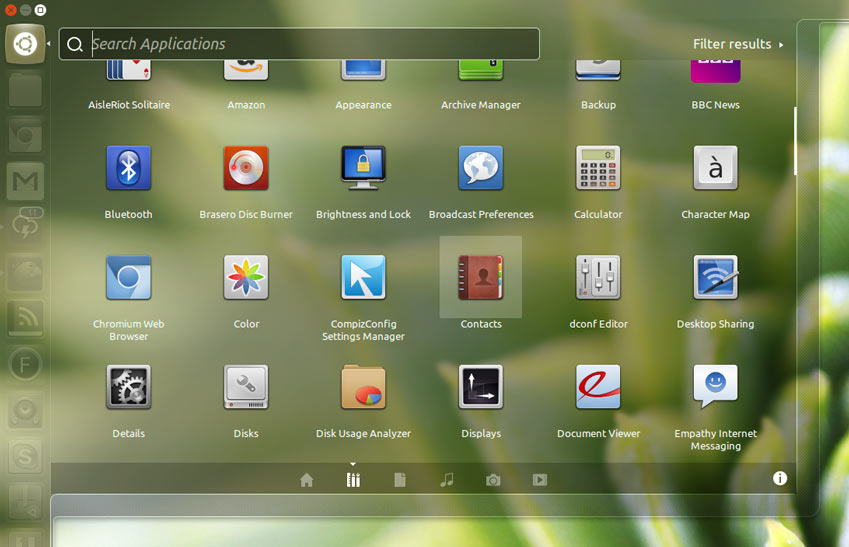
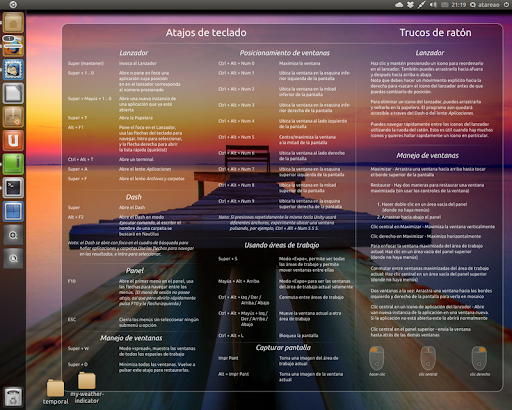
http://www.omgubuntu.co.uk/wp-content/uploads/2012/10/farnza.jpgUbuntu is the third result in a google search for "Linux". It is usually the first stop in a young Linux User's journey for good reason. Tools like automatic update reminders, a very intuitive user interface (with an OS Xish feel) will be comfortable to use for a user migrating from another Operating System. For beginners there is no doubt in my mind. Ubuntu is king for integration and user experience. But for getting real work done after you're comfortable with Linux? Maybe not so much.

Ubuntu's Ubuntu One daemon and other applications like it tend to eat more RAM than a distribution without Ubuntu's "bloat". A variant such as Xubuntu would be better for seriously using Ubuntu on a production machine. The Ubuntu base is nice for those looking to get work done though, mainly because of the PPA system. PPA's are basically remote repositories you can subscribe to with add-apt-repository and pull packages from.


 Linux Mint

 Linux Mint takes Ubuntu and makes it sane again for normal desktop users. Unity is innovative, but it's definitely not for everybody; especially if the idea of how a desktop works (start menu, desktop shortcuts, etc) is well ingrained in your mind. Linux Mint maintains two desktop version, one with the lightweight Gnome 2 fork MATE and the other with Cinnamon, a fork of Gnome-shell. I haven't given Cinnamon the reviews it deserves. It's truly a great desktop environment, especially since the menu that launches applications and searches locations has improved in terms of relevance and speed.

Beginning users will find Linux Mint comfortable as it comes with tools that were designed to make Ubuntu, one of the easiest distros, even easier. Their update manager rates updates based on importance so you can delay serious updates until you're ready for them. Linux Mint is also compatible with Ubuntu's PPA system if you're using their Ubuntu edition, but Linux Mint: Debian Edition is not. Keep in mind that Linux Mint: Debian Edition is basically Debian with the Linux Mint tools on it, so later in this article when Debian is talked about think back to Linux Mint: Debian Edition.
                                                                                  
http://upload.wikimedia.org/wikipedia/commons/d/da/Debian_Desktop.pngDebian
Debian is a very popular Linux Operating System, but not necessarily for its use on Desktops. Some users find Debian Testing to be comfortable for desktop use, but even then packages and support tend to lack behind upstream. The main appeal of Debian is rather its viability in servers, as versions are supported for quite a long time and packages are vigorously tested for problems that could reduce uptime or performance by even a bit. One statistic read that 32% of all the world's servers used Debian. If you're deadset on using Debian, then Crunchbang, a Debian derivitive of Testing (like Ubuntu) that comes with the Openbox window manager and a dark theme may be for you. Crunchbang is so similar to Debian that it is not worth its own section, but it has a unique and active forum / irc community apart from Debian's.

Fedora
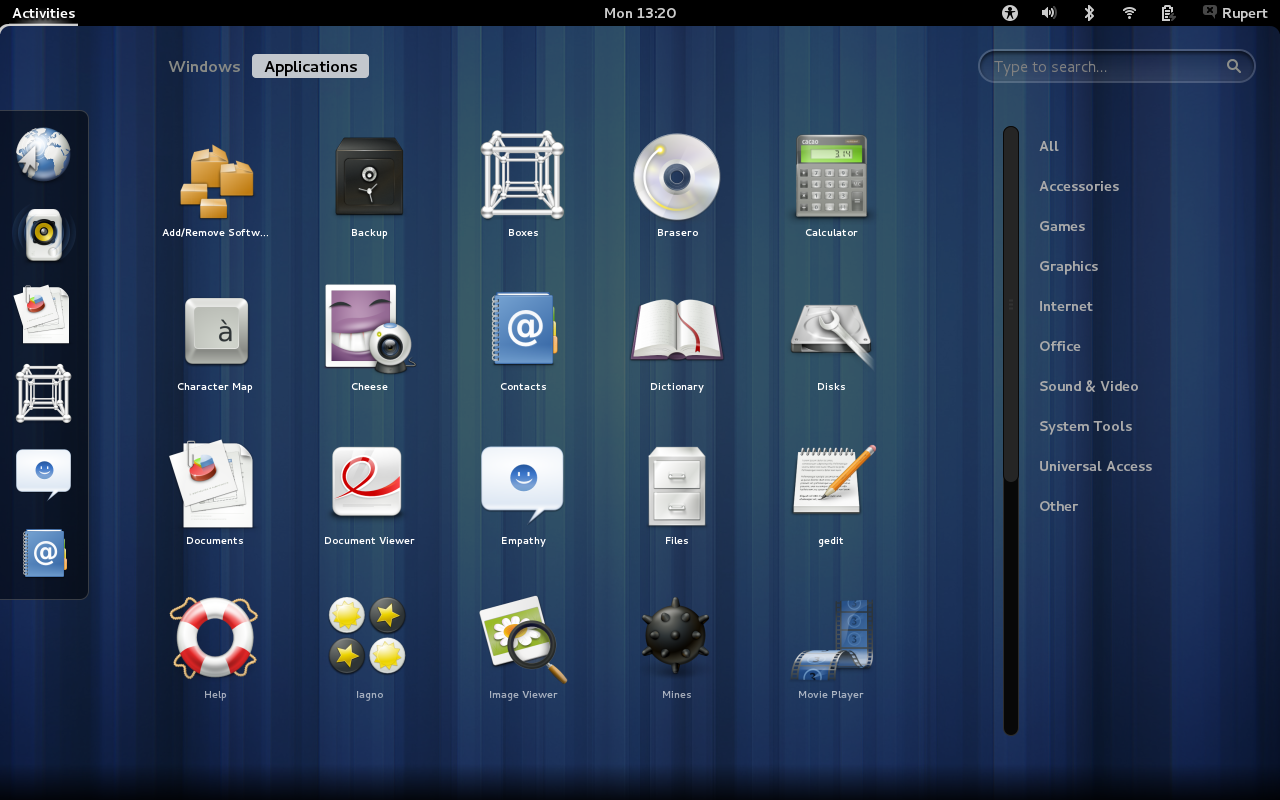
Fedora is the "testing" version of Red Hat Enterprise Linux, which is another huge competitor in the server market. Unlike its parent (daughter?) operating system Fedora is primarily used on the desktop. With the Gnome Shell and no modifications to upstream applications you will find there to be familiarity with Fedora and other distributions. Fedora offers an intuitive installer and the yum package management system, with a third party repository so large that it rivals the AUR. Arch and the AUR is mentioned next.

Arch Linux
Arch Linux is a distribution for advanced Linux users that basically want to configure their system from the ground up. The installation is very minimal (text only), and then the user can choose which packages to install to custom tailor their installation of Arch Linux. The selling point to Arch is that it's rolling release, so a user never has to reinstall (until they bork something), the package management (the largest repositories in existence exist for Arch and its fork, Manjaro.), and the KISS principles that another distribution, Chakra, follows even more closely. Chakra is like a preconfigured Arch Linux with KDE that only allows the installation of Qt packages with the option for certain bundles that allow GTK applications. By the way, there's no installer. Just some scripts and pacstrap.

Gentoo Linux
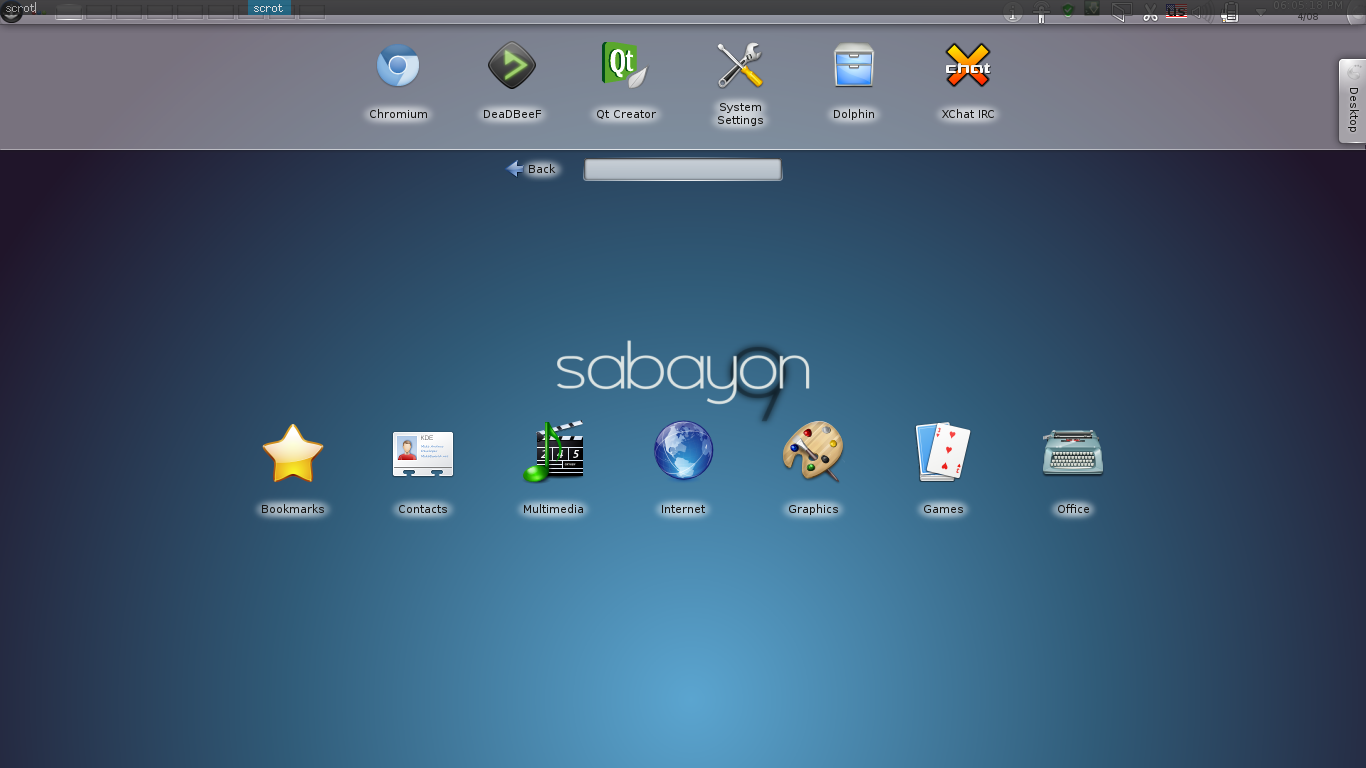
Gentoo is BY FAR the hardest distribution to install. Gentoo is basically Arch taken to a whole new level of minimalism. Gentoo must be compiled fully to be installed. There is no installer and no tools by the (wonderful) wiki to guide the user. This is not for Linux Experts, it's for the type of people with BSD toasters and a HUD in their bathroom mirror. Although it does provide a lot of flexibility and good source package management with USE flags, to truly reduce bloat. A fork of Gentoo, Sabayon, makes the installation far easier with Fedora's Anaconda and adds binary package management. No more wasted weeks spent compiling Libreoffice.

Conclusion
I find myself most comfortable using Ubuntu on desktop systems, Fedora on Laptops, and Debian on any servers. Arch and Gentoo are specialist distributions and should be used as such.
 

Wednesday, December 26, 2012

Leapmotion on Linux: hitting the ground running

Leapmotion is an imaginary (in that it doesn't exist yet) but impending device that could possibly shape the future of interface. Since the creation of computers, wiring, CLI, GUI, and WIMP interfaces have all changed the way we defined our user experience. Look to any science fiction novel made after the 20th century, and you will find that the interfaces are floating masses of plasma, interacted with by the will of a user's fingertips in thin air. This technology is not far off, and its future looks especially promising for Linux compared to other commercial ventures.


A bit about Leapmotion
Leapmotion is a device that reads input from an infrared sensor about the environment around it. With an onboard CPU, it flushes out the noise and triangulates movement, with the precision of 5 milimeters. This processed movement data is send to the (proprietary) driver which executes commands from the input. Pretty nifty, especially for businesses where interaction with a computer would be a cumbersome job (think: Hazmat suits) and consumers that want a taste of the future.

Where Linux comes in
Linux has been the short end of the stick where third-party and commercial support are concerned. Canonical has changed that, especially over the past year (2012), and it's taboo to NOT have Linux support. The SDK is fully compatible with Linux, it will have supported kernel drivers, and it will also be used on embedded Linux devices (Android especially).

Gobs of Drama
 There has been an ongoing debate on LeapMotion's Linux page about whether or not to Open-source the driver. Advocates say that open source "supports itself" and "ensures that the technology won't end up in the landfill, but rather in the pantheon of human knowledge". However, senior members of the LeapMotion forums aren't nearly as understanding.

Some of the members advocating proprietary drivers refused to distinguish between gratis and libre for the sake of their argument, using childish retorts such as


 "all Linux users are so cheap they wouldn't give you a cup of coffee for a year's worth of software" -- FadingFast

"free open source" don't make much sense" -- flaredOne

and

"I guess it is because people can't "touch" software (hate that name there is nothing "soft" about it), and as such they believe even though people spend their lives creating this that they are some how entitled to have it for free and deny the creators of it any profit (not to mention a salary)."--FadingFast


These are not paid members of the LeapMotion development team. But according to some of the users in the forums, the team developing the Linux drivers is making it exceedingly difficult to develop FOSS drivers via reverse engineering, especially due to the "Wall of Silence" and mathematics involved in such reversing.

How the team feels about FOSS is a moot point. They are providing facilities for use on Linux before release, being generally very nice to the Linux community (they even have a subforum for Linux, how nice), and offering support for when a Linux user needs help. The way that the senior members took up arms is still inexcusable, however.

Monday, November 12, 2012

Manjaro Linux .82 review

A while ago, I did a review of Manjaro Linux. Manjaro, for those of you who are curious on its specifics, is a pre-configured Arch Linux distribution with some custom tools, including Archbang's installer (they now have a custom one in development), a Pacman (the package manager) frontend, and a Manjaro-branded XFCE desktop complete with their own Conky config. The version that I reviewed, .80, had numerous bugs including insane RAM usages with LightDM and a dependency on Nvidia's proprietary driver. See how Manjaro is doing now in the week's second review.

Sunday, November 11, 2012

Chakra Claire-2012.10 Review

After hopping from an Ubuntu install with a broken permissions system (how is it even possible that root can't read files anymore?) to Sabayon, and promptly remembering why I left Sabayon in the first place, I have hopped to a distribution I haven ever used before: Chakra Linux. For the readers that don't know, Chakra is a Linux distribution with a very stiff, almost dictator-like control on what packages can and can't be installed from their repositories, and the default desktop environments (or the ones that are available). Take a look at why I chose to let the Chakra developers decide what was good for my computing sanity in this week's review.

Thursday, October 4, 2012

Ubuntu 12.10 final beta REVIEW

This is a review on a beta package as of October 4th, 2012. This information will be deprecated quickly as updates are released in a fast manor as the 12.10 deadline approaches.

11.10 blew Ubuntu users away when compared to 11.04, with the immature version of Unity in a long-term support release that drove many of its users away. Hoping that 12.10 would bring further maturity to what Unity has already evolved into I installed it, and have had mixed emotions since then. Here are some of my discoveries, complaints, and criticisms on the new Ubuntu operating system.


Upgrade Process
The update process couldn't have been easier. A matter of running update-manager -d from the terminal and a few hours of installing updates later, the reboot prompt appeared and 12.10 was booted. Note that if you are using the openssh-server package there will be a boot-time error message regarding an incorrect compilation flag, as well as a mandatory filesystem check since upgrading an operating system is such a dramatic overhaul.

The boot process will take longer than usual if you upgraded from 12.04. This is why it is commonly recommended that the Operating system be installed over the existing one, rather than throwing patches on top of an existing framework.

On first boot
  Unity hasn't changed much. Aside from the controversial shopping lens, unnecessary glossy buttons on the launcher, and file previews it is just like a faster version of what came before. Which isn't much to complain about. In fact, it's nice having a snappy interface. Of course, snappiness only applies to those with a higher-end internet connection (> 256 KiB/s) since file indexing and Amazon searches are the norm within Unity now. Of course, this can be opted-out of with sudo apt-get remove unity-lens-shopping.

Little Differences
There were seemingly small but interesting design choices in this release. The full name of the user is no longer displayed on the top right of the screen, and a new printer applet is the default. Also, "Software Updater" is the new Update Manager, and it updates upon boot. So there will be no more tiered updating.

Also, in Unity's Expo-like workspace switcher, clicking on a window will move you to that workspace rather than highlighting it within the interface.

A weird design choice was to include two applications that are pinned to the launcher that open in the firefox web browser. It seemed pretty out-of-character for Ubuntu.

Possible bugs
The only bug I have noticed is the inability to minimize a window using the Unity launcher, which is a pretty big deal. Aside from this inconvenience the Beta release is seemingly stable. However, little issues seem to crop up in Beta releases, so I could never recommend this for a production machine.


Although not a serious functionality issue, sometimes Unity previews mix their text together, creating an unreadable mess. Also, as shown in the picture, the previews for Albums are supposed to play individual tracks. This does not work, but I am not sure if it is implied to. The sideways triangle IS the Universal sign for "Start", though.

Other Goodies
Ubuntu 12.10 comes with a signed bootloader, meaning that it can run with UEFI secure-boot that Windows 8 OEM computers will be coming with. This caused quite a big stir in the open source world, and Ubuntu was about to employ questionable tactics to get around it, but with a signed version of Grub  everything remains the same.

All of the outdated packages are updated and a most up-to-date repository is out there. Gimp 2.8 is among the collection. No more third party repos!

Here is a little demo video showing some of the features discussed in this article:


Tuesday, August 28, 2012

Manjaro Linux review

***DEPRECATED***
Although some information on this page is relevant, it is outdated by a few months. A new version of Manjaro is out and there is a separate review for it: http://profectium.blogspot.com/2012/11/manjaro-linux-82-review.html

Manjaro Linux is a Linux distribution based on Arch Linux. Arch, for those that do not know, is a distribution designed to be completely minimal; this allows the user to build their system from the ground up. Manarjo is Arch Linux for people that want a functioning system out of the box. Using Manjaro still awards the user with the features of Arch Linux while being wrapped in a user friendly package.


 Installation
Manjaro Linux is very easy to install. It uses X by default but still uses an ncurses user interface that opens in a terminal to install. The installation takes considerably longer than any other Linux distribution I have ever seen before, mainly on the formatting part. The partition editor did not recognize my other partitions either, so I had to use the entire disk. The problems with the installer will be fixed some time this fall when the Manjaro Linux team finishes their graphical installer. If you have ever installed Archbang, it's basically the exact same experience.


First Impressions
Manjaro uses the lightdm display manager just like Ubuntu does. There is a sacrifice between memory usage and aesthetics here, however. Lightdm uses about 50 MiB more RAM than gdm does, and /etc/inittab is nowhere to be found. For those that do not want to kill lightdm and start X manually on every boot this could be a dealbreaker. I was not happy with this.

When choosing which CD .iso to install I chose XFCE. To my surprise it was heavily patched for Manjaro Linux. The entire XFCE experience was wonderful in terms of additions that the Manjaro Linux team made. I presume that the other desktop environment options are just as friendly if not moreso than the XFCE version of the distribution.

Prolonged use impressions *new*
I have recently discovered a very troubling bit on information about Manjaro. If you notice in the screenshot, 585 MiB of RAM was in use. This is a nominal sum in today's age, where having 8+ GiB of RAM is commonplace, but what is using all of that memory? It turns out that a kernel module named nvidia was installed during the Manjaro installation.

It dawned on me that Manjaro DID provide a boot option to not install video card graphics drivers, but I instead installed the drivers. Following this guide I blacklisted the nvidia kernel driver and restarted the kernel. Upon doing this X was completely brought to its knees by the absence of the Nvidia driver. X DEPENDS on the Nvidia driver as it is used in Manjaro Linux.

Manjaro Linux does not provide a flexible graphical system to meet the needs of a graphics-intensive user as well as one who does not use graphics. Rather, they polarized their distribution with two extremes that conflict with one another.

Installing Software
Unlike Archbang the pacman (package manager) mirrorlist is functional right out of the box and does not need any updating. Pacman even comes with a graphical frontend, making installing software possible for beginners.

The autoconf tools suite was not there by default, however. This made installing packages from the Arch User Repository (AUR) difficult. Any user wishing to compile their own software will also have to take the detour of manually installing the three packages that make up autotools.

Non-manjaro specific Arch Linux evaluation
Arch Linux, the system that Manjaro is based on, has quite a bit going for it. It is arguably the best documented distribution around with its wiki and forum. The AUR and official repositories are as up-to-date as portage, which until now has been the best repository tree I have ever used. Pacman is a bit cumbersome to use from the command line (pacman -Syu to update does not make immediate sense), but it is one of the selling points of Arch Linux.


Conclusion
If you are a user interested in Manjaro Linux it is completely usable as-is. For a user with a bit less experience with Arch Linux it would probably be wise to wait until the graphical installer is released to avoid the partitioning confusion that all users of Manjaro have run into so far.

After discovered the issue with X recently I have decided to jump ship to Fedora Linux. However, it is a very minor issue since the nvidia module only takes up about 111 MiB of RAM. The scary part about the issue is that other shortcuts like the X-dependency or lightdm could be lurking in the background of Manjaro Linux, making it an unreliable computing platform.

Saturday, August 4, 2012

Comparison of Window Managers and Desktop Environments Reloaded

About two years ago I compared all of the popular window managers with one another. Now that I have much more experience with the different desktop environments, I am going to give the COMPLETE rundown of all of the popular graphical environments. Let's start with my personal favorite, awesome Window Manager.

Awesome Window Manager

If KDE is a sword then Awesome Window Manager is a rock. It is a blunt environment that requires a knowledge of Lua to configure it. Windows tile and using the keyboard is pretty much necessary. This would be a very unfamiliar environment for someone coming from a floating Window Manager. However, the stock keyboard combinations and the efficiency of tiling combined with the number of tags by default make it a powerful tool in the hands of an advanced user. Awesome can be customized to do anything the user wants, and if that is an appealing trait and you have the time to configure it to no end then use awesome Window Manager.

Ease-of-Use: 2
Speed: 10
Aesthetics: 4
Productivity: 8

K desktop environment and Kwin

KDE is an impressive desktop environment to say the least. It has received flack online for its bloat, and that is a true problem. Services and superfluous programs clog the environment and bog it down, consuming RAM in the process. The desktop effects will require a graphics card and can slow any other task requiring one down, requiring them to be shut off. The true power of KDE comes from the very trait that gives it a bad reputation: the bloat. If there is something you want your window manager to do, KDE has a tool to do it.

With different activities you can transform your desktop into an Androidd-esque launcher, or set the wallpaper to monitor the local weather or simulate a virus. Tiling Windows, completely customizable keyboard shortcuts delimited by category, and the suite of applications that come as a part of KDE are just some of the great things that KDE has to offer.

Ease-of-Use: 9
Speed: 5
Aesthetics: 9
Productivity: 6

Unity

Unity is Canonical's modern user interface for their Ubuntu operating system. Unity was created after a fight with the Gnome 3 developers, and it prompted Gnome to create their own operating system to compete with Ubuntu. [opinion]Unity blows Gnome out of the water.[/opinion] In Ubuntu 11.04 Unity was a mess, but ever since 12.04 and Unity 5 it is a usable interface. It runs GTK, so Gnome programs don't pull a mess of dependencies. It also comes in 2d in the event of a weak graphics card, so Unity will run faster.

Unity is the least customizable of the bunch. There is a launcher on the left side of your screen. There are no options regarding this. The extent of theming that can be done ends with GTK and Icon themes and setting the Opacity of the integrated File menu.

Unity offers a unique feature called the HUD that can search through their integrated file menu (GTK and Qt applications move their options bar to the top of the desktop. This can be disabled.) The HUD is a tool of great productivity, and it learns like Gnome do does. The alt key brings it up and within a few keystrokes you can find an item from the context menu that would have taken a whole minute to navigate to by mouse.

Ease-Of-Use: 8
Speed: 4
Aesthetics: 8
Productivity: 8

Gnome 3

It only makes sense to write about Gnome after the entry about Unity. Gnome is, as Linus Torvalds himself described it: "A train-wreck". A few of the sparse good things to say about gnome are that it is themable and it can be extended with addons or with alterations to the internal settings. Gnome 3 comes with insane defaults (like only having the close button on the control bar and the notifications popping up from the bottom and waiting to be dismissed). If Gnome 3 were lightweight and ran a bit faster it would be a viable candidate. It doesn't, though. It consumes more memory than the plasma-desktop from KDE and does not have an option to lessen the effects like other Desktop Environments.

Ease-Of-Use: 6
Speed: 5
Aesthetics: 8 (the one good thing to say)
Productivity: 4

XFCE

Xfce is most well-known for being a lightweight, low-impact desktop environment. Xfce lives up to that reputation, having a RAM consumption only above that of LXDE and Awesome. In addition to being light it is still aesthetically pleasing and has enough tools to customize it to any user's heart's content (even moreso since 4.10 released the mine type editor).

The workspace system is a bit fluky at times, but that is the only real gripe that XFCE can get. I call this one error "leashed windows". Windows that have focus follow you to other workspaces. This usually only applies to switching using keyboard shortcuts.

 Just like Gnome 2.0 it comes with a panel to search through applications, and option to make launchers and links from the desktop, and applets for its panels. It improves on this with a dock (which many users, myself included, purge and replace with tint2 or another dock application) and a good settings tool. XFCE can do some very advanced things. It can even change its Window Manager. Awesome window manager inside XFCE? You bet.

Most of XFCE's applications can be run outside of XFCE, even the window manager. So you can use any combination of XFCE and another environment of your choice while still keeping a low memory profile since XFCE has very few runtime dependencies.

Ease-Of-Use: 8
Speed: 9
Aesthetics: 6 (But customizable to the point of 10)
Productivity: 8

LXDE

LXDE is a set of tools that combines with the Openbox window manager to create a graphical environment unmatched when it comes to ease-of-use combined with shear speed. Some have argued that because of the seperation of desktop environemnt and window manager that LXDE has a "hacky" feel to it. This is not the case. LXDE is a ligthweight XFCE with Openbox's graphical configuration tools. Lxterminal rivals Gnome terminal, and Lxappearance rivals myunity for theme configuration. In fact, lxappearance is the go-to application for changing gtk themes on other desktop environments, not just LXDE. Some of the default software is chosen well too. Pcmanfm as the file manager, for instance, goes along with the lightweight feel of LXDE. Like KDE and XFCE you can change LXDE's window manager from its configuration dialog.

Ease-of-use: 6
Speed: 7
Aesthetics: 5
Productivity: 7

Enlightenment 17

Enlightenment 17, e17 for short, is an odd desktop environment and graphical library suite written by the enlightenment foundation. It improved heavily on e16 and handles a lot of configuration on its first-time-run dialog. It can be heavily extended through configuration files, but otherwise it remains at the beautiful default.There are issues with the file manager handling the desktop, however, and it may throw the entire look-and-feel of the environment off.

 E17 really needs some work. I have had graphical problems and just found it counter-intuitive after it has been set up.

Ease-of-use: 5
Speed: 5
Aesthetics: 9
Productivity: 5

Dynamic Window Manager

Dynamic window manager is a popular dynamic window manager. Dynamic means that the window manager can float or tile, and in DWM's case monocle and spiral. DWM has no configuration tools and the only way to modify it is via the C source code directly. DWM developers have a philosophy that restricts the window manager to only 2000 lines of code, so large improvements cannot be made. Furthermore, users looking to use a mouse are going to feel left out. Although a mouse can minimally interact with the window manager a user with anything but a keyboard and combinations will be lost.

Ease-of-use: 1
Speed: 10
Aesthetics: 3
Productivity: 5

Cinnamon

When I first tried the most recent version of Linux Mint it came with Cinnamon - their home-grown desktop environment forked from Gnome 3. Cinnamon is the MATE of Gnome 3, you could say.

Cinnamon did not disappoint on the aesthetics. It was visually appealing to the last detail (as it was configured in mint, at least) and had the ability to be themed. The menu is one of the smartest (from a searching and design point-of-view) menus around. From one menu you can search for applications, search by category, and access bookmarked applications. The searching works as good as Gnome 3's does, so you can still use an application if you do not know its name.

Cinnamon comes with a feature called Expo that is one of its selling points. Expo can show a spread of all of your workspaces, and upon hovering over one a cascade of all the windows in that workspace. Clicking on a window will take you to that particular workspace and application window. If you have used Compiz expo, this is the same feature but integrated in the desktop environment.

There were two issues with cinnamon. The menu took 2 seconds and 17% CPU for a few seconds to open. I talked to a Cinnamon developer via IRC about this problem and he confirmed that it had been fixed and will be released in the next major cinnamon update. Along the lines of bugs there are memory leaks in Cinnamon, so it requires a restart after multiple hours of running to free some RAM.

 Another problem is that some of the layouts do not work at times, but at other times they do. There was no word on whether or not this would be fixed or whether or not it is really an issue. Another issue (not a bug) is the lacking of some advanced features from the cinnamon settings dialog, but advanced settings can still be configured with dconf.


Ease-of-use 7
Speed: 4
Aesthetics: 7
Productivity: 4

Others
TWM - Tab window manager. I have not used this long enough to give a definitive answer, but when I used it the window manager worked as it was intended - which isn't enough.


MATE - Displaced by cinnamon

Verdict:

For pure productivity
Awesome Window Manager is the most productive of the window managers if the user has the patience to edit the lua configuration file and learn the keyboard shortcuts.

Speed
For speed dynamic window manager wins. 2000 lines of code execute blazingly fast.

Aesthetics
KDE wins the aesthetics prize, especially if the advanced desktop effects are enabled with the search and launch activity.

Ease-of-use
Once again KDE wins this prize. Everything is handled for the user.

Final Verdict
KDE is the overall best desktop environment, but each has its own niche. To truly determine the best environment, using all of them and deciding on your own is the best way to make a decision.

Wednesday, July 25, 2012

What is Portage and how to use it

Gentoo Gnu/Linux is a notoriously hard-to-install minimal Linux distribution. Like many Gnu/Linux distributions it has a package manager and repositories that hold software that can be installed onto a system. Gentoo, unlike other distributions, uses a repository of source code as its primary method of installing software (similar to the FreeBSD source trees). Compiling the source code of your programs provides a few benefits, including a performance gain and source-level customization. Here is how Portage works:


Setting up portage
emerge is the Portage's interface. You may see on online guides emerge X (emerge [anything]) and get the "package not found" message. This is because portage does not have the repositories synced by default. To sync the repository, run emerge --sync. This will take some time (it took about 20 minutes at 138 KiB/second). This gets a file with the names of the packages, their categories, and a bit more information. You will see a list of all of the applications available to you fly down your screen. It was moving at such a steady speed that I was unsure of whether or not it was downloading a file, but when I disabled my wireless connection it was indeed relying on the internet for this step.


General Portage Usage
You can now install software with emerge name, where name is the name of the package that you want to install. If you are searching for a package in the repositories, you can use emerge --search query or emerge --searchdesc query to search through the documentation as well.


What to expect when emerging
When you emerge a file, Portage will hide nothing from you. It outputs all the steps, including logging into an FTP server. If it seems to stop working, use the command tail -f /var/log/emerge-fetch.log  in another terminal window. This will repeatedly output the next line in emerge-fetch.log, which is where fetching progress is stored.


After the program has been fetched, it will run through a list of conditions required to install the program. You will see "Checking blah for blah blah" repeated a lot of times, and then it will install the program. Yes, source compilers, it goes through the makefile.


Keeping Portage up-to-date
Always remember to do an emerge --sync every two days or so to keep your repositories up-to-date. When a new version of Portage comes out, emerge portage will install it. To update your system, the command emerge --update --deep --with-bdeps=y --newuse world will update everything on your system, including USE flags and build dependencies. 


Removing Software with Portage
We all have those bad days where we install a rotten package, or it just conflicts with something else on the system. To uninstall it, use emerge --unmerge X where X is the software to remove.


USE flags
Use flags are an important part of the Portage environment. USE flags tell Portage what your tastes are in certain kinds of packages. For instance, if you were to download a flight simulator WITHOUT a "3d" use-flag, it wouldn't download 3d support. If you had "3d" as a use-flag, it would download it if the package recommended it. /etc/portage/make.conf is where your USE flags are stored. You define it like this:
USE="-X -aqua -dvd gnome"
A list of USE flags is stored here: http://www.gentoo.org/dyn/use-index.xml
Extra documentation on USE flags can be found here: http://www.gentoo.org/doc/en/handbook/handbook-x86.xml?part=2&chap=2

General Portage usage
Two other useful tricks are emerge --fetchonly X and emerge --pretend X. The first one will only download the software and cache it; it will not install. The second command will not download anything, but it will calculate the dependencies and tell you how much space you need to install it with. Along the same lines of --pretend, --ask will make sure that the user wants to download the software after they see the size.


Test it out
Here are the commands necessary to emerge firefox (yes, it is really this easy):

A Warning to the Impatient
Compilation takes a very long time for large programs like Firefox or qtcreator. It can take hours on a new machine, and the older a processor is the worse it will do. Gentoo is not for you if you cannot wait a few hours for a large piece of software to install. I figure that it is unlikely you sat around for Gentoo to compile if this was the case, but be warned.

Sunday, July 22, 2012

Crunchbang Linux Review

As a long Linux user I have experimented with a lot of different operating systems. I have used Debian for a short while (before a dependency managed to bring the system down), Linux Mint, Ubuntu, and a lot of other Debian based Linux distros but it wasn't until about two days ago that I decided I would try out crunchbang: a lightweight Debian derivative using Openbox as its primary window manager. Here is a breakdown of its strong points and weaknesses:


Good: Speed
Crunchbang's boot process beat my Ubuntu partition by about 30 seconds. I do have a lot of bloaty services running on Ubuntu, but this is quite a big bonus; especially so if reboots are commonplace.


Good: Stability
Depending on the version of Crunchbang that you chose (testing, stable, backports, etc) there will be varying degrees of stability. It's based on Debian, which is a widely used operating systems on servers, so it inherits a lot of Debian's stability. I have not had a graphical hiccup or a kernel panic once.


Bad: Backport Repositories
On crunchbang it is easy to change around the repositories using synaptic or just editing /etc/apt/sources.list. That makes this issues less of a big deal. However, the backports did not seem to have enough packages that I am used to having. Codeblocks was not in here, and dependencies were an issue. Adding Debian Wheezy's repositories fixed some of the issues.


Very Bad: Installer
I installed Crunchbang twice. The first time, the installer failed to recognize my Ubuntu partition and when it wrote Grub to the master boot record. This gave me a barely functioning crunchbang install and no Ubuntu. For a novice computer user this would be an instant dealbreaker, because of they do not know their way around mount then all of their data would have been lost.

When I entered the (then only) operating system on the grub screen I was immediately displeased. Thunar (the file manager) would not start because it could not find the display and glibc6 was not found. These are two enormous errors. Rebooting solved those issues, but not the issue of the MBR. I reinstalled Crunchbang and it worked perfectly, detecing all three of my Operating Systems.

Great: Aesthetics
In addition to Openbox, a dark icon theme, and a light gray background (simple yet elegant) Crunchbang comes with my personal favorite display manager: SliM. SliM is one of the simpler display managers available. It is configurable if you have the root password, and allows quick different user logins. It doesn't show a list of users. It just shows :username and :password. If your username goes along the lines of xXxXleethaXorZxX then SliM is not for you.


You decide: Ice*
On Debian and Crunchbang Mozilla Firefox is replaced with a browser called Iceweasel. This is because some of Mozilla Firefox (the crash handler and images) is proprietary. Iceweasel is completely free, but lags behind a bit in terms of features and up-to-datedness (aurora is 11.0). Firefox addons and themes are fully compatible. Iceweasel has a brilliant feature added to the search bar. It can search for Debian packages, which is a lifesaver on the broken backports repoistory.

Icedove, the Thunderbird replacement, is also a bit outdated but is not as noticeable. It works the same as Thunderbird and even has (in my opinion) a prettier icon.

Bad: Out of the box software
Crunchbang comes with a bit of preinstalled software, but not all the choices are good. The file manager (thunar) and the terminal emulator (terminator) are two of the few good examples of preinstalled software. Abiword and Geany are the only two text editors that come with the system (if you discount VI). There is no middle ground and no libreoffice. If someone wanted to edit their rc.lua file for the Awesome window manager, lets say, they would have to decide between opening it in a word processor with no syntax highlighting or a full fledged IDE.

Gedit does not have many dependencies, so installing it was easy enough.

Other essential tools like CUPS and git are not included, but a welcome script called cb-welcome allows them to be downloaded.

Conclusion
I have had a love-hate relationship with Crunchbang over the past few days. Dependencies have killed me, but the stability and speed are good things. Crunchbang is NOT for beginners, unlike what Crunchbang enthusiasts may try and tell you. I had to mount my /dev/sda7 partition from the command line to even get my old files transfered over (and no, thunar did not detect it). However, if you are an experienced Linux user that wants to escape the bloaty grasp of Canonical or the outdated and fully free beast that Debian Squeeze is, then Crunchbang could be for you.

Sunday, June 24, 2012

12 - Hour clock in Awesome WM

Awesome Window Manager comes with a widget called "Text Clock" that displays the time in a text box in the upper right-hand corner of the screen. It is in 24-hour format instead of 12, which can cause some confusion for users used to the standard 12-hour time.  Your options are to live with it, or change it. If you want a Day,date, hours:minute:second: am/pm format, look at the end of this post.

Option one- Living with it
I found a neat trick to convert 24-hour time into 12-hour time. Take 13:00, for instance. Subtract 2 from the second number and get the second number of 12-hour time. (3-2=1, so it is 1:00). At 23:00 you get "1" again, meaning that it is 11 O' clock. This method uses too many brain cycles, so I decided to get lazy and just change the source of the script.

Option two - Taking Action
Use this command: sudo gedit /usr/share/awesome/lib/awful/widget/textclock.lua
where gedit is any text editor. This is the source code for the clock widget. Make a backup of the real one. I was a ninny and didn't do this. The two important lines are lines 22 and 23: format and timeout. Format uses the strftime function to display the time. Some important things to note: %H is 24-hour hours and %l is 12-hour time with a whitespace instead of a 0 in the first digit in 1-digit times. (For instance 9:42 would by 9:42, not 09:42). All you need to change is %H to %l.


Now, you are faced with a decision. By default this resets itself every 60 seconds. If you use %S (seconds), you need to change this setting to "1". (5 is also commonly used, but it's a pain if you log in on a non-multiple of 5). This way the clock will reset every second.


The two lines for me look like this:

%p should be the only unfamiliar one. This means am or pm (great for any basement dweller with odd sleeping habits!).

You will not notice changes right away. Restart awesome. If you did something wrong the text clock may not be there. Just use your old source in place of the one you edited. This is the advantage of always keeping a backup.

Here is the FULL source of my script. This is what it outputs:


---------------------------------------------------------------------------
-- @author Julien Danjou <julien@danjou.info>
-- @copyright 2009 Julien Danjou
-- @release v3.4.11
---------------------------------------------------------------------------


local setmetatable = setmetatable
local os = os
local capi = { widget = widget,
               timer = timer }


--- Text clock widget.
module("awful.widget.textclock")


--- Create a textclock widget. It draws the time it is in a textbox.
-- @param args Standard arguments for textbox widget.
-- @param format The time format. Default is " %a %b %d, %H:%M ".
-- @param timeout How often update the time. Default is 60.
-- @return A textbox widget.
function new(args, format, timeout)
    local args = args or {}
    local format =  " %a %b %d, %l:%M:%S %p "
    local timeout = 1
    args.type = "textbox"
    local w = capi.widget(args)
    local timer = capi.timer { timeout = timeout }
    w.text = os.date(format)
    timer:add_signal("timeout", function() w.text = os.date(format) end)
    timer:start()
    return w
end


setmetatable(_M, { __call = function(_, ...) return new(...) end })


-- vim: filetype=lua:expandtab:shiftwidth=4:tabstop=8:softtabstop=4:encoding=utf-8:textwidth=80


You can replace your script with this and it will give you the output I showed you above.

Saturday, June 16, 2012

Awesome wm Versus Dynamic wm - The Showdown

Awesome and DWM are both Dynamic Window Managers, in fact, that's what dwm stands for. A dynamic window manager can both tile and float (both of these can also monocle). Tiling windows means that screen estate is taken up completely, making use of every pixel. Floating window managers have resizable windows, and moncling window managers only allow one window to take up the screen at one time. Here is a showdown between Awesome and Dynamic:

Configurability
I made that word up, but it is a very important thing to consider when you're talking about window managers. How extensive theme support is, what widgets are available, and how easy it is to change settings all take play a huge role in what a user will choose for themselves in a window manager.

   Dynamic
Dwm is written in <2000 lines of C. In fact, it is capped at 2000. It will never extend past this out of principle. To configure it, one must first edit the source code directly and recompile it. This is quite a burden, but it means that the entire window manager can be customized. You will want to customize it, too, because the default does not supply the user with some things they may want, like a system tray or even a clock.

   Awesome
Awesome has a file called "rc.lua" in /etc/xdg/awesome/rc.lua. This uses the lua programming language to take full control over some awesome settings. I do not know lua, but it was very easy for me to edit this file because of the parameter names. Changes here will be applied on the next login. ALWAYS keep a backup, because sometimes awesome refuses to start if there is a mistake, even if it is as small as a missing bracket.

Defaults
Default settings are important for the type of person that wants their window manager to work for them right out of there box. Tiling window managers are for hobbyists and power users, but somebody that just wants to boost productivity could be looking into them and functionality right out of the box could be really helpful for them.

    Dynamic
Dynamic has a whole set of useful keybindings by default, and they are pretty easy to learn if you take some physical notes. It integrates well with system defaults, like the default terminal for alt+shift+enter (launch terminal). It comes with 9 "tags" (workspaces for ex-unity users). There is one title bar that I felt could have used some work by default. There is no clock, no system tray, and an unnecessary advertisement for the version number of dwm. The learning curve is also a bit high, so don't expect to be able to use your mouse to launch anything. Using the keyboard will become easier as you learn, however. Unimportant: dwm will use your default desktop background.

    Awesome
Awesome comes with some helpful tools by default. There is a physical button on the top bar to change the mode. It has quite a few modes, some of which I disabled in rc.lua because of how useless they seemed. Modes can be switched from the keyboard or the mouse in the top right corner, near the default clock, date, and system tray. The clock is in 24-hour format by default, so if this is not your preferred way of tracking time it will take some getting used to. Awesome also has 9 tags. It comes with a window list on the top bar as well as an application launching button on the top right. The keybindings are very similar to that of dwm, but they use the mod4 (windows symbol, sometimes called "super") key instead of alt.

Extra information
Dwm didn't want to play nice with awn or tint2. Windows would ignore their modifications to the width of the screen and go past it. I found this pretty annoying since it did not include a window list. With a tiling window manager, it would be pretty redundant, but I had to give up a good friend named awn when I switched. Awesome works fine with both. Both of these window managers are BLAZINGLY (another made up word) fast. I have used both xfce and lxde, but both of these stomped on them in comparison.

Startup applications require configuration in both window managers, but this is far easier in awesome.

The Verdict
[opinion]
From about 5 hours of using each of the window managers, I would definitely, without a doubt, recommend Awesome to anybody looking to use a tiling window manager. It can act a bit buggy at times when moving windows by a mouse, but that is just a very minor inconvenience. It is set up very well to use a configuration file and to have some sane defaults. Dwm shoots itself in its own knee by forcing themselves to keep the project under 2000 lines of code, so awesome prospers as a result. I did feel that dwm documentation was pretty good.[/opinion]

Saturday, June 2, 2012

How to make a website (Linux)

The internet is a hard subject to grasp if you do not understand networking. All it is is a system of servers connected by an internet service provider, which give you access to all of these servers. There is nothing special about a server, either. It is just a computer like the one you are using. You too can set up a website to use locally and over the internet. Here is how to do it in any variant of Gnu/Linux that has Apache and Kompozer (optional).

This article assumes that you have no knowledge of HTML (The Hypertext Markup Language), which is what websites are technically written in. Instead we will use a program called kompozer that is generates HTML similar to how blogger does.

Run these two commands to get started:

sudo apt-get install apache2
sudo apt-get install kompozer

The first command installs the server software and the second installs kompozer, the editor we will be using. After you install apache2, a directory named "www" will be created in /var. This is where you will place the file named "index.html".

You can link to other pages from the main one by making a link with the name of a file in /var/www or any other file on the computer.

Write the Webpage
 Run kompozer with root privileges. (sudo kompozer). You are going to be saving the file in /var/www which is a protected directory by default. Now, all you have to do is... write. Kompozer has all of the tools you will need to make your basic web page. Add text, links, bold text, italicized text, pictures, or whatever you need. If you need mroe power you can edit the HTML directly from the "source" tab if you must. When you are done writing your web page, save it.

The first dialog that will come up will ask you for a title. Name it whatever you want the name of this page to be. This will appear in tabs and on some window lists. Hit okay, and save it as "index.html" in /var/www.

Viewing
You now have a website available on your machine to the world wide web and to your local network. Find your ip address by typing

ifconfig

into the terminal. The wlan address is your IP address. Your local network can access the webpage from this address. To view it from anywhere in the world, you need to port forward your router. To do so, look up your router's manual on port forwarding. My router has an "advanced" dialog at 192.168.0.1, so that may be a good place to start looking. After the forwarding has been set up, you can go to http://your_public_ip to see your website. Typing "ip" into a google search will show you your public IP to use.