For the longest time our city has been limited to satellite internet and dial-up. Just recently there was a community-wide dispute with Verizon that prompted them to install DSL in our village. Being one of the few geeks in the area, I have been testing its limitations and greatnesses and I am here to review some of it. Before it was installed searches did not reveal the true statistics of the "High Speed" internet from Verizon, so here is the scoop.
Verizon DSL speed and caps
The speed averages out at about 300 KB/s, which is considered 3 Mb/s. Upload speeds have reached up to 150 KB/s, which is equivalent to the download speed of the best satellite internet providers. The best advantage is that there are no bandwidth caps, so you could theoretically upload and download constantly. However, running a server is against the Terms of Use. The only condition that would void these terms is heavy server usage, so for a small home fileserver or ssh tunnel it is no issue.
Verizon Software and Hardware
Verizon installs superfluous hard / software on the existing computer infrastructure. From what I have seen it serves no purpose other than providing links to 192.168.0.1 and its subpages.
The router that was shipped is also the modem. This saves some room, but makes custom firmware tricky and it also means that to bring the wireless network offline the ethernet connection may also go dark for that period of time. Of course, a second router can be attached to it via ethernet cable.
Verizon technician
The technician was new to the company and made several mistakes, and at one point had a bout of paranoia that he would be fired upon returning to the Verizon headquarters. Also, the technician refused to run the necessary cables anywhere but on the front of the house, meaning that you could be in for some manual labor when you purchase this package. Lastly, the technician left the old networking equipment plugged into the desktop computer, which would be irremovable bloat for a non-tech-savy person.
Price
Verizon has a monopoly of the phone market in my area. With a bundle, we are saving more monthly than we used to pay for our old service. It's like we're being payed to use the internet connection. The price, when bundled, is $35 for both phone and internet.
Showing posts with label Internet. Show all posts
Showing posts with label Internet. Show all posts
Friday, October 5, 2012

Saturday, June 2, 2012
How to make a website (Linux)
The internet is a hard subject to grasp if you do not understand networking. All it is is a system of servers connected by an internet service provider, which give you access to all of these servers. There is nothing special about a server, either. It is just a computer like the one you are using. You too can set up a website to use locally and over the internet. Here is how to do it in any variant of Gnu/Linux that has Apache and Kompozer (optional).
This article assumes that you have no knowledge of HTML (The Hypertext Markup Language), which is what websites are technically written in. Instead we will use a program called kompozer that is generates HTML similar to how blogger does.
Run these two commands to get started:
The first command installs the server software and the second installs kompozer, the editor we will be using. After you install apache2, a directory named "www" will be created in /var. This is where you will place the file named "index.html".
You can link to other pages from the main one by making a link with the name of a file in /var/www or any other file on the computer.
Write the Webpage
Run kompozer with root privileges. (sudo kompozer). You are going to be saving the file in /var/www which is a protected directory by default. Now, all you have to do is... write. Kompozer has all of the tools you will need to make your basic web page. Add text, links, bold text, italicized text, pictures, or whatever you need. If you need mroe power you can edit the HTML directly from the "source" tab if you must. When you are done writing your web page, save it.
The first dialog that will come up will ask you for a title. Name it whatever you want the name of this page to be. This will appear in tabs and on some window lists. Hit okay, and save it as "index.html" in /var/www.
Viewing
You now have a website available on your machine to the world wide web and to your local network. Find your ip address by typing
ifconfig
into the terminal. The wlan address is your IP address. Your local network can access the webpage from this address. To view it from anywhere in the world, you need to port forward your router. To do so, look up your router's manual on port forwarding. My router has an "advanced" dialog at 192.168.0.1, so that may be a good place to start looking. After the forwarding has been set up, you can go to http://your_public_ip to see your website. Typing "ip" into a google search will show you your public IP to use.
This article assumes that you have no knowledge of HTML (The Hypertext Markup Language), which is what websites are technically written in. Instead we will use a program called kompozer that is generates HTML similar to how blogger does.
Run these two commands to get started:
sudo apt-get install apache2
sudo apt-get install kompozerThe first command installs the server software and the second installs kompozer, the editor we will be using. After you install apache2, a directory named "www" will be created in /var. This is where you will place the file named "index.html".
You can link to other pages from the main one by making a link with the name of a file in /var/www or any other file on the computer.
Write the Webpage
Run kompozer with root privileges. (sudo kompozer). You are going to be saving the file in /var/www which is a protected directory by default. Now, all you have to do is... write. Kompozer has all of the tools you will need to make your basic web page. Add text, links, bold text, italicized text, pictures, or whatever you need. If you need mroe power you can edit the HTML directly from the "source" tab if you must. When you are done writing your web page, save it.
The first dialog that will come up will ask you for a title. Name it whatever you want the name of this page to be. This will appear in tabs and on some window lists. Hit okay, and save it as "index.html" in /var/www.
Viewing
You now have a website available on your machine to the world wide web and to your local network. Find your ip address by typing
ifconfig
into the terminal. The wlan address is your IP address. Your local network can access the webpage from this address. To view it from anywhere in the world, you need to port forward your router. To do so, look up your router's manual on port forwarding. My router has an "advanced" dialog at 192.168.0.1, so that may be a good place to start looking. After the forwarding has been set up, you can go to http://your_public_ip to see your website. Typing "ip" into a google search will show you your public IP to use.
Tuesday, May 29, 2012
Setting up and FTP server in Linux
This tutorial is for Gnu/Linux operating systems. Windows users can use the filezilla server: http://filezilla-project.org/download.php?type=server
A server is the name given to a piece of hardware running software that allows it to interact with client computers. All websites run on servers. This is a tutorial that uses a set of tools to configure a special type of server that uses FTP, the File Transfer Protocol. This is used for the transfer of files between computers. It is similar to what cloud storage services such as Dropbox or Skydrive offer.
The tools
To get the server running we will be using gadmin-proftpd. This is a GTK+ frontend to proftpd, the command line tool. Download it from sudo apt-get install gadmin-proftpd. Run it and enter the root password. The next few sections will describe each tab you need to fill in.
Servers
You need to fill in some of these blank fields. For Server Address use the inet addr from wlan of the ifconfig output in the terminal. The server name can be anything. Admin email should be your real email address. Skip down to where it says "signed certificate settings". You should fill this information in and use the "Apply" button to make a new certificate. Failure to complete this step of the setup process is what causes most errors with gadmin-proftpd.
Users
Users is the last tab you should have to fill out. Fill in the username and password as you want them. Others will need to fill in this information, so make it reasonable. Go to the bottom and click "Add Directory". You should make a directory in /var/www called ftp (it can be called whatever you want it to be) that will act as this new user's directory. This will become the root ftp directory for that user (kind of like / for a normal user). If you want full access over a machine, make this "/". Click "New User". This user will now be created.
Afterwards
At the top of the application, click "Activate". The server will then be running. To access the server, go to your browser and type: "ftp://[your ip]" where [your ip] is you full ip address. To add directories and upload data you will need a program like bareftp, (sudo apt-get install bareftp) filezilla (which doesn't play nice with proftpd servers), or a windows program like coreftpd.
Extras
This is a local server only. You can make it point to the internet in your router settings. Your router setup (the ip address of your router, sometimes 192.168.0.1) should have some type of "advanced" dialog where you can set up your server. FTP runs on port 21, so you would need to fill in the protocol, port, and IP address wherever the dialog may ask for it. If it asks for a name like our D-link router does, fill it in with the name of your computer. Now, when you visit your external ip address (find this with "ip" on google) using the ftp protocol it will go to your server.
You can also use a no-ip.com host (which are free) to avoid the need to remember the ip address of the server.
Saturday, December 10, 2011
The masked internet
I have long considered writing a post about the un-indexed web and the deep web (that can be accessed through tor). Whenever I started writing the post, something in my mind was telling me "STOP". That is because of the dark stigma related to the deepweb. I will start explaining exactly what these hidden internets are with an analogy.
Imagine the normal internet as being Boston. You live far away from New York City and are sometimes influenced by it, however, without prior knowledge you do not know that it is there. Boston is big, but further out there is a much larger city waiting to be discovered. You hop a ride on a special device called a car (a tor analogy) and ride into the large city, amazed at it's size. That is what this masked internet is like.
There is a difference between the unindexed internet and what people refer to as the "deep web". The unindexed internet is simply not cataloged by search engines due to being under password protection. For a safe example of what the unindexed web is like, go to www.strange.com. It is illegal to break into the servers, so what information is hidden is not legally accessible.
The "deepweb", on the other hand, is perfectly legal to view despite it housing content that is illegal in most countries. To access this internet, I would recommend downloading the tor browser bundle from www.torproject.org. You need some version of tor, but the browser bundle contains everything someone new to using it will need to keep safe. In addition to using tor setting up a proxy may be a good move to further protect yourself.
WARNING: Before you go any further make sure that you have cleared your internet history in all of your browsers and closed all processes relating to them.
ANOTHER WARNING: Some of the content located in the deep web is illegal to view. You can legally visit the deep web as long as you do not seek out this content.
Once you have the tor browser bundle, have closed all necessary processes, have a proxy set up to work with tor (optional), you are prepared to take your first step into the deep web. Start off with a popular starting point: kpvz7ki2v5agwt35.onion
As you can see that address has a new extension and an odd location. Copy and paste it into your tor browser as-is. Tor is slow, so be patient while you wait for it to load. A white screen should pop up with a link to the hidden wiki. The hidden wiki is a collection of links to useful services, like search engines for the deep web, email services, forums, hosting services, etc. I have never actually traveled beyond the articles on the hidden wiki since I do not want to stumble upon anything that could give me a criminal record or attempt to infect my computer with a virus (which I have no worries for, since I am a Linux user, but for those Windows users out there, I warned you.)
Here are some neat facts about the masked internets
The hidden internets make up about 99% of all of the interenet. The surface web with sites like facebook, twitter, google, etc. make up only a small 1%.
Much of that content is raw information that is poorly organized, but searchable.
A hidden operating system used to be available for download. The broken link still remains on the hidden wiki.
Several operating systems are dedicated to private browsing and/or the deep web, using default settings that protect your privacy even further than a normal OS.
So I have taught AND warned you about this internet. What you do with the information is your choice. I have never been any further than the hidden wiki, but just from some of the links that I have read there I can see that some of the content is dangerous (assassin markets and drug trade, just to name a few). So if you just wish to stick your head it like me, I wouldn't venture any further out than the hidden wiki.
Tuesday, August 30, 2011
The Opera web browser
Opera is a small (11 MB for the version 11.50) web browser, but it has played a large roll in how we browse the internet today. It pioneered features like mouse gestures, closed tabs, and most notably tabs themselves. Even though Opera was the first to dream up these features it only has about 1% of the total market share of web browsers, internet explorer 8 being the highest.
The psychology to Opera's neglect
Why would a program that paves the way for browsing as we know it be used by only 1% of all of the millions of internet users?
Even if you had a war winning weapon you may still prefer an army. It's that philosophy that causes Opera to be an unpopular browser. You could assume that a browser with more users would have more support, addon writers, and helpers when something goes wrong.
People may also be afraid of the new untested features that Opera produces. Once features trickle down to other browsers they are refined to fit in with the style of that browser. In Opera they are all "fresh out of the oven" and may be scary concepts at first. It's exactly like how the Alpha phase scares some away while others prefer it, other people would prefer beta, others the stable release. Opera would draw from those who like the "alpha" phase of a new feature.
The browser itself
I had been contemplating download opera for a long time before I actually did it. I must have visited the download page 3 time over the past month before I actually decided to test it out. Once I ran it I was very pleased.
 Opera loaded in less than 2 seconds, which I expected because it had nothing added onto it. The next thing I noticed were the Panel, Opera Link, Opera Unite, and Turbo mode buttons.
Panel simply opens more options on the left side of the screen. What is shown here can be edited from the Opera menu. Opera link lets you access your bookmarks from anywhere. Opera unite seems to be pretty useful. Once you register an account it gives you some server space to put applications and files on. The turbo button improves browsing for those with slow internet connections by making great use of caching.
Opera caches by default and you may wish to make it check for changed on every reload. You can also do that from the Opera menu.
Compared to other browsers it seems to be extremely fast. Not only in startup, but in page loading as well. Even more so when using Turbo.
Addons, extensions, scripts
Opera is not compatible with firefox or chrome addons. This reduces the amount of addons by a lot. There seem to be plenty of Opera extensions that mimic some of the most popular firefox/chrome ones, but they still are not the same. There is some good news yet to come though. There is no need for Greasemonkey to install your own scripts or download them from userscripts.org You need to make your own folder for the scripts and copy the source code yourself. Then end it with the ".user.js" file extension, put it in the folder, and tell Opera to look in the folder from Opera menu> settings> preferences>Advanced>Content
The psychology to Opera's neglect
Why would a program that paves the way for browsing as we know it be used by only 1% of all of the millions of internet users?
Even if you had a war winning weapon you may still prefer an army. It's that philosophy that causes Opera to be an unpopular browser. You could assume that a browser with more users would have more support, addon writers, and helpers when something goes wrong.
People may also be afraid of the new untested features that Opera produces. Once features trickle down to other browsers they are refined to fit in with the style of that browser. In Opera they are all "fresh out of the oven" and may be scary concepts at first. It's exactly like how the Alpha phase scares some away while others prefer it, other people would prefer beta, others the stable release. Opera would draw from those who like the "alpha" phase of a new feature.
The browser itself
I had been contemplating download opera for a long time before I actually did it. I must have visited the download page 3 time over the past month before I actually decided to test it out. Once I ran it I was very pleased.
Opera loaded in less than 2 seconds, which I expected because it had nothing added onto it. The next thing I noticed were the Panel, Opera Link, Opera Unite, and Turbo mode buttons.Panel simply opens more options on the left side of the screen. What is shown here can be edited from the Opera menu. Opera link lets you access your bookmarks from anywhere. Opera unite seems to be pretty useful. Once you register an account it gives you some server space to put applications and files on. The turbo button improves browsing for those with slow internet connections by making great use of caching.
Opera caches by default and you may wish to make it check for changed on every reload. You can also do that from the Opera menu.
Compared to other browsers it seems to be extremely fast. Not only in startup, but in page loading as well. Even more so when using Turbo.
Addons, extensions, scripts
Opera is not compatible with firefox or chrome addons. This reduces the amount of addons by a lot. There seem to be plenty of Opera extensions that mimic some of the most popular firefox/chrome ones, but they still are not the same. There is some good news yet to come though. There is no need for Greasemonkey to install your own scripts or download them from userscripts.org You need to make your own folder for the scripts and copy the source code yourself. Then end it with the ".user.js" file extension, put it in the folder, and tell Opera to look in the folder from Opera menu> settings> preferences>Advanced>Content
Thursday, August 25, 2011
Firefox web browser
I had been using Google Chrome as my web browser until I decided to finally try firefox. 26.8% of all internet users are firefox users according to Wikipedia with only 17.6% using Chrome. I figured that more users could equal more extension support, better ease of use, and more tools than the minimalistic style browser that Chrome is. I was correct.
One of my favorite ideas I saw in firefox were the release channels for beta, current, and alpha. When firefox 5 was released there were already users testing firefox 9, ensuring that the release would mostly be swept of all bugs. You can choose what browser version you want in Linux by added the PPA for whatever version of Firefox you want. The most recent version will gain priority over ones before it. For instance, if you added the Beta PPA and then the Alpha PPA you would be put on the Alpha update channel. You can switch channels at any time by removing the PPA, but I would not recommend that if you are more than a few versions ahead. You could go months without any updates.
One of the two downsides to firefox that I noticed was speed. Firefox (version 6) is considerably slower than Google Chrome. I have slow internet speed, so any speed counts. But for anyone that has a high speed connection it should barely be a noticeable difference.
The other issue was the way tabs are run. In Google Chrome every tab is run as a new process, which people complain can eat away at RAM. But it is a wonderful way to do things, because one catastrophic tab failure will not bring down the entire web browser. While it is rare for this to happen in Firefox it has the ability to happen, which is more than enough to scare me when I am doing something critical through the web browser. Firefox makes up for it by saving tabs for opening the next time firefox opens after an unexpected shutdown.
Extensions
Extensions are pieces of software created by firefox users that either add functionality or change the way something in the browser or on the web works. Google Chrome has a wide range of extensions, but not nearly as vast as firefox's collection. Some of the extensions are Operating System specific, so Linux / OS X users could be left out.
Some of the more popular extensions are Greasemonkey, Adblock, Firebug, and Speed dial
Greasemonkey allows scripts to be installed and managed. Scripts act similarly to extensions but affect only the way websites work. For a huge collection of scripts visit userscripts.org.
Adblock does exactly what the name makes you think it would do. It blocks ads. Not only does it block them, but it stops them from downloading; saving bandwidth. I am not an adblock user because ads support some of people's favorite websites like hotmail, facebook, and even Blogger.
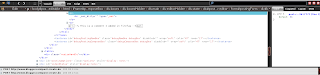
Firebug is a webpage analyzer.
With it you can view, edit, or add HTML, javascript, and CSS. You can also view how much bandwidth a web page has consumed since you started firebug and you can see how much bandwidth each process takes. It is also great to check to see how fact you can do something or if you even have and internet connection.
Speed dial is like the new tab page from Google Chrome, but they are only websites that you set. It has up to 9 saved pages per group and you have an unlimited amount of groups to make.
Google Chrome / Chromium should be the choice for anyone looking for speed, ease of use, and compatibility. When it is a match between Chrome and Firefox it mostly comes down to preference and how much addon support you want.
One of my favorite ideas I saw in firefox were the release channels for beta, current, and alpha. When firefox 5 was released there were already users testing firefox 9, ensuring that the release would mostly be swept of all bugs. You can choose what browser version you want in Linux by added the PPA for whatever version of Firefox you want. The most recent version will gain priority over ones before it. For instance, if you added the Beta PPA and then the Alpha PPA you would be put on the Alpha update channel. You can switch channels at any time by removing the PPA, but I would not recommend that if you are more than a few versions ahead. You could go months without any updates.
One of the two downsides to firefox that I noticed was speed. Firefox (version 6) is considerably slower than Google Chrome. I have slow internet speed, so any speed counts. But for anyone that has a high speed connection it should barely be a noticeable difference.
The other issue was the way tabs are run. In Google Chrome every tab is run as a new process, which people complain can eat away at RAM. But it is a wonderful way to do things, because one catastrophic tab failure will not bring down the entire web browser. While it is rare for this to happen in Firefox it has the ability to happen, which is more than enough to scare me when I am doing something critical through the web browser. Firefox makes up for it by saving tabs for opening the next time firefox opens after an unexpected shutdown.
Extensions
Extensions are pieces of software created by firefox users that either add functionality or change the way something in the browser or on the web works. Google Chrome has a wide range of extensions, but not nearly as vast as firefox's collection. Some of the extensions are Operating System specific, so Linux / OS X users could be left out.
Some of the more popular extensions are Greasemonkey, Adblock, Firebug, and Speed dial
Greasemonkey allows scripts to be installed and managed. Scripts act similarly to extensions but affect only the way websites work. For a huge collection of scripts visit userscripts.org.
Adblock does exactly what the name makes you think it would do. It blocks ads. Not only does it block them, but it stops them from downloading; saving bandwidth. I am not an adblock user because ads support some of people's favorite websites like hotmail, facebook, and even Blogger.

Firebug is a webpage analyzer.
With it you can view, edit, or add HTML, javascript, and CSS. You can also view how much bandwidth a web page has consumed since you started firebug and you can see how much bandwidth each process takes. It is also great to check to see how fact you can do something or if you even have and internet connection.
Speed dial is like the new tab page from Google Chrome, but they are only websites that you set. It has up to 9 saved pages per group and you have an unlimited amount of groups to make.
Google Chrome / Chromium should be the choice for anyone looking for speed, ease of use, and compatibility. When it is a match between Chrome and Firefox it mostly comes down to preference and how much addon support you want.
Friday, February 4, 2011
Must-have software


- What is some must have software to have on your computer? Here is the
run-down of some of the software that I use and how it can be used.
#1 - Hypercam recorder: Hypercam recorder allows you to record your desktop to show tutorials or to save a video clip. The movie's file size is normally ridiculously large, though.
Legal: You cannot use this to record copyrighted material.
#2 - Rainmeter: This is a program that allows the display of meters and measures. Measures take information that you tell it to and display it in meters, visual data displaying meters on your desktop. Skins are .ini files that tell rainmeter what to do and Configs are groups of skins. You can download new configs from sites such as www.deviantart.com under the rainmeter section. This is mostly good at making your desktop visually appealing.
#3 Some type of messanger : Stay in touch with people you know in real life or those you met in cyberspace. You can finally be social while not revealing any information you do not want to. The four messangers listed above are widely used and can allow you to keep in contact with other people. Most also have a file sharing feature for easy and quick file transfer or sharing.
#4 - Cybergate: There is no download link available for this program right now. Be very careful trying to download it, too. People often try to infect you with a virus when downloading this. The tough things is that Antivirus programs detect this as a virus when you download it. Ignore the warnings. Cybergate is a RAT server creater. You can have somebody download your server and then you have nearly complete access of their computer if you use it right. It is illegal to do this so I do not recommend or encourage such behavior. This can be useful if you are new to the world of hacking (Once again, illegal) or if you just want to have better controls over your children online. You can also test somebody's intelligence by sending them this and seeing if they download it. You can send an error message showing their mistakes and where to do better next time.
#5 - Microsoft Security Essentials: Crucial for remaining safe online. This is a virus / malaware / spyware / bad thing / detector. It is one of the highest rated free antivirus and I feel that it does better than a lot of non-free services. There are updates often and free full, quick, or custom scans with accurate results.
Subscribe to:
Posts (Atom)