Showing posts with label Chrome. Show all posts

Sunday, June 2, 2013

How to install Google Chrome in Fedora 19

I had some trouble installing Google Chrome within firefox. It downloaded the .rpm file to /var/temp, but was unable to install it with gPackageKit due to "insufficient permissions". If you have this error, or just want an easier way to install Google Chrome, here is how:
Dependencies
I had an issue as well with my package manager not automatically finding one of the dependencies, but this problem could have been on my end. To be safe, install the "lsb" package from your package manager.

The Command
This one-stop-shop command (as root) will Download and install the x86 version of Google Chrome.

wget https://dl.google.com/linux/direct/google-chrome-stable_current_i386.rpm && rpm -i google-chrome-stable_current_1386.rpm

For the x86_64 version:

wget https://dl.google.com/linux/direct/google-chrome-stable_current_x86_64.rpm && rpm -i google-crhome-stable_current_x86_64.rpm

Of course, both of these commands assume that you have read the license agreement here: http://pastebin.com/ExXM86Y1

Congratulations, you are now the proud owner of a Google Chrome browser.

Saturday, April 27, 2013

How to install Google Chrome in Ubuntu (13.04)

There is a problem with Ubuntu 13.04 that disallows Google's Chrome web browser from being installed without making a fuss. In short, the problem is that google needs libudev0 (>= version 147), but that package is not available in the repositories.

The Solution
libudev0 may not be in the Ubuntu repositories, but it IS in the parent-distribution (Debian)'s repositories. We can go there and download libudev0, and then install the program.

1) Go to http://ftp.us.debian.org/debian/pool/main/u/udev/libudev0_175-7.1_amd64.deb and download the .deb

2) Install the file like you normally would (double click it in Files or use dpkg -i).

3) Download the Google Chrome package from https://www.google.com/intl/en/chrome/browser/thankyou.html?brand=CHMB

4) Install the Chrome .deb file however you comfortably do so.

Extra
If you messed up beforehand, you will want to run "sudo apt-get install -f" from the Terminal to clean any broken packages that apt tried to get.

Thursday, August 25, 2011

Firefox web browser

I had been using Google Chrome as my web browser until I decided to finally try firefox. 26.8% of all internet users are firefox users according to Wikipedia with only 17.6% using Chrome. I figured that more users could equal more extension support, better ease of use, and more tools than the minimalistic style browser that Chrome is. I was correct.

One of my favorite ideas I saw in firefox were the release channels for beta, current, and alpha. When firefox 5 was released there were already users testing firefox 9, ensuring that the release would mostly be swept of all bugs. You can choose what browser version you want in Linux by added the PPA for whatever version of Firefox you want. The most recent version will gain priority over ones before it. For instance, if you added the Beta PPA and then the Alpha PPA you would be put on the Alpha update channel. You can switch channels at any time by removing the PPA, but I would not recommend that if you are more than a few versions ahead. You could go months without any updates.


      One of the two downsides to firefox that I noticed was speed. Firefox (version 6) is considerably slower than Google Chrome. I have slow internet speed, so any speed counts. But for anyone that has a high speed connection it should barely be a noticeable difference.

     The other issue was the way tabs are run. In Google Chrome every tab is run as a new process, which people complain can eat away at RAM. But it is a wonderful way to do things, because one catastrophic tab failure will not bring down the entire web browser. While it is rare for this to happen in Firefox it has the ability to happen, which is more than enough to scare me when I am doing something critical through the web browser. Firefox makes up for it by saving tabs for opening the next time firefox opens after an unexpected shutdown.


                                              Extensions 

        Extensions are pieces of software created by firefox users that either add functionality or change the way something in the browser or on the web works. Google Chrome has a wide range of extensions, but not nearly as vast as firefox's collection. Some of the extensions are Operating System specific, so Linux / OS X users could be left out.

Some of the more popular extensions are Greasemonkey, Adblock, Firebug, and Speed dial

Greasemonkey allows scripts to be installed and managed. Scripts act similarly to extensions but affect only the way websites work. For a huge collection of scripts visit userscripts.org.

Adblock does exactly what the name makes you think it would do. It blocks ads. Not only does it block them, but it stops them from downloading; saving bandwidth. I am not an adblock user because ads support some of people's favorite websites like hotmail, facebook, and even Blogger.
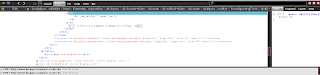
Firebug is a webpage analyzer.
With it you can view, edit, or add HTML, javascript, and CSS. You can also view how much bandwidth a web page has consumed since you started firebug and you can see how much bandwidth each process takes. It is also great to check to see how fact you can do something or if you even have and internet connection.

Speed dial is like the new tab page from Google Chrome, but they are only websites that you set. It has up to 9 saved pages per group and you have an unlimited amount of groups to make.

Google Chrome / Chromium should be the choice for anyone looking for speed, ease of use, and compatibility. When it is a match between Chrome and Firefox it mostly comes down to preference and how much addon support you want.

Friday, July 29, 2011

Rambling about Google's Operating System

Google's chrome operating system (not to be confused with Chrome the web browser) is inching closer and closer towards it's final release. It's goal, in my opinion, seems to make our idea of a modern operating system seem like it is too much of a hassle for someone to use.


Chrome OS deals with just the internet and doesn't allow you to download any software, store any files, or do many of the things that we all do daily. The video starts off by saying we spend 90% of the time on our computers online. For intense Facebookers or web designers this may be the case, but for the rest of us it is not. I spend around 5 hours daily on a computer and probably only 1 hour total on the internet. Another one of the Operating Systems draws is the startup time. Apparently they aim to reduce it to 7 seconds by release. The OS that I use only takes a maximum of 6 seconds to get to the login screen and another 6 to become completely useful, so they are spreading misinformation in the form of high numbers to gain downloaders.


An obvious problem with Chrome OS is simply the idea. Why would I want an Operating System that can only access the internet and not store files on my computer? That doesn't sound like simplicity  or ease of use to me, it sounds like an excuse to make a cheap operating system.

Let's use my computer as an example. I have a 1.5 TB hard drive 26% filled with software, pictures, and documents. My desktop is filled with 8 folders, 28 programs, and 6 documents. One of the programs is Google Chrome, my web browser. What Chrome OS wants to do is drag all of my folders and documents to the trash and leave all but my web browser, and finish by calling it a revolutionary idea.

The Operating System also introduces terrible security issues. You can still save files on your computer, but it is a hassle. Everything is stored "In the cloud". Which is perfect for some files, but not the case for all. Would you feel okay uploading the contents of all of the folders in your home directory to the internet? Or uploading that world-changing story or program you're writing? Before you answer keep in mind that hackings increased  over 90% this year. Stuxnet, the worlds most advanced computers virus, nearly destroyed all of Iran's nuclear centrifuges. If a virus can do this it can also find your files online and abuse/steal them.

I, and I think a lot of the readers here, are Google supporters. Their products are unmatched by any other when it comes to a friend user interface and speed, safety, and usefulness. However I am not hopping on the Chrome boat, and if it doesn't change a lot of people won't.

Thursday, March 17, 2011

Chrome tutorial 2 - Left out information and Chrome anonymity.

This is some random information I left out in my first tutorial of Google Chrome.
To start a new tab (A window that is opened within your current browsing screen) you can do one of three things. The first thing you can do is click on a link and hit "Open in new tab". Secondly (The most common way) you can click the plus sign near your currently opened tab(s). Like internet explorer the keyboard function Ctrl+T still works for opening new  tabs by default. Tabs are useful to use when you want to view another page without leaving your current one.

Something else I left out is the ability to drag a tab to create a new window with that tab in it. Click a tab with your mouse, click it, and drag it away from the tabs pane. It will automatically open a new browsing window with just that tab in it.

If you right click a tab you will also be given the opportunity to pin the tab. When you do this the tab will shrink to just the website's logo. (Like the blogger symbol for this blog.)

Inspect Element
If you right click on most places of a web page you will get a few options. "Paste, Spell Checker, and Open in new tab" will be there depending on where you are right clicking. Another option that will always be there (unless you are clicking on Flash driven services) is "Inspect element". When you click this it opens the HTML script for the web page in a new Google chrome Window titled "Developer Tools". I am not experienced yet with major HTML editing but I will show you what I know so you can alter website images or text for use in humorous screenshots or faking something. Right click this sentence. You will probably see something along the lines of > <p>...<p>. By clicking the gray > you see by the <p> it will display the text inside. Now you should see this entire post inside the <br> confines. If you double click any of the text you can edit it to whatever you want. Note that the changes will only appear on your computer and are not permanent.

Now try doing this with a sample image like this one. You should see something that looks like a URL already highlighted with the text "src=" in front of it. Double click that and move the cursor over with the arrow keys to change it. Find the URL of another image you want to use (images from Google images or facebook all work) and replace the URL with the URL of your image. If you don't keep the "SRC=" it won't properly work.

Inspect element can be used to create false items or alter existing ones on a website. So if you were chatting with one of your friends on the internet you could alter the image URL and the name / text your friend was giving you to make it look like you were talking to a celebrity. This was done in Youtube's Life In a Tent attempt to impersonate Boxxy and make it look like her "new" video was a fake.

Anonymity in Google Chrome
Google Chrome comes with what is called Incognito mode. This won't store any cookie information about you. This does nothing to alter your IP address or stop you from directly downloading something, though. You can see how to configure a tor or web proxy with Google chrome in my earlier article "Anonymity on the Internet: Harder than you think". Accusations have been made against Google saying that it invades your privacy. These are mostly untrue. The only reason Google does this is for trying to improve their services for their clients.

Wednesday, March 16, 2011

Google chrome user guide - The basics

SofDue to real-life requests I am going to write an extremely simple tutorial for Google chrome (see earlier posts for what exactly it is.) Your first step is to download Google Chrome. If you are using linux or another 64-bit browser this page will automatically detect it. After the download you will automatically be asked what your default search engine should be. Choose the engine that you are the most comfortable with. You should also set Chrome as your default web browser.

After the initial setup is complete it will throw you directly into the New tab window of google chrome. If you see something that is similar to that image you have done everything right thus far. You will only have 2 recently visited websites. One is for a Chrome tutorial, one is for Google chrome themes. Themes are designed to change the color / pattern schemes of the download bar, the browsing header, and the new tab pages.

Immediately after setup you can start using Google Chrome. You can just click the URL field and type the name of the address that you want to navigate to. The Google Chrome URL field also serves the searching purpose. You can type a phrase or question into the URL field and hit enter and it should take you directly to the default search engine's search page for that word of phrase. If you would rather search a site (Youtube will be our example) you will type the name of the website followed by what your search should be. So if you wanted to search Youtube videos for Rivers you would type "www.youtube.com Rivers" in your URL pane.

You might not want to start browsing just yet though. You may realize that your beloved toolbars have gone missing. This is because Google chrome uses Extensions rather than toolbars. Extensions can affect the way that certain services behave or modify the GUI or browsing interface you use to interact with the internet. (Here is where you download them.) Some of the more famous ones are already listed on the front of the extensions page. Some more useful ones I've found are Wikipedia, and Kick Ass for a graphical way of removing page elements.) If you click install on an extension page you will be asked to confirm under the given privacy regulations provided to you.

I mentioned page elements earlier. That refers to the html script that most websites use to display information. Google Chrome comes with a built in feature called "Inspect element" (similar to Firebug on Firefox). I will teach you more about this later.

Once you have all of your extensions set up nicely  the next thing you want to do is set up your bookmarks. In the Google Chrome window on the URL field there is a grayed out star on the far right hand end of the bar. If you click this you will be prompted to give a name and a folder to save the bookmark in. The bookmark bar will be your default bookmarking place. This is the bar along the top of the new tab page that displays webpages you've bookmarked for quick navigation. Keep websites you use often here for ease of access later on.

For Linux 64-bit users
Google does have a version of Chrome for you. I experienced some problems involving Flash but they can be fixed. I would gladly tell you how to fix these issues but I am not really sure what I did. After 2 days of downloading from the Ubuntu software center and Adobe everything straightened up.

In the next tutorial
The basics of HTML will be discussed and more network connection / proxy configuration guides will be input.