I recently started using Aurora and I have been impressed with how stable it was. I was more impressed with how well the Firefox update stream is laid out. Below I have a description of each web browser that Mozilla releases along with the Firefox Beta PPA, Aurora PPA, and the nightly PPA for Ubuntu. To install any of these browsers, add the PPA and do an an update and upgrade.
Firefox, Firefox Beta (referred to here as "Beta"), Aurora, and Nightly are four web browsers developed by Mozilla and the community. In the end they will all become Firefox, but they are laid out like a chain in a brilliant update stream. Each of the browsers serves a different purpose and has a varying level of usability. Here is the breakdown of what each web browser does.
Firefox
Firefox is the standard web browser sponsored by Mozilla. Additions are added to Firefox only after they have been added to all of the other web browsers in the chain. Firefox is stable and has the most support for add-ons and themes.
Firefox Beta
Beta is for features that have gone through alpha and pre-alpha testing and are almost ready to be added to the Firefox web browser. This is one last testing phase before additions are finalized and implemented in Firefox. Stability isn't usually an issue at this stage, but some addons with poor support may be incompatible.
sudo add-apt-repository ppa:mozillateam/firefox-next
Aurora
Aurora is equal to an Alpha stage of development. At this point features are still relatively new, but have been confirmed to be useful and usable by nightly. This is the most stable of the "Cutting-Edge" browsers, but can still be hit by stability issues like crashes with any new features, although it is uncommon. Addon support and Theme support take a much larger hit than in Firefox Beta. Only web developers and computer hobbyists should use Aurora. Normal computer users probably wouldn't find many problems with aurora, but there would be no benefits worth risking crashes and a lack of addons.
sudo add-apt-repository ppa:ubuntu-mozilla-daily/firefox-aurora
Nightly
Nightly is a web developer where features are added literally every day and then trickle downstream. Nightly users get the raw code churned out from code contributors, which can lead to crashes and problems. Using Nightly is seen as a show of status, almost like a volunteer. Nightly users receive the worst addon and theme support out of the bunch of the builds. A knowledge of programming and patch submission is not required, but is helpful to further the progression of updates inlcluded in this browser.
sudo add-apt repository ppa:ubuntu-mozilla-daily/ppa
Although I mentioned that addon and theming support gets worse as the versions get larger, this is not a dealbreaker. Many good addons are supported on all versions. Nightly is the only browser that may go dark for certain addons.
Showing posts with label firefox. Show all posts
Showing posts with label firefox. Show all posts
Wednesday, July 18, 2012

Sunday, July 15, 2012
New and Exciting web browser: Qupzilla
The world of web browsers is a split between the core used to render web pages. Webkit is used by Midori and all Google Chrome / Chromium variants. The other option, Gecko, is used by Firefox. Webkit offers some functionality over Gecko, including plugins and faster rendering of pages. A new web browser has recently come into existence that is fully cross-platform compatible and uses webkit called Qupzilla. Despite the weird sounding name, this web browser could give some of the larger browser a run for their money if it gets some of its kinks worked out. Here is the breakdown:
 Every operating system that has a Qt port and webkit can run Qupzilla. Windows, OS X, and any major Unix are all eligible. That is better support than Google Chrome and it's only a year old. Other than the great support it has other advantages:
Built-in addons
The web browser has multiple addons installed by default. Greasemonkey, a personal information handler, a speed dial (pictured, and adblock are all installed from the get-go.
Theming and Configuration
 Themes are installable like in other browsers. The browser comes with a few themes installed by default. They try to mimic the appearance of a theme for a certain operating system. The Linux theme integrates with you Qt theme specified in qt4-qt4config (run with qtconfig).
Configuring Qupzilla is similar to configuring Firefox. Going to edit>preferences brings up a terse set of menus for configuring your web browser. A bunch of goodies are packed into here, including network proxy configurations, notifications, the password manager, and the download manager. A dialog for notifications is also including, and I was impressed at how well it integrated with free-desktop compliant notifications as well as OSD just like a more mature project like clementine does.
Compatibility
Qupzilla can import bookmarks from most major browsers. For playing video and game content, HTML 5 and Flash both work perfectly.
Browsing experience
Webkit loads pages very fast. I am on a slow connection and I was able to take note of the speeds that were achieved with webkit. Because of Qupzilla's use of Webkit and how it works with the operating system the memory usage should be FAR lower per-tab than any other major web browser. There are also other features in the browsing experience that make it unique. The IP address of a loaded page and the progress of loading is shown in the status bar. The search bar AND omnibar can both use different search engines depending on a set preference dialog or a key-letter like "g" for google or "d" for duckduckgo. Flash playing support is installed by default.
Like Firefox, Qupzilla has a download manager. A feature that I found to be very interesting was the ability to pass off an external program and parameters as the download manager.
Development Process
Major web browsers always feel the same anymore. Qupzilla is not to that point of maturity yet. Every update (which are somewhat frequent) brings some new and exciting feature along with it. The project is open-source and listed on github. The developers and anybody interesting in helping the project (as well as just normal users) should join #qupzilla on the freenode IRC network. I've talked a bit to the developers, and they are all very nice people that tend to listen to suggestions.
Of course, like any project it has its disadvantages too. Here is a rundown of those:
Addon support
The web browser has an extension system, but almost nobody is developing extensions that work with Qupzilla. The addons including by default are ported by the developers and may not be fully functioning. In fact, my beloved spell check doesn't work. This was the only real dealbreaker for me. Userscripts do work but they may not work exactly right.
Stability
The project is relatively new and bugs are being worked out. I haven't had a crash from it yet, but at one point it wiped all of my speed dial entries.
Conclusion
Qupzilla certainly is not the best web browser in the world in its current state. The major gripe with its users is addon support, and I couldn't agree more with how much this helps a browser out. I've contacted the developers, urging them to improve the plugin framework by looking at Firefox and Eclipse's approach. If addon support improved and better UI customization came to be, I would definitely use this as my default browser.

Built-in addons
The web browser has multiple addons installed by default. Greasemonkey, a personal information handler, a speed dial (pictured, and adblock are all installed from the get-go.
Theming and Configuration
 Themes are installable like in other browsers. The browser comes with a few themes installed by default. They try to mimic the appearance of a theme for a certain operating system. The Linux theme integrates with you Qt theme specified in qt4-qt4config (run with qtconfig).
Configuring Qupzilla is similar to configuring Firefox. Going to edit>preferences brings up a terse set of menus for configuring your web browser. A bunch of goodies are packed into here, including network proxy configurations, notifications, the password manager, and the download manager. A dialog for notifications is also including, and I was impressed at how well it integrated with free-desktop compliant notifications as well as OSD just like a more mature project like clementine does.
Compatibility
Qupzilla can import bookmarks from most major browsers. For playing video and game content, HTML 5 and Flash both work perfectly.
Browsing experience
Webkit loads pages very fast. I am on a slow connection and I was able to take note of the speeds that were achieved with webkit. Because of Qupzilla's use of Webkit and how it works with the operating system the memory usage should be FAR lower per-tab than any other major web browser. There are also other features in the browsing experience that make it unique. The IP address of a loaded page and the progress of loading is shown in the status bar. The search bar AND omnibar can both use different search engines depending on a set preference dialog or a key-letter like "g" for google or "d" for duckduckgo. Flash playing support is installed by default.
Like Firefox, Qupzilla has a download manager. A feature that I found to be very interesting was the ability to pass off an external program and parameters as the download manager.
Development Process
Major web browsers always feel the same anymore. Qupzilla is not to that point of maturity yet. Every update (which are somewhat frequent) brings some new and exciting feature along with it. The project is open-source and listed on github. The developers and anybody interesting in helping the project (as well as just normal users) should join #qupzilla on the freenode IRC network. I've talked a bit to the developers, and they are all very nice people that tend to listen to suggestions.
Of course, like any project it has its disadvantages too. Here is a rundown of those:
Addon support
The web browser has an extension system, but almost nobody is developing extensions that work with Qupzilla. The addons including by default are ported by the developers and may not be fully functioning. In fact, my beloved spell check doesn't work. This was the only real dealbreaker for me. Userscripts do work but they may not work exactly right.
Stability
The project is relatively new and bugs are being worked out. I haven't had a crash from it yet, but at one point it wiped all of my speed dial entries.
Conclusion
Qupzilla certainly is not the best web browser in the world in its current state. The major gripe with its users is addon support, and I couldn't agree more with how much this helps a browser out. I've contacted the developers, urging them to improve the plugin framework by looking at Firefox and Eclipse's approach. If addon support improved and better UI customization came to be, I would definitely use this as my default browser.
Sunday, March 25, 2012
10 must-have programs for gnu/linux
I have used GNU/Linux for over a year on various distributions. I have done everything from edit text, programming, gaming, emulating, and modifying the look and feel of the desktop environment. To do so, I used a variety of useful tools which I will list below.
1 - GNU C Compiler
The GNU C Compiler, or GCC for short, allows you to compile programs written in the C programming language with gcc and C++ programming languages with g++. Non-programmers will also benefit from having gcc on their system, since a lot of the software mentioned will not come in a compiled package, so you must do it yourself.
sudo apt/yum/equo install gcc
2 - Firefox
Although not specific to gnu/linux, firefox is arguably the best web browser available. Firefox is free and open source, so anybody can edit and modify it to their needs. Firefox is also built on top of the second best plugin framework around (first being Eclipse), so it is highly extensible.
sudo apt/yum/equo install firefox
3 - Terminator
sudo apt/yum/equo install terminator
On most distros, xterm is the default terminal emulator. Terminator is a new terminal emulator with much added functionality, such as terminal groups and broadcasting.
4 - The Libreoffice suite
The Libreoffice suite can be seen as the open-source version of the Microsoft office suite, allowing the user to create presentations, documents, spreadsheets, databases, and drawings. Downloads are available at their website.
www.libreoffice.com
5 - zsh
Zsh, the Z-shell, is a replacement for BASH, the shell that is commonly found on Linux systems. Zsh brings multiple improvements to batch, especially with its advanced tab completion. Some of the attractions to zsh are its portability (since it doesn't rely on external programs), its backwards-compatibility with BASH, and the way it handles tab completion.
sudo apt/yum/equo install zsh
6 - GIMP
GIMP, the GNU Image Manipulation Program, is a photo editing program much like Photoshop. A debate continues to this day over which is better, but the fact that there is even question over which is superior is a telltale sign of GIMP's functionality. In the next major release, GIMP will become much easier to use and add additional features. That version of GIMP is available on Github right now.
sudo apt/yum/equo install gimp
7 - Avast Antivirus
Avast offers a free (gratis) antivirus program that can scan Linux systems for viruses. Although Linux is a very secure operating system, it has it's security holes. The primary usage for avast isn't for scanning your own system, but for scanning files you are planning on giving to another person.
www.avast.com
8 - vim
Vim is a text editor that runs from the command line. It is a vast improvement over its predecessor, vi, in multiple ways. It supports plugins, has syntax highlighting right out of the box, and has a more logical (and less painful) command system than emacs.
sudo apt/yum/equo install vim
8 - tint2
This program may seem trivial, but if you are using another dock such as gnome-panel or cairo-dock you may want to check this out. I used to use docky, but it was heavyweight and requires composting. Tint2, in contrast, is lightweight, simple, and attractive. It could also save you some time. Right clicking on a window will close it instead of bringing up a menu.
sudo apt/yum/equo install tint2
9 - mplayer2
Whenever I'm not doing something that requires too much concentration, I listen to music. Although, I found myself wondering why I needed a GUI to do so. mplayer2 allows you to play music and watch videos from the command line. It also supports playlists and streaming.
sudo apt/yum/equo install mplayer2
10 - Links2
While we're still on the theme of command line applications, I must mention links2. Links2 is an improvement over links and lynx, and allows the browsing of the web through the command line. In addition to browsing, links can also handle the downloading of files. With links2 there is also an extremely fast, graphical browser that supports pictures.
sudo apt/yum/equo install links2
There are programs I have not mentioned that I use every day, such as picasa and code::blocks, but I did not mention them since they wouldn't appeal to everybody.
1 - GNU C Compiler
The GNU C Compiler, or GCC for short, allows you to compile programs written in the C programming language with gcc and C++ programming languages with g++. Non-programmers will also benefit from having gcc on their system, since a lot of the software mentioned will not come in a compiled package, so you must do it yourself.
sudo apt/yum/equo install gcc
2 - Firefox
Although not specific to gnu/linux, firefox is arguably the best web browser available. Firefox is free and open source, so anybody can edit and modify it to their needs. Firefox is also built on top of the second best plugin framework around (first being Eclipse), so it is highly extensible.
sudo apt/yum/equo install firefox
3 - Terminator
sudo apt/yum/equo install terminator
On most distros, xterm is the default terminal emulator. Terminator is a new terminal emulator with much added functionality, such as terminal groups and broadcasting.
4 - The Libreoffice suite
The Libreoffice suite can be seen as the open-source version of the Microsoft office suite, allowing the user to create presentations, documents, spreadsheets, databases, and drawings. Downloads are available at their website.
www.libreoffice.com
5 - zsh
Zsh, the Z-shell, is a replacement for BASH, the shell that is commonly found on Linux systems. Zsh brings multiple improvements to batch, especially with its advanced tab completion. Some of the attractions to zsh are its portability (since it doesn't rely on external programs), its backwards-compatibility with BASH, and the way it handles tab completion.
sudo apt/yum/equo install zsh
6 - GIMP
GIMP, the GNU Image Manipulation Program, is a photo editing program much like Photoshop. A debate continues to this day over which is better, but the fact that there is even question over which is superior is a telltale sign of GIMP's functionality. In the next major release, GIMP will become much easier to use and add additional features. That version of GIMP is available on Github right now.
sudo apt/yum/equo install gimp
7 - Avast Antivirus
Avast offers a free (gratis) antivirus program that can scan Linux systems for viruses. Although Linux is a very secure operating system, it has it's security holes. The primary usage for avast isn't for scanning your own system, but for scanning files you are planning on giving to another person.
www.avast.com
8 - vim
Vim is a text editor that runs from the command line. It is a vast improvement over its predecessor, vi, in multiple ways. It supports plugins, has syntax highlighting right out of the box, and has a more logical (and less painful) command system than emacs.
sudo apt/yum/equo install vim
8 - tint2
This program may seem trivial, but if you are using another dock such as gnome-panel or cairo-dock you may want to check this out. I used to use docky, but it was heavyweight and requires composting. Tint2, in contrast, is lightweight, simple, and attractive. It could also save you some time. Right clicking on a window will close it instead of bringing up a menu.
sudo apt/yum/equo install tint2
9 - mplayer2
Whenever I'm not doing something that requires too much concentration, I listen to music. Although, I found myself wondering why I needed a GUI to do so. mplayer2 allows you to play music and watch videos from the command line. It also supports playlists and streaming.
sudo apt/yum/equo install mplayer2
10 - Links2
While we're still on the theme of command line applications, I must mention links2. Links2 is an improvement over links and lynx, and allows the browsing of the web through the command line. In addition to browsing, links can also handle the downloading of files. With links2 there is also an extremely fast, graphical browser that supports pictures.
sudo apt/yum/equo install links2
There are programs I have not mentioned that I use every day, such as picasa and code::blocks, but I did not mention them since they wouldn't appeal to everybody.
Thursday, August 25, 2011
Firefox web browser
I had been using Google Chrome as my web browser until I decided to finally try firefox. 26.8% of all internet users are firefox users according to Wikipedia with only 17.6% using Chrome. I figured that more users could equal more extension support, better ease of use, and more tools than the minimalistic style browser that Chrome is. I was correct.
One of my favorite ideas I saw in firefox were the release channels for beta, current, and alpha. When firefox 5 was released there were already users testing firefox 9, ensuring that the release would mostly be swept of all bugs. You can choose what browser version you want in Linux by added the PPA for whatever version of Firefox you want. The most recent version will gain priority over ones before it. For instance, if you added the Beta PPA and then the Alpha PPA you would be put on the Alpha update channel. You can switch channels at any time by removing the PPA, but I would not recommend that if you are more than a few versions ahead. You could go months without any updates.
One of the two downsides to firefox that I noticed was speed. Firefox (version 6) is considerably slower than Google Chrome. I have slow internet speed, so any speed counts. But for anyone that has a high speed connection it should barely be a noticeable difference.
The other issue was the way tabs are run. In Google Chrome every tab is run as a new process, which people complain can eat away at RAM. But it is a wonderful way to do things, because one catastrophic tab failure will not bring down the entire web browser. While it is rare for this to happen in Firefox it has the ability to happen, which is more than enough to scare me when I am doing something critical through the web browser. Firefox makes up for it by saving tabs for opening the next time firefox opens after an unexpected shutdown.
Extensions
Extensions are pieces of software created by firefox users that either add functionality or change the way something in the browser or on the web works. Google Chrome has a wide range of extensions, but not nearly as vast as firefox's collection. Some of the extensions are Operating System specific, so Linux / OS X users could be left out.
Some of the more popular extensions are Greasemonkey, Adblock, Firebug, and Speed dial
Greasemonkey allows scripts to be installed and managed. Scripts act similarly to extensions but affect only the way websites work. For a huge collection of scripts visit userscripts.org.
Adblock does exactly what the name makes you think it would do. It blocks ads. Not only does it block them, but it stops them from downloading; saving bandwidth. I am not an adblock user because ads support some of people's favorite websites like hotmail, facebook, and even Blogger.
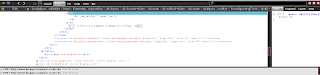
Firebug is a webpage analyzer.
With it you can view, edit, or add HTML, javascript, and CSS. You can also view how much bandwidth a web page has consumed since you started firebug and you can see how much bandwidth each process takes. It is also great to check to see how fact you can do something or if you even have and internet connection.
Speed dial is like the new tab page from Google Chrome, but they are only websites that you set. It has up to 9 saved pages per group and you have an unlimited amount of groups to make.
Google Chrome / Chromium should be the choice for anyone looking for speed, ease of use, and compatibility. When it is a match between Chrome and Firefox it mostly comes down to preference and how much addon support you want.
One of my favorite ideas I saw in firefox were the release channels for beta, current, and alpha. When firefox 5 was released there were already users testing firefox 9, ensuring that the release would mostly be swept of all bugs. You can choose what browser version you want in Linux by added the PPA for whatever version of Firefox you want. The most recent version will gain priority over ones before it. For instance, if you added the Beta PPA and then the Alpha PPA you would be put on the Alpha update channel. You can switch channels at any time by removing the PPA, but I would not recommend that if you are more than a few versions ahead. You could go months without any updates.
One of the two downsides to firefox that I noticed was speed. Firefox (version 6) is considerably slower than Google Chrome. I have slow internet speed, so any speed counts. But for anyone that has a high speed connection it should barely be a noticeable difference.
The other issue was the way tabs are run. In Google Chrome every tab is run as a new process, which people complain can eat away at RAM. But it is a wonderful way to do things, because one catastrophic tab failure will not bring down the entire web browser. While it is rare for this to happen in Firefox it has the ability to happen, which is more than enough to scare me when I am doing something critical through the web browser. Firefox makes up for it by saving tabs for opening the next time firefox opens after an unexpected shutdown.
Extensions
Extensions are pieces of software created by firefox users that either add functionality or change the way something in the browser or on the web works. Google Chrome has a wide range of extensions, but not nearly as vast as firefox's collection. Some of the extensions are Operating System specific, so Linux / OS X users could be left out.
Some of the more popular extensions are Greasemonkey, Adblock, Firebug, and Speed dial
Greasemonkey allows scripts to be installed and managed. Scripts act similarly to extensions but affect only the way websites work. For a huge collection of scripts visit userscripts.org.
Adblock does exactly what the name makes you think it would do. It blocks ads. Not only does it block them, but it stops them from downloading; saving bandwidth. I am not an adblock user because ads support some of people's favorite websites like hotmail, facebook, and even Blogger.

Firebug is a webpage analyzer.
With it you can view, edit, or add HTML, javascript, and CSS. You can also view how much bandwidth a web page has consumed since you started firebug and you can see how much bandwidth each process takes. It is also great to check to see how fact you can do something or if you even have and internet connection.
Speed dial is like the new tab page from Google Chrome, but they are only websites that you set. It has up to 9 saved pages per group and you have an unlimited amount of groups to make.
Google Chrome / Chromium should be the choice for anyone looking for speed, ease of use, and compatibility. When it is a match between Chrome and Firefox it mostly comes down to preference and how much addon support you want.
Subscribe to:
Posts (Atom)