Showing posts with label desktop environment. Show all posts

Wednesday, October 3, 2012

Cinnamon 1.6.1 review

Using a third-party repository, it is possible to install Cinnamon 1.6.1 on Ubuntu 12.04 / .10. This is what I have done, and I have some criticisms regarding this release. The overarching theme is: the cinnamon team listened to Linus's advice of "If it compiles, it ships".

There is no doubt that cinnamon is a beautiful desktop environment. It has most of the features that Unity does with semantic searching and consumes less RAM than Gnome 3 or Unity. However, like the other versions, Cinnamon consumes slightly more CPU cycles than other popular desktop environments. If your processor is the weakest part of your computer, then this could result in the dreaded bottleneck.

Another advantage is the maturity of the Cinnamon API. There is an increasing number of extensions and third-party support available for it. Extensions can be read about in more depth here: http://cinnamon-spices.linuxmint.com/extensions 

These are not as required as they were for Gnome 3, since Gnome was quite a screw-up compared to previous versions.


 Expo, as expected, is just as good as it always was. Now there is a new feature that allows you to rename windows and even destroy them directly from the Expo dash.


But there is another disturbing bit of information that goes along with Cinnamon. One developer has been working on porting the Gnome keyboard shortcut option interface over to Cinnamon, and got stuck in the middle of his work when the release date hit. Whoops!


This means that custom keyboard shortcuts are a thing of the past. Until the developer finishes his work (hopefully before 1.6.2 launches) the default keyboard shortcuts will have to suffice. Yes, this does mean  closing windows with the awkward Alt+f4 combination, or moving them with alt+click.

To make matters even worse, programs that work as a graphical buffer between the configuration file and the input have all been broken by this impending migration, leaving the ability to make your own keyboard shortcuts COMPLETELY broken.

In lighter, better news for Cinnamon their new file manager, Nemo, has been finished and shipped with 1.6.1. Nemo is based on an earlier version of Gnome's Nautilus file manager, since the Gnome developers have been busy stripping features from their latest file browser. Also, Cinnamon no longer has memory issues. It tends to idle in the hundreds, where before it was not uncommon to have Cinnamon reach massive memory humps up to 800 MiB. And although Cinnamon does tend to consume more CPU Cycles than other desktop environments, the 17% CPU bug associated with opening the cinnamon menu has been fixed, meaning that searching can begin as soon as <Mod4> is pressed.


Saturday, August 4, 2012

Comparison of Window Managers and Desktop Environments Reloaded

About two years ago I compared all of the popular window managers with one another. Now that I have much more experience with the different desktop environments, I am going to give the COMPLETE rundown of all of the popular graphical environments. Let's start with my personal favorite, awesome Window Manager.

Awesome Window Manager

If KDE is a sword then Awesome Window Manager is a rock. It is a blunt environment that requires a knowledge of Lua to configure it. Windows tile and using the keyboard is pretty much necessary. This would be a very unfamiliar environment for someone coming from a floating Window Manager. However, the stock keyboard combinations and the efficiency of tiling combined with the number of tags by default make it a powerful tool in the hands of an advanced user. Awesome can be customized to do anything the user wants, and if that is an appealing trait and you have the time to configure it to no end then use awesome Window Manager.

Ease-of-Use: 2
Speed: 10
Aesthetics: 4
Productivity: 8

K desktop environment and Kwin

KDE is an impressive desktop environment to say the least. It has received flack online for its bloat, and that is a true problem. Services and superfluous programs clog the environment and bog it down, consuming RAM in the process. The desktop effects will require a graphics card and can slow any other task requiring one down, requiring them to be shut off. The true power of KDE comes from the very trait that gives it a bad reputation: the bloat. If there is something you want your window manager to do, KDE has a tool to do it.

With different activities you can transform your desktop into an Androidd-esque launcher, or set the wallpaper to monitor the local weather or simulate a virus. Tiling Windows, completely customizable keyboard shortcuts delimited by category, and the suite of applications that come as a part of KDE are just some of the great things that KDE has to offer.

Ease-of-Use: 9
Speed: 5
Aesthetics: 9
Productivity: 6

Unity

Unity is Canonical's modern user interface for their Ubuntu operating system. Unity was created after a fight with the Gnome 3 developers, and it prompted Gnome to create their own operating system to compete with Ubuntu. [opinion]Unity blows Gnome out of the water.[/opinion] In Ubuntu 11.04 Unity was a mess, but ever since 12.04 and Unity 5 it is a usable interface. It runs GTK, so Gnome programs don't pull a mess of dependencies. It also comes in 2d in the event of a weak graphics card, so Unity will run faster.

Unity is the least customizable of the bunch. There is a launcher on the left side of your screen. There are no options regarding this. The extent of theming that can be done ends with GTK and Icon themes and setting the Opacity of the integrated File menu.

Unity offers a unique feature called the HUD that can search through their integrated file menu (GTK and Qt applications move their options bar to the top of the desktop. This can be disabled.) The HUD is a tool of great productivity, and it learns like Gnome do does. The alt key brings it up and within a few keystrokes you can find an item from the context menu that would have taken a whole minute to navigate to by mouse.

Ease-Of-Use: 8
Speed: 4
Aesthetics: 8
Productivity: 8

Gnome 3

It only makes sense to write about Gnome after the entry about Unity. Gnome is, as Linus Torvalds himself described it: "A train-wreck". A few of the sparse good things to say about gnome are that it is themable and it can be extended with addons or with alterations to the internal settings. Gnome 3 comes with insane defaults (like only having the close button on the control bar and the notifications popping up from the bottom and waiting to be dismissed). If Gnome 3 were lightweight and ran a bit faster it would be a viable candidate. It doesn't, though. It consumes more memory than the plasma-desktop from KDE and does not have an option to lessen the effects like other Desktop Environments.

Ease-Of-Use: 6
Speed: 5
Aesthetics: 8 (the one good thing to say)
Productivity: 4

XFCE

Xfce is most well-known for being a lightweight, low-impact desktop environment. Xfce lives up to that reputation, having a RAM consumption only above that of LXDE and Awesome. In addition to being light it is still aesthetically pleasing and has enough tools to customize it to any user's heart's content (even moreso since 4.10 released the mine type editor).

The workspace system is a bit fluky at times, but that is the only real gripe that XFCE can get. I call this one error "leashed windows". Windows that have focus follow you to other workspaces. This usually only applies to switching using keyboard shortcuts.

 Just like Gnome 2.0 it comes with a panel to search through applications, and option to make launchers and links from the desktop, and applets for its panels. It improves on this with a dock (which many users, myself included, purge and replace with tint2 or another dock application) and a good settings tool. XFCE can do some very advanced things. It can even change its Window Manager. Awesome window manager inside XFCE? You bet.

Most of XFCE's applications can be run outside of XFCE, even the window manager. So you can use any combination of XFCE and another environment of your choice while still keeping a low memory profile since XFCE has very few runtime dependencies.

Ease-Of-Use: 8
Speed: 9
Aesthetics: 6 (But customizable to the point of 10)
Productivity: 8

LXDE

LXDE is a set of tools that combines with the Openbox window manager to create a graphical environment unmatched when it comes to ease-of-use combined with shear speed. Some have argued that because of the seperation of desktop environemnt and window manager that LXDE has a "hacky" feel to it. This is not the case. LXDE is a ligthweight XFCE with Openbox's graphical configuration tools. Lxterminal rivals Gnome terminal, and Lxappearance rivals myunity for theme configuration. In fact, lxappearance is the go-to application for changing gtk themes on other desktop environments, not just LXDE. Some of the default software is chosen well too. Pcmanfm as the file manager, for instance, goes along with the lightweight feel of LXDE. Like KDE and XFCE you can change LXDE's window manager from its configuration dialog.

Ease-of-use: 6
Speed: 7
Aesthetics: 5
Productivity: 7

Enlightenment 17

Enlightenment 17, e17 for short, is an odd desktop environment and graphical library suite written by the enlightenment foundation. It improved heavily on e16 and handles a lot of configuration on its first-time-run dialog. It can be heavily extended through configuration files, but otherwise it remains at the beautiful default.There are issues with the file manager handling the desktop, however, and it may throw the entire look-and-feel of the environment off.

 E17 really needs some work. I have had graphical problems and just found it counter-intuitive after it has been set up.

Ease-of-use: 5
Speed: 5
Aesthetics: 9
Productivity: 5

Dynamic Window Manager

Dynamic window manager is a popular dynamic window manager. Dynamic means that the window manager can float or tile, and in DWM's case monocle and spiral. DWM has no configuration tools and the only way to modify it is via the C source code directly. DWM developers have a philosophy that restricts the window manager to only 2000 lines of code, so large improvements cannot be made. Furthermore, users looking to use a mouse are going to feel left out. Although a mouse can minimally interact with the window manager a user with anything but a keyboard and combinations will be lost.

Ease-of-use: 1
Speed: 10
Aesthetics: 3
Productivity: 5

Cinnamon

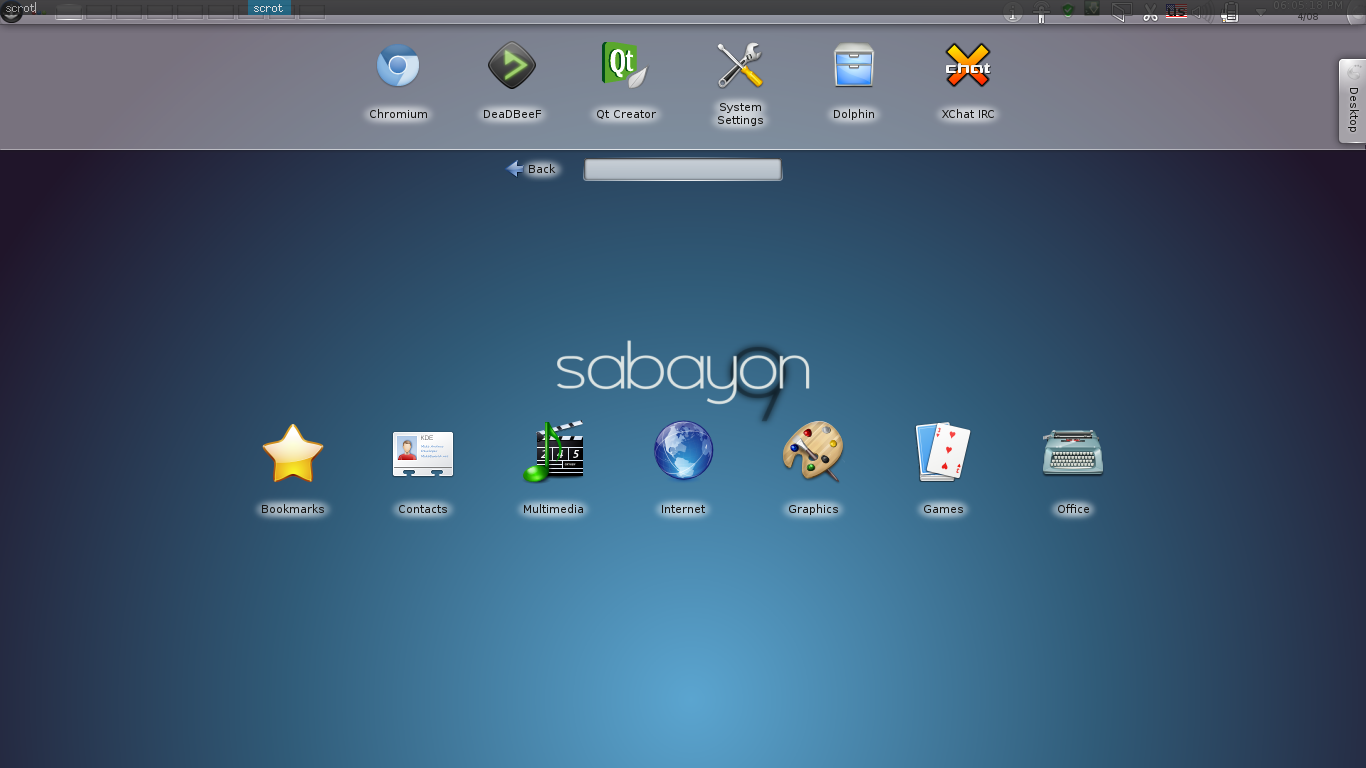
When I first tried the most recent version of Linux Mint it came with Cinnamon - their home-grown desktop environment forked from Gnome 3. Cinnamon is the MATE of Gnome 3, you could say.

Cinnamon did not disappoint on the aesthetics. It was visually appealing to the last detail (as it was configured in mint, at least) and had the ability to be themed. The menu is one of the smartest (from a searching and design point-of-view) menus around. From one menu you can search for applications, search by category, and access bookmarked applications. The searching works as good as Gnome 3's does, so you can still use an application if you do not know its name.

Cinnamon comes with a feature called Expo that is one of its selling points. Expo can show a spread of all of your workspaces, and upon hovering over one a cascade of all the windows in that workspace. Clicking on a window will take you to that particular workspace and application window. If you have used Compiz expo, this is the same feature but integrated in the desktop environment.

There were two issues with cinnamon. The menu took 2 seconds and 17% CPU for a few seconds to open. I talked to a Cinnamon developer via IRC about this problem and he confirmed that it had been fixed and will be released in the next major cinnamon update. Along the lines of bugs there are memory leaks in Cinnamon, so it requires a restart after multiple hours of running to free some RAM.

 Another problem is that some of the layouts do not work at times, but at other times they do. There was no word on whether or not this would be fixed or whether or not it is really an issue. Another issue (not a bug) is the lacking of some advanced features from the cinnamon settings dialog, but advanced settings can still be configured with dconf.


Ease-of-use 7
Speed: 4
Aesthetics: 7
Productivity: 4

Others
TWM - Tab window manager. I have not used this long enough to give a definitive answer, but when I used it the window manager worked as it was intended - which isn't enough.


MATE - Displaced by cinnamon

Verdict:

For pure productivity
Awesome Window Manager is the most productive of the window managers if the user has the patience to edit the lua configuration file and learn the keyboard shortcuts.

Speed
For speed dynamic window manager wins. 2000 lines of code execute blazingly fast.

Aesthetics
KDE wins the aesthetics prize, especially if the advanced desktop effects are enabled with the search and launch activity.

Ease-of-use
Once again KDE wins this prize. Everything is handled for the user.

Final Verdict
KDE is the overall best desktop environment, but each has its own niche. To truly determine the best environment, using all of them and deciding on your own is the best way to make a decision.

Sunday, June 24, 2012

12 - Hour clock in Awesome WM

Awesome Window Manager comes with a widget called "Text Clock" that displays the time in a text box in the upper right-hand corner of the screen. It is in 24-hour format instead of 12, which can cause some confusion for users used to the standard 12-hour time.  Your options are to live with it, or change it. If you want a Day,date, hours:minute:second: am/pm format, look at the end of this post.

Option one- Living with it
I found a neat trick to convert 24-hour time into 12-hour time. Take 13:00, for instance. Subtract 2 from the second number and get the second number of 12-hour time. (3-2=1, so it is 1:00). At 23:00 you get "1" again, meaning that it is 11 O' clock. This method uses too many brain cycles, so I decided to get lazy and just change the source of the script.

Option two - Taking Action
Use this command: sudo gedit /usr/share/awesome/lib/awful/widget/textclock.lua
where gedit is any text editor. This is the source code for the clock widget. Make a backup of the real one. I was a ninny and didn't do this. The two important lines are lines 22 and 23: format and timeout. Format uses the strftime function to display the time. Some important things to note: %H is 24-hour hours and %l is 12-hour time with a whitespace instead of a 0 in the first digit in 1-digit times. (For instance 9:42 would by 9:42, not 09:42). All you need to change is %H to %l.


Now, you are faced with a decision. By default this resets itself every 60 seconds. If you use %S (seconds), you need to change this setting to "1". (5 is also commonly used, but it's a pain if you log in on a non-multiple of 5). This way the clock will reset every second.


The two lines for me look like this:

%p should be the only unfamiliar one. This means am or pm (great for any basement dweller with odd sleeping habits!).

You will not notice changes right away. Restart awesome. If you did something wrong the text clock may not be there. Just use your old source in place of the one you edited. This is the advantage of always keeping a backup.

Here is the FULL source of my script. This is what it outputs:


---------------------------------------------------------------------------
-- @author Julien Danjou &lt;julien@danjou.info&gt;
-- @copyright 2009 Julien Danjou
-- @release v3.4.11
---------------------------------------------------------------------------


local setmetatable = setmetatable
local os = os
local capi = { widget = widget,
               timer = timer }


--- Text clock widget.
module("awful.widget.textclock")


--- Create a textclock widget. It draws the time it is in a textbox.
-- @param args Standard arguments for textbox widget.
-- @param format The time format. Default is " %a %b %d, %H:%M ".
-- @param timeout How often update the time. Default is 60.
-- @return A textbox widget.
function new(args, format, timeout)
    local args = args or {}
    local format =  " %a %b %d, %l:%M:%S %p "
    local timeout = 1
    args.type = "textbox"
    local w = capi.widget(args)
    local timer = capi.timer { timeout = timeout }
    w.text = os.date(format)
    timer:add_signal("timeout", function() w.text = os.date(format) end)
    timer:start()
    return w
end


setmetatable(_M, { __call = function(_, ...) return new(...) end })


-- vim: filetype=lua:expandtab:shiftwidth=4:tabstop=8:softtabstop=4:encoding=utf-8:textwidth=80


You can replace your script with this and it will give you the output I showed you above.

Sunday, June 17, 2012

Everyday use of Awesome WM

I recently tried out awesome, and I was a huge fan of it. It provides the type of keyboard control that I sought since switching between the keyboard and the mouse is inefficient. Also, constant movement between the keyboard and mouse can wear one down after a long session of computing, so awesome window manager introduces a whole new level of comfort and laziness. The mouse still plays an important part in the usage, but it is a sidekick to the power of the key commands. The one thing that I noticed was that the window manager had a pretty high learning curve. I needed to take some physical notes on how to use it. I ran into a few problems, too, but I overcame them. Here is how I did that.

General Usage
Something that I used to use a whole bunch in XFCE was the session management that would start some programs as soon as I logged in. I liked Clementine, Thunderbird, and GNU emacs to start as soon as I began an XFCE session. In awesome this was a bit harder. I had to manually edit the rc.lua configuration file in /etc/xdg/awesome/rc.lua. I added this to the bottom:

-- Autorun programs
autorun = true
autorunApps = 
{ 
   "clementine",
   "thunderbird",
   "emacs",
}
if autorun then
   for app = 1, #autorunApps do
       awful.util.spawn(autorunApps[app])
   end
end
I did this in gedit with the command "gksudo gedit /etc/xdg/awesome/rc.lua". If this type of configuration scares you, Awesome may not be for you. Awesome is all about configuring the window manager to act just like you want it to with LUA. I do not know LUA, but I still find myself editing the configuration file quite often.

Everyday Things
When I first logged into Awesome, I struggled to find out how to even launch an application. Then I found out about the right-click menu. From there I launched a web browser and found out about win+r. This is the first of the key combinations that I learned. The super, or as it is sometimes called "win" key acts as a controller over the window manager. Win+r will open a prompt that says "run" at the top. Just type the name of a program you want. Important: The Run dialog supports tab completion, so you only need to type the first few letters and then tab.
To launch a terminal, Win+r does the trick. Launch as many terminals as you want. You will notice a weird arrangement of windows. This is because Awesome is a dynamic window manager, meaning it has quite a few layouts. I highly recommend the main-left tiling. To change what layout awesome uses, use win+space or the icon at the very top right side of the screen. The one that I use has the icon of two blocks on the left and 6 on the right. This will have one main window on the left and the rest stacked on the left side of the screen. To switch which window is the main one, focus another one by hovering over it with the mouse, using the window list at the top, or using win+j or win+k. Then, use win+ctrl+enter.
If you grow tired of a Window, minimize it with win+n. If you want the window window to maximize to the whole screen you can usually use win-m. An angelic figure will appear to the right of the maximized window on the window list.
If you used to use Unity, Gnome, XFCE, LXDE, or KDE you are probably familiar with the idea of Desktops or Workspaces. Awesome has tags that can be moved to with the mouse or Win+number 1-6 (win+6 would move to tag 6). These work in the same way.
Advanced
rc.lua can literally be edited to do anything that a Window manager can. Here are some important parts of the config:
Line 55: Change which layouts are moved through with Win-Space
Line 219: Some keybindings
Awesome can be themed quite easily. At the top of rc.lua, add beautiful.init("path_to_theme_file")

Annoyances
I haven't come across many. One is controlling the sound. I was able to do this with a custom keybinding, but for a while I used a terminal with alsamixer in it. On "The Linux Action Show", one of the people stated that they would log out, log into XFCE to change the volume, and log back into Awesome. This is really not necessary.
Advantages
This is the fastest WM I have ever used. It boots in about 3 seconds (literally) and is great with working with text. I have heard that it has AMAZING multiple monitor support with their 9 tags, but I cannot confirm this as I only use one. The thing window border makes great use of screen real estate.

Saturday, June 16, 2012

Awesome wm Versus Dynamic wm - The Showdown

Awesome and DWM are both Dynamic Window Managers, in fact, that's what dwm stands for. A dynamic window manager can both tile and float (both of these can also monocle). Tiling windows means that screen estate is taken up completely, making use of every pixel. Floating window managers have resizable windows, and moncling window managers only allow one window to take up the screen at one time. Here is a showdown between Awesome and Dynamic:

Configurability
I made that word up, but it is a very important thing to consider when you're talking about window managers. How extensive theme support is, what widgets are available, and how easy it is to change settings all take play a huge role in what a user will choose for themselves in a window manager.

   Dynamic
Dwm is written in <2000 lines of C. In fact, it is capped at 2000. It will never extend past this out of principle. To configure it, one must first edit the source code directly and recompile it. This is quite a burden, but it means that the entire window manager can be customized. You will want to customize it, too, because the default does not supply the user with some things they may want, like a system tray or even a clock.

   Awesome
Awesome has a file called "rc.lua" in /etc/xdg/awesome/rc.lua. This uses the lua programming language to take full control over some awesome settings. I do not know lua, but it was very easy for me to edit this file because of the parameter names. Changes here will be applied on the next login. ALWAYS keep a backup, because sometimes awesome refuses to start if there is a mistake, even if it is as small as a missing bracket.

Defaults
Default settings are important for the type of person that wants their window manager to work for them right out of there box. Tiling window managers are for hobbyists and power users, but somebody that just wants to boost productivity could be looking into them and functionality right out of the box could be really helpful for them.

    Dynamic
Dynamic has a whole set of useful keybindings by default, and they are pretty easy to learn if you take some physical notes. It integrates well with system defaults, like the default terminal for alt+shift+enter (launch terminal). It comes with 9 "tags" (workspaces for ex-unity users). There is one title bar that I felt could have used some work by default. There is no clock, no system tray, and an unnecessary advertisement for the version number of dwm. The learning curve is also a bit high, so don't expect to be able to use your mouse to launch anything. Using the keyboard will become easier as you learn, however. Unimportant: dwm will use your default desktop background.

    Awesome
Awesome comes with some helpful tools by default. There is a physical button on the top bar to change the mode. It has quite a few modes, some of which I disabled in rc.lua because of how useless they seemed. Modes can be switched from the keyboard or the mouse in the top right corner, near the default clock, date, and system tray. The clock is in 24-hour format by default, so if this is not your preferred way of tracking time it will take some getting used to. Awesome also has 9 tags. It comes with a window list on the top bar as well as an application launching button on the top right. The keybindings are very similar to that of dwm, but they use the mod4 (windows symbol, sometimes called "super") key instead of alt.

Extra information
Dwm didn't want to play nice with awn or tint2. Windows would ignore their modifications to the width of the screen and go past it. I found this pretty annoying since it did not include a window list. With a tiling window manager, it would be pretty redundant, but I had to give up a good friend named awn when I switched. Awesome works fine with both. Both of these window managers are BLAZINGLY (another made up word) fast. I have used both xfce and lxde, but both of these stomped on them in comparison.

Startup applications require configuration in both window managers, but this is far easier in awesome.

The Verdict
[opinion]
From about 5 hours of using each of the window managers, I would definitely, without a doubt, recommend Awesome to anybody looking to use a tiling window manager. It can act a bit buggy at times when moving windows by a mouse, but that is just a very minor inconvenience. It is set up very well to use a configuration file and to have some sane defaults. Dwm shoots itself in its own knee by forcing themselves to keep the project under 2000 lines of code, so awesome prospers as a result. I did feel that dwm documentation was pretty good.[/opinion]

Tuesday, July 19, 2011

Comparison of Desktop environments

This article is ever-so-slightly deprecated. Please see: http://profectium.blogspot.com/2012/08/comparison-of-window-managers-and.html
As you saw in my post below I do not use Unity. I use the currently unstable version of Gnome 3 on my Ubuntu operating system. Today's post is about comparing some popular desktop environments for Linux. XFCE / tiling fans, I'm sorry, but I am not included you in this debate. I do not have any experience with XFCE or many tiling window managers and I wouldn't be able to give a fair report on them.


What desktop environment you choose is a matter of preferences. From the four I have used they all did the same thing in a different, sometimes prettier way.


Unity
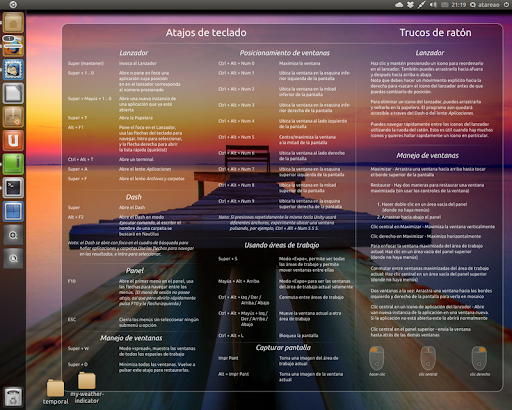
The Ubuntu development team dropped Gnome as their default desktop environment on their release of version 11.04 - Natty Narwhal. They swapped it out with a more modern looking desktop environment called Unity. The key features of Unity are a taskbar (With a very intelligent window-dodge system) and header-window integration. For instance, when you open Libreoffice the options file, edit, view, all go to the top panel. As with most Linux desktop environments they can be customized heavily through themes. Unity suffers from a lack of customizability. No matter what color scheme you use or what desktop effects you want you will still always have the taskbar and integration panel hanging around. It is also hard to use for beginners. Icons from the launcher can't be removed and placed on the desktop as you might think. You need to make a whole new launcher to get desktop icons.

Some good points to make about this desktop environment is the familiarity Windows 7 users will have with be able to keep launchers for their favorite apps. This is something that old Gnome versions couldn't do prettily. It also reduces the amount of distraction and increases the screen size for maximum viewing convenience.

Gnome 3
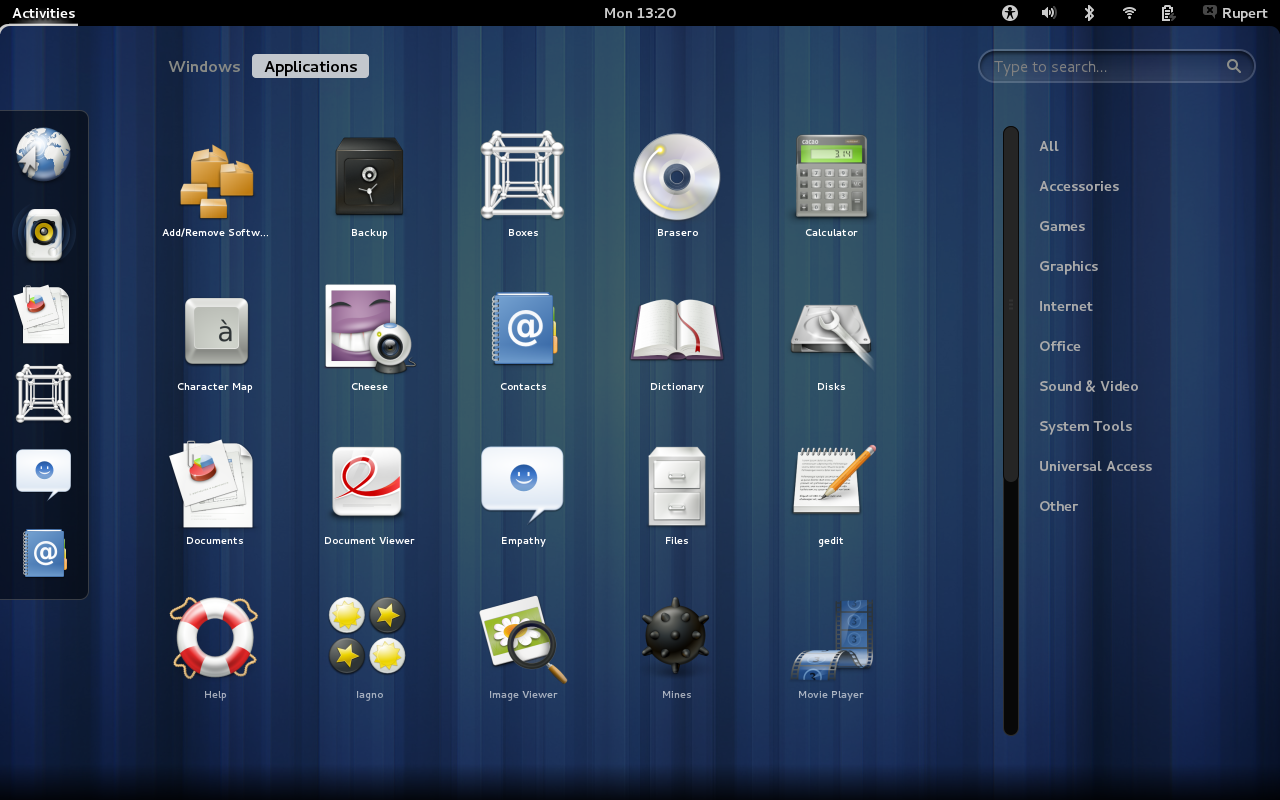
I have used Gnome 3 longer than any other desktop environment. It retained it's ability to be highly customized but also had a very appealing user interface. It can be confusing to start off with because of the lack of minimize and maximize buttons, a dock, or the lack of a file-managing desktop. (All of which can be changed with software like gnome-tweak-tool and docky). The most powerful part of Gnome 3 is something that I called the Sea of Windows (Shown to the left in the picture). It is activated by moving your mouse cursor to the top left corner of the screen (Similar to how the Unity launcher is summoned). There will be a ripple effect and it will show all of your open windows and processes(like Dropbox or Screenlets). This is also where the favorites bar is kept and where Launchers can be stored. Everything in the Sea of Windows is customizable through gtk 3.x themes and gnome-shell themes. (Gnome shell themes being the one that changes this part of the DE).

This paragraph used to be about the instability of gnome when trying to install it on Ubuntu 11.04, and yes, that is a very bad idea if you do not want to kill Unity. It may even make both desktop environments flawed if something goes terribly wrong. However, Ubuntu 11.10 is out and it has fixed the compatibility issues of having Gnome and Unity installed at the same time. In addition to fixing the problem, Gnome 3 has been added to the Ubuntu repositories, so installing it is as simple as using the software center.

Enlightenment 17

 I will admit right off the bat that I have little good to say about E17. It's selling point is the lightweight beauty that it has. It is true that for someone willing to make their DE a hobby that E17 is the best out their for only 4 Megabytes. Some things I noticed was the bottom bar was confusing to use at times and was terrible at hiding itself. It would always overlap any window that entered it's territory. Maximizing and minimizing buttons were included but completely broken. Right click doesn't work on the desktop because left-click takes it's place. It comes with no detection of previously edited global shortcuts, which I didn't really expect it too.

  The only good parts about E17 is that is has the potential to be great AND it is incredibly lightweight (4MB). It comes as sort of a template. But for people not willing to spend days tuning it to their liking it is just not for them.
    Kde 4.6 - Plasma Workspace
I haven't used KDE for quite some time (since about 4.6) the reason being after about two weeks of using it on Ubuntu 11.04 it decided to not boot for me anymore. Also, at every boot I would need to sudo remove kde-window manager, sudo install kde-winder-manager just to get it working.

The release of KDE 4  attempted to change the style of the DE into a prettified masterpiece. One of the first things I discovered was the built-in desktop settings manager. Straight out of the box I was able to activate my wobbly windows, change my color schemes around, and add widgets without having to leave my desktop. Windows users would find it easy to use as well because of the K menu, which resembles the start globe from Windows Vista and Windows 7. There are little things thrown into this desktop environment that make it what it is. Things so small most of the time they go unnoticed. For instance, when a window closes it doesn't abruptly shut down. It sinks into a center point and fades away. Or when a popup from the side of the screen comes out it will glide back to where it came from.

KDE's desktop effects can be turned off with the command alt+shift+f12 if you have a bad/old graphics card. Upon installation it checks to see if your settings allow you to run the Plasma workspace, so it may already be off by default.

The only bad things to say about this desktop environment are that it is not lightweight and that Gnome applications (If you install it over Gnome) keep themes. The download of Kubuntu(Ubuntu with KDE instead of Unity by default) is around 140MB if you already have the kernel and Libreoffice(It tries to install the Libreoffice suite on installation).

Kubuntu will also install KDE-related software if you don't deselect it. (Don't unless you know what you are doing. The Window manager is NOT enough to run KDE). This could lead to jumbled app lists like a System Settings Clone or Kate and Gedit. Two programs that do the same thing but each designed for another DE. Any program from Gnome works on KDE and vice versa, though. Like I mentioned earlier only KDE applications retain themes in KDE.

Extra: KDE can be installed on Windows and Mac too.
KDE also features a Sea of Windows, but it needs work.


The Verdict
  Originally this paragraph hailed KDE as the winner of my competition, but now I feel that Gnome 3.2 has blown it out of the water. This is just opinion, since all of them are very usable desktop. There are the occasional crashes with Gnome, but it's simple, efficient when you start learning the ins and outs of the system (like wikipedia querys from the application search bar), and customizable through CSS. The height of the interference to the user is the occasional popup of the process dock and the always-present activities bar.


To download Gnome 3 your distribution probably has it in the repositories. If not and you would like to try it, there are other versions of Linux that were built with Gnome 3 in mind, like Fedora 16.