Showing posts with label Comparison. Show all posts

Saturday, August 4, 2012

Comparison of Window Managers and Desktop Environments Reloaded

About two years ago I compared all of the popular window managers with one another. Now that I have much more experience with the different desktop environments, I am going to give the COMPLETE rundown of all of the popular graphical environments. Let's start with my personal favorite, awesome Window Manager.

Awesome Window Manager

If KDE is a sword then Awesome Window Manager is a rock. It is a blunt environment that requires a knowledge of Lua to configure it. Windows tile and using the keyboard is pretty much necessary. This would be a very unfamiliar environment for someone coming from a floating Window Manager. However, the stock keyboard combinations and the efficiency of tiling combined with the number of tags by default make it a powerful tool in the hands of an advanced user. Awesome can be customized to do anything the user wants, and if that is an appealing trait and you have the time to configure it to no end then use awesome Window Manager.

Ease-of-Use: 2
Speed: 10
Aesthetics: 4
Productivity: 8

K desktop environment and Kwin
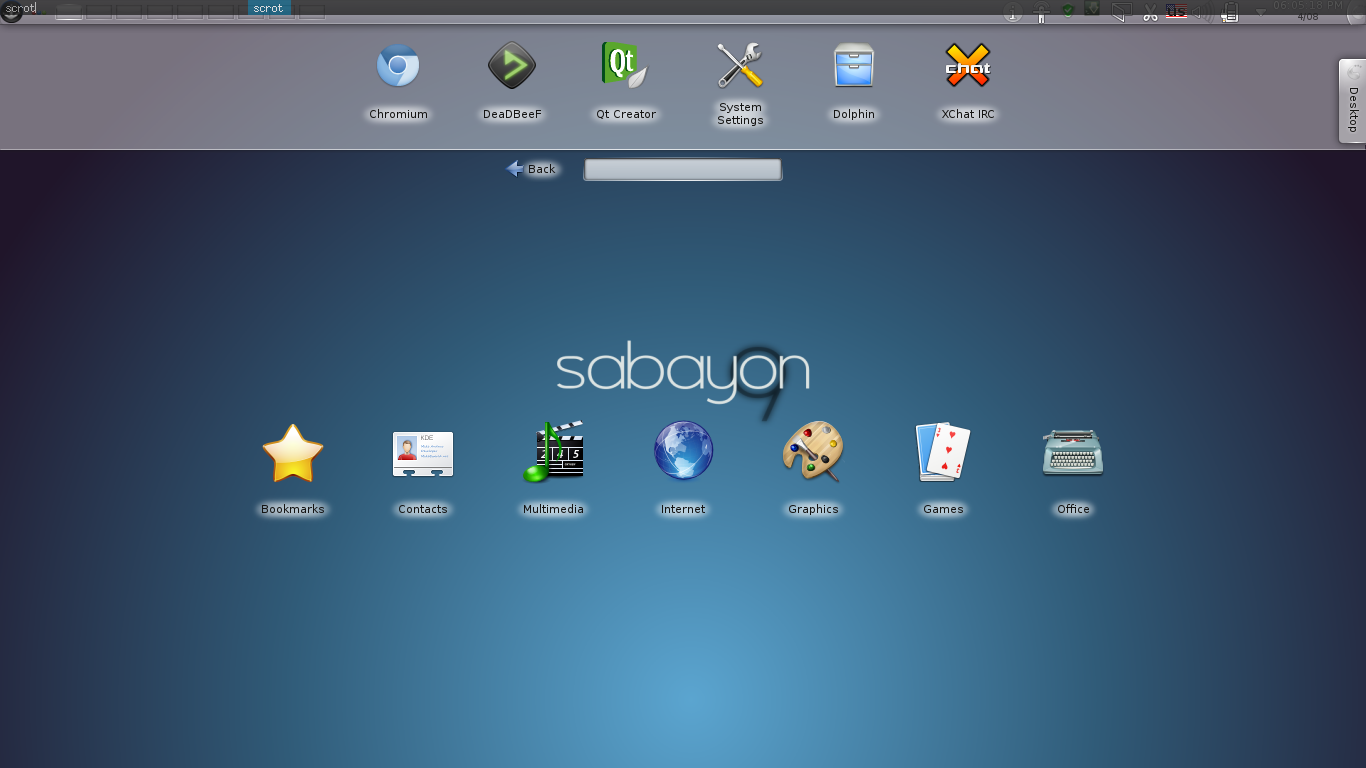
KDE is an impressive desktop environment to say the least. It has received flack online for its bloat, and that is a true problem. Services and superfluous programs clog the environment and bog it down, consuming RAM in the process. The desktop effects will require a graphics card and can slow any other task requiring one down, requiring them to be shut off. The true power of KDE comes from the very trait that gives it a bad reputation: the bloat. If there is something you want your window manager to do, KDE has a tool to do it.

With different activities you can transform your desktop into an Androidd-esque launcher, or set the wallpaper to monitor the local weather or simulate a virus. Tiling Windows, completely customizable keyboard shortcuts delimited by category, and the suite of applications that come as a part of KDE are just some of the great things that KDE has to offer.

Ease-of-Use: 9
Speed: 5
Aesthetics: 9
Productivity: 6

Unity
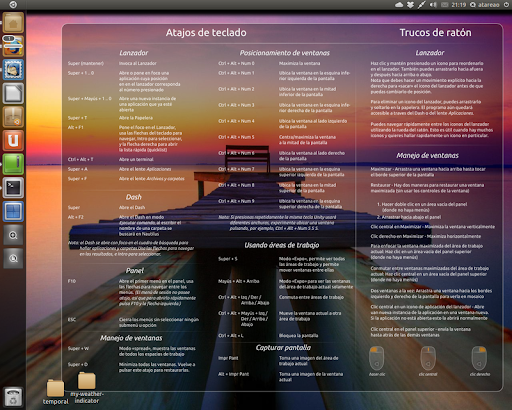
Unity is Canonical's modern user interface for their Ubuntu operating system. Unity was created after a fight with the Gnome 3 developers, and it prompted Gnome to create their own operating system to compete with Ubuntu. [opinion]Unity blows Gnome out of the water.[/opinion] In Ubuntu 11.04 Unity was a mess, but ever since 12.04 and Unity 5 it is a usable interface. It runs GTK, so Gnome programs don't pull a mess of dependencies. It also comes in 2d in the event of a weak graphics card, so Unity will run faster.

Unity is the least customizable of the bunch. There is a launcher on the left side of your screen. There are no options regarding this. The extent of theming that can be done ends with GTK and Icon themes and setting the Opacity of the integrated File menu.

Unity offers a unique feature called the HUD that can search through their integrated file menu (GTK and Qt applications move their options bar to the top of the desktop. This can be disabled.) The HUD is a tool of great productivity, and it learns like Gnome do does. The alt key brings it up and within a few keystrokes you can find an item from the context menu that would have taken a whole minute to navigate to by mouse.

Ease-Of-Use: 8
Speed: 4
Aesthetics: 8
Productivity: 8

Gnome 3
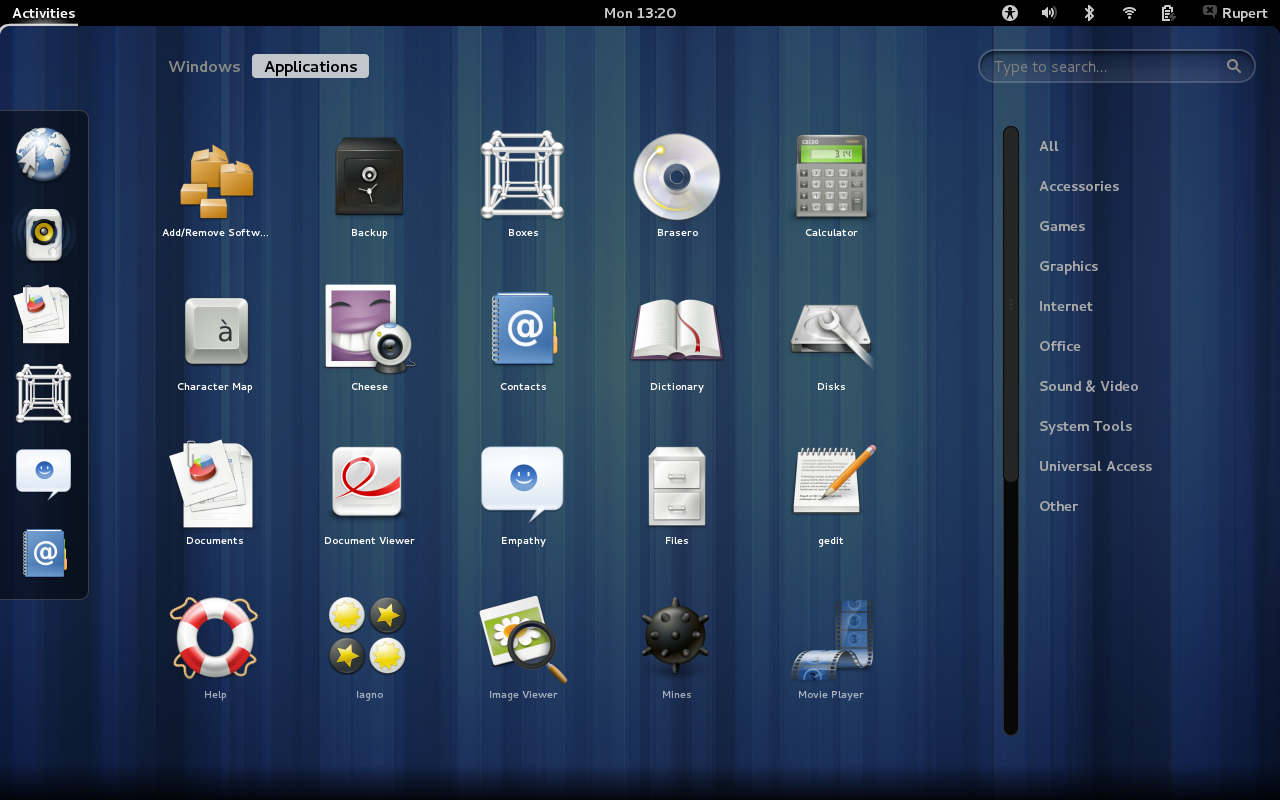
It only makes sense to write about Gnome after the entry about Unity. Gnome is, as Linus Torvalds himself described it: "A train-wreck". A few of the sparse good things to say about gnome are that it is themable and it can be extended with addons or with alterations to the internal settings. Gnome 3 comes with insane defaults (like only having the close button on the control bar and the notifications popping up from the bottom and waiting to be dismissed). If Gnome 3 were lightweight and ran a bit faster it would be a viable candidate. It doesn't, though. It consumes more memory than the plasma-desktop from KDE and does not have an option to lessen the effects like other Desktop Environments.

Ease-Of-Use: 6
Speed: 5
Aesthetics: 8 (the one good thing to say)
Productivity: 4

XFCE
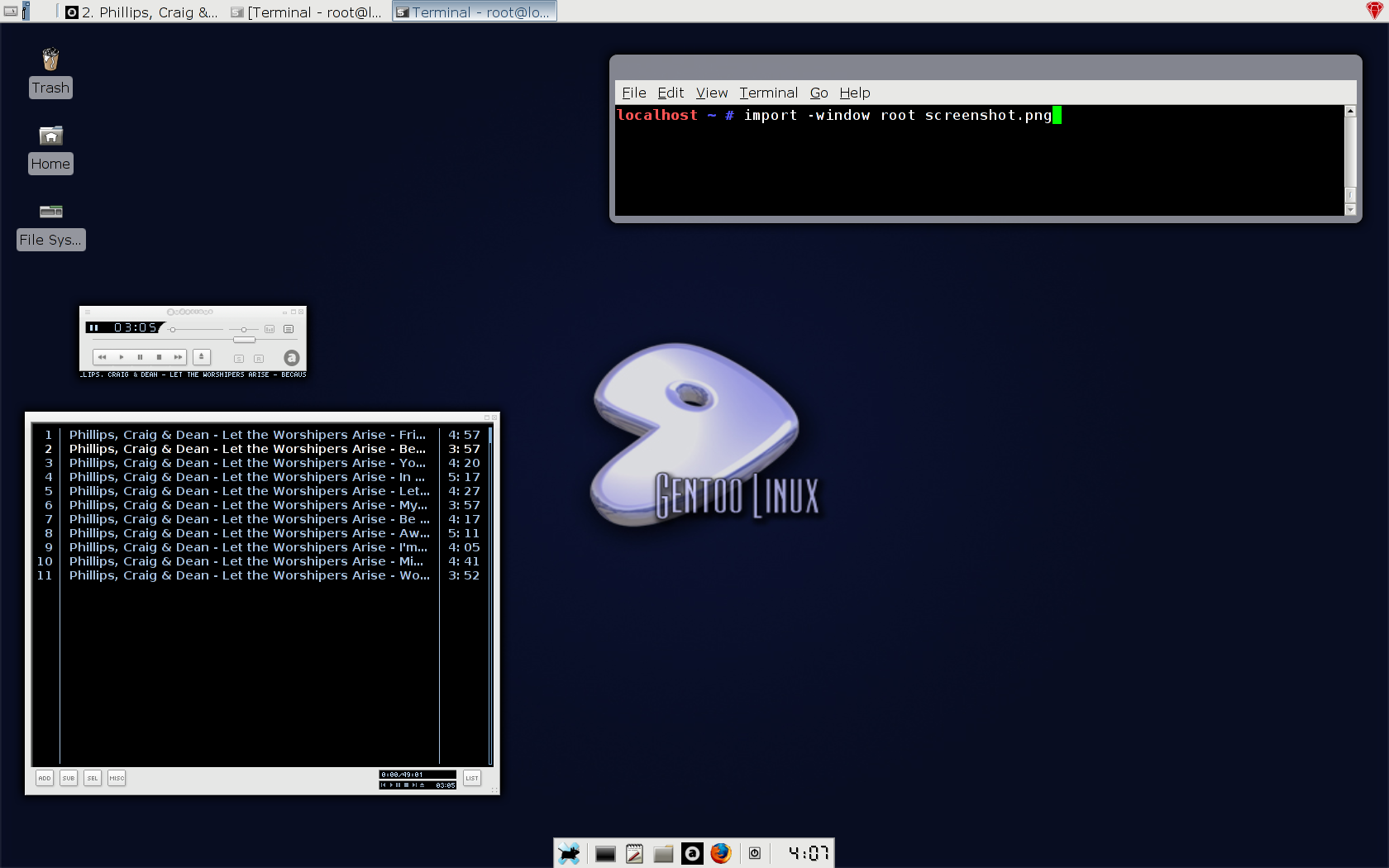
Xfce is most well-known for being a lightweight, low-impact desktop environment. Xfce lives up to that reputation, having a RAM consumption only above that of LXDE and Awesome. In addition to being light it is still aesthetically pleasing and has enough tools to customize it to any user's heart's content (even moreso since 4.10 released the mine type editor).

The workspace system is a bit fluky at times, but that is the only real gripe that XFCE can get. I call this one error "leashed windows". Windows that have focus follow you to other workspaces. This usually only applies to switching using keyboard shortcuts.

 Just like Gnome 2.0 it comes with a panel to search through applications, and option to make launchers and links from the desktop, and applets for its panels. It improves on this with a dock (which many users, myself included, purge and replace with tint2 or another dock application) and a good settings tool. XFCE can do some very advanced things. It can even change its Window Manager. Awesome window manager inside XFCE? You bet.

Most of XFCE's applications can be run outside of XFCE, even the window manager. So you can use any combination of XFCE and another environment of your choice while still keeping a low memory profile since XFCE has very few runtime dependencies.

Ease-Of-Use: 8
Speed: 9
Aesthetics: 6 (But customizable to the point of 10)
Productivity: 8

LXDE

LXDE is a set of tools that combines with the Openbox window manager to create a graphical environment unmatched when it comes to ease-of-use combined with shear speed. Some have argued that because of the seperation of desktop environemnt and window manager that LXDE has a "hacky" feel to it. This is not the case. LXDE is a ligthweight XFCE with Openbox's graphical configuration tools. Lxterminal rivals Gnome terminal, and Lxappearance rivals myunity for theme configuration. In fact, lxappearance is the go-to application for changing gtk themes on other desktop environments, not just LXDE. Some of the default software is chosen well too. Pcmanfm as the file manager, for instance, goes along with the lightweight feel of LXDE. Like KDE and XFCE you can change LXDE's window manager from its configuration dialog.

Ease-of-use: 6
Speed: 7
Aesthetics: 5
Productivity: 7

Enlightenment 17

Enlightenment 17, e17 for short, is an odd desktop environment and graphical library suite written by the enlightenment foundation. It improved heavily on e16 and handles a lot of configuration on its first-time-run dialog. It can be heavily extended through configuration files, but otherwise it remains at the beautiful default.There are issues with the file manager handling the desktop, however, and it may throw the entire look-and-feel of the environment off.

 E17 really needs some work. I have had graphical problems and just found it counter-intuitive after it has been set up.

Ease-of-use: 5
Speed: 5
Aesthetics: 9
Productivity: 5

Dynamic Window Manager

Dynamic window manager is a popular dynamic window manager. Dynamic means that the window manager can float or tile, and in DWM's case monocle and spiral. DWM has no configuration tools and the only way to modify it is via the C source code directly. DWM developers have a philosophy that restricts the window manager to only 2000 lines of code, so large improvements cannot be made. Furthermore, users looking to use a mouse are going to feel left out. Although a mouse can minimally interact with the window manager a user with anything but a keyboard and combinations will be lost.

Ease-of-use: 1
Speed: 10
Aesthetics: 3
Productivity: 5

Cinnamon

When I first tried the most recent version of Linux Mint it came with Cinnamon - their home-grown desktop environment forked from Gnome 3. Cinnamon is the MATE of Gnome 3, you could say.

Cinnamon did not disappoint on the aesthetics. It was visually appealing to the last detail (as it was configured in mint, at least) and had the ability to be themed. The menu is one of the smartest (from a searching and design point-of-view) menus around. From one menu you can search for applications, search by category, and access bookmarked applications. The searching works as good as Gnome 3's does, so you can still use an application if you do not know its name.

Cinnamon comes with a feature called Expo that is one of its selling points. Expo can show a spread of all of your workspaces, and upon hovering over one a cascade of all the windows in that workspace. Clicking on a window will take you to that particular workspace and application window. If you have used Compiz expo, this is the same feature but integrated in the desktop environment.

There were two issues with cinnamon. The menu took 2 seconds and 17% CPU for a few seconds to open. I talked to a Cinnamon developer via IRC about this problem and he confirmed that it had been fixed and will be released in the next major cinnamon update. Along the lines of bugs there are memory leaks in Cinnamon, so it requires a restart after multiple hours of running to free some RAM.

 Another problem is that some of the layouts do not work at times, but at other times they do. There was no word on whether or not this would be fixed or whether or not it is really an issue. Another issue (not a bug) is the lacking of some advanced features from the cinnamon settings dialog, but advanced settings can still be configured with dconf.


Ease-of-use 7
Speed: 4
Aesthetics: 7
Productivity: 4

Others
TWM - Tab window manager. I have not used this long enough to give a definitive answer, but when I used it the window manager worked as it was intended - which isn't enough.


MATE - Displaced by cinnamon

Verdict:

For pure productivity
Awesome Window Manager is the most productive of the window managers if the user has the patience to edit the lua configuration file and learn the keyboard shortcuts.

Speed
For speed dynamic window manager wins. 2000 lines of code execute blazingly fast.

Aesthetics
KDE wins the aesthetics prize, especially if the advanced desktop effects are enabled with the search and launch activity.

Ease-of-use
Once again KDE wins this prize. Everything is handled for the user.

Final Verdict
KDE is the overall best desktop environment, but each has its own niche. To truly determine the best environment, using all of them and deciding on your own is the best way to make a decision.

Saturday, June 16, 2012

Awesome wm Versus Dynamic wm - The Showdown

Awesome and DWM are both Dynamic Window Managers, in fact, that's what dwm stands for. A dynamic window manager can both tile and float (both of these can also monocle). Tiling windows means that screen estate is taken up completely, making use of every pixel. Floating window managers have resizable windows, and moncling window managers only allow one window to take up the screen at one time. Here is a showdown between Awesome and Dynamic:

Configurability
I made that word up, but it is a very important thing to consider when you're talking about window managers. How extensive theme support is, what widgets are available, and how easy it is to change settings all take play a huge role in what a user will choose for themselves in a window manager.

   Dynamic
Dwm is written in <2000 lines of C. In fact, it is capped at 2000. It will never extend past this out of principle. To configure it, one must first edit the source code directly and recompile it. This is quite a burden, but it means that the entire window manager can be customized. You will want to customize it, too, because the default does not supply the user with some things they may want, like a system tray or even a clock.

   Awesome
Awesome has a file called "rc.lua" in /etc/xdg/awesome/rc.lua. This uses the lua programming language to take full control over some awesome settings. I do not know lua, but it was very easy for me to edit this file because of the parameter names. Changes here will be applied on the next login. ALWAYS keep a backup, because sometimes awesome refuses to start if there is a mistake, even if it is as small as a missing bracket.

Defaults
Default settings are important for the type of person that wants their window manager to work for them right out of there box. Tiling window managers are for hobbyists and power users, but somebody that just wants to boost productivity could be looking into them and functionality right out of the box could be really helpful for them.

    Dynamic
Dynamic has a whole set of useful keybindings by default, and they are pretty easy to learn if you take some physical notes. It integrates well with system defaults, like the default terminal for alt+shift+enter (launch terminal). It comes with 9 "tags" (workspaces for ex-unity users). There is one title bar that I felt could have used some work by default. There is no clock, no system tray, and an unnecessary advertisement for the version number of dwm. The learning curve is also a bit high, so don't expect to be able to use your mouse to launch anything. Using the keyboard will become easier as you learn, however. Unimportant: dwm will use your default desktop background.

    Awesome
Awesome comes with some helpful tools by default. There is a physical button on the top bar to change the mode. It has quite a few modes, some of which I disabled in rc.lua because of how useless they seemed. Modes can be switched from the keyboard or the mouse in the top right corner, near the default clock, date, and system tray. The clock is in 24-hour format by default, so if this is not your preferred way of tracking time it will take some getting used to. Awesome also has 9 tags. It comes with a window list on the top bar as well as an application launching button on the top right. The keybindings are very similar to that of dwm, but they use the mod4 (windows symbol, sometimes called "super") key instead of alt.

Extra information
Dwm didn't want to play nice with awn or tint2. Windows would ignore their modifications to the width of the screen and go past it. I found this pretty annoying since it did not include a window list. With a tiling window manager, it would be pretty redundant, but I had to give up a good friend named awn when I switched. Awesome works fine with both. Both of these window managers are BLAZINGLY (another made up word) fast. I have used both xfce and lxde, but both of these stomped on them in comparison.

Startup applications require configuration in both window managers, but this is far easier in awesome.

The Verdict
[opinion]
From about 5 hours of using each of the window managers, I would definitely, without a doubt, recommend Awesome to anybody looking to use a tiling window manager. It can act a bit buggy at times when moving windows by a mouse, but that is just a very minor inconvenience. It is set up very well to use a configuration file and to have some sane defaults. Dwm shoots itself in its own knee by forcing themselves to keep the project under 2000 lines of code, so awesome prospers as a result. I did feel that dwm documentation was pretty good.[/opinion]

Tuesday, May 1, 2012

Comparison of Media Players - Gnu/Linux

Media players are applications that handle the playing of audio and/or video. (In this comparison the listening of music will be the only factor, not how well/if these applications can play video.)
There is wide debate over which media player is superior, and this will list some of the pros and cons of each media player. Of course a lot of information is left out and of course there are a lot more than are listed, but this article will point a media player-hopper in the correct direction.

1. Clementine
 First off, I will state that Clementine is the application that I have used as of late for playing music. Playing music is what its specialty is. However, using Clementine to play a sound file would be overkill. It does a great job of saving your playlists for later listening and includes utilities for mass file renaming and organization.

Clementine can stream music from the internet and sync with devices. Common media player characteristics are included, such as shuffling and looping.

One of the selling points of Clementine is the ability to destroy the main window and have it reduce to the notification icon. From there you can control the volume, pause, play, move to next track, move to previous track, mute, love, ban, quit, or show the main window again. Clementine also integrates into the Ubuntu sound menu.

2. Amarok
  Amarok, the music player commonly paired with KDE due to the use of Qt, is the media player I had used before switching to Clementine. A very unique feature to Amarok that I had never seen before was the automatic fetching of information from wikipedia about the song and the fetching of lyrics. Of course, once the information was fetched it was cached and it does not rely on fetching to function properly. Amarok also integrates with your portable devices and will ask you before it begins to unlock them if they are locked, which can be troublesome if it misidentifies something to be a device.

Amarok is also capable of working without the existence of the main window. It will fall back to a notification icon with previous, pause, play, and next options as well as the option to show the main window.

3. VLC Media Player

VLC is a popular music player that is very good at what it does. It specializes in streaming but can also be used as a general purpose music player. If I have files that I do not want in my common playlist I use VLC since it does not save playlist information through usages. VLC does not excel with audio playback, but is rather used a video streaming/viewing application.

VLC, like Amarok and Clementine, has a notification icon but it cannot live without the main window. VLC has a very good equalizer

4. mplayer
 Mplayer has arguably the largest learning curve out of any of the media players. It does not come with a graphical frontend, so it must be run from the command line. It cannot remember playlists, you must make a playlist and start the application with the playlist as one of the arguments.

Mplayer has frontends available for it, like SMPlayer. Mplayer by itself does not work with the mouse, so you must memorize the keyboard commands to use it. Some find mplayer to be the best way to listen to audio since you can run it without a window or notification icon at all if you so please.

Interestingly enough, mplayer can play videos very well and is my video player of choice.

5. Rhythmbox
Rhythmbox is the default music player in Ubuntu 12.04. Banshee's absence has given Rhythmbox the opportunity to expand. Rhythmbox is now the official applications for the Ubuntu music store. Like Amarok and Clementine, Rhythmbox syncs to devices with arguably the most accuracy of the bunch. Rhythmbox does not have a notification icon and cannot live without keeping the main window open, so controlling the window may seem a bit bulky at first who are used to being able to kill the main window or control the flow of music through a notification icon.

6. DeadBeef
No, this media player is not built of mutilated cow. What it IS built with is C and GTK (I assume it is C, anyway.) The GTK dependency makes it lighter than a media player like Clementine that has Qt bindings. If you use a Gnome, XFCE, LXDE, *box, or Unity desktop environment; the download will only be about 5 MiB.

The Media player does not offer much in the way of customization or organization like Clementine, but it does get the job done like a media player should. It can import / export playlists, list statistics about the current playlist, and most importantly live without the main window and run as a daemon from the system tray. If you want to use Clementine without the elevated RAM usage and superfluous features, DeadBeef is the media player for you.
Honorable mentions
I did not include the following popular media players:

Banshee: Rhythmbox does nearly the same thing as Banshee.

XBMC: "VIM is a text editor; Emacs is an Operating System" is my favorite quote regarding text editors. XBMC is the Emacs of text editors. It is its very own ecosystem and would not be practical to use for multitasking. This is definitely the choice for a user wanting a heavily media-centric computing experience.

Conclusion (opinion)
I cannot call the conclusion fact since all of these media players do exactly what they are supposed to: play media. I just feel that Clementine has the best functionality. It can run in the background or have the main window; it doesn't matter to Clementine. It also does everything that Amarok can do like sync devices, fetch data, and live without a main window, so the presence of those features somewhat invalidates Amarok.

Bear in mind this opinion is only based in audio, and for video mplayer is my choice. I have no justification for this and VLC does just a good as job as mplayer.

Monday, February 27, 2012

My opinions on *BSD

BSD, the Berkley Software Distribution, is one of the least-used variety of Operating System in the world. BSD has been around for a very long time, even before the times of Linux. It is a version of Unix, the grandfather of most Operating Systems. Technically, Mac OS X is a fork of BSD, which is what allows OS X to be POSIX compliant.

There are a few choices to choose from with your distribution of BSD. Like with GNU/Linux, hundreds of them exist. The more popular ones are FreeBSD, OpenBSD, and PC-BSD. PC-BSD is the only one of the bunch that comes with a graphical desktop environment installed by default, so it is considered the "newbie" BSD. Debian is creating a variant of their OS with the BSD kernel and intends to turn it into a major project, but it is still in early development.

FreeBSD is know for its speed. Speed and performance are the two major selling points for BSD; it even claims to run more efficiently than Linux. FreeBSD is not for the feint of heart, however, because it will take some expertise to get it running properly and to install graphics if that is what you wish to do. You will also have to deal with some outdated repositories, since porting them to BSD takes time.

OpenBSD is focused on providing an extremely secure operating system. I can't vouch for its security personally because I never used it on a server, but it seems to be the choice for companies or individuals who want a secure desktop or server.

PC-BSD is the most user friendly version of BSD. It is criticized for coming with a lot of "bloat" preinstalled. Other lightweight versions of BSD do not come with a lot of features installed, usually just a compiler, a text editor, and a few other tools that can be used from the command line. PC-BSD on the other hand comes with X, a graphical desktop environment, and a few graphical tools that other versions do not have preinstalled. If you are new to BSD, I would greatly recommend PC-BSD as a starting point.

Above are my opinions on some of the various distributions of BSD, but I feel differently towards BSD as a whole. I feel that BSD is far behind Linux in terms of support, package updating, and user-friendliness. The first kernel panic I ever experienced was actually in the LiveCD of PC-BSD. Also, the BSD license allows others to edit the source and turn it into proprietary software, which I don't support morally.

In conclusion, *BSD is great for heavy server use, but for practical desktop usage you should go with another alternative, like GNU/Linux.

Friday, July 29, 2011

Comparison of three Linux Operating Systems

A while back I wrote Comparison of Operating Systems, but it turned into more of a tutorial than anything. It only compared Windows and Ubuntu Linux, my current OS. So now I am going to compare Fedora 15, Opensuse 11.4, and Ubuntu 11.4. Let's start with Fedora.

Fedora is a free Linux OS sponsored by Red Hat, the creators of Red Hat enterprise Linux. The fifteenth release (the most recent at the time of writing) includes the Gnome 3 desktop environment in it's fullest form. It has some Gnome features that you can't get from the unstable repository currently available on Ubuntu. It starts off with just a close button, but that can be easily fixed using the Gnome tweak tool. As an Operating System it didn't seem to vary much than how Ubuntu acted when I had Gnome 3 on it. It did have one serious graphical issue. I was doing some 3D graphics at the time using Google Sketchup 8 through Wine and it wouldn't boot in fedora. I did some Googling and sifting through the forums and found that Fedora had some unofficial Nvidia drivers instead of the ones found through Administration>Additional Drivers in Ubuntu. After manually installing these drivers all hell broke loose on the Operating System. It simply wouldn't boot after installing the drivers. This is a known problem and it wasn't something that I had messed up installing them. If you do 3D art or anything else that requires good graphics (Heavy desktop effects, gaming, and 3D just to name a few) then Fedora isn't for any Nvidia user. Otherwise it was a very nice and friendly operating system.


The next Operating System is Arch linux. Looks pretty similar to an OS X and Windows mixtogether, right? Incredibly wrong. When, (and if you are able to) install Arch Linux you have no GUI whatsoever. You need to manually download and configure an X11 Window manager and a desktop environment to get a GUI. However, this makes Arch an extremely lightweight OS when you first download it. Arch is a platform on which you can build upon whatever software you wish. Arch Linux comes with a package manager called Pacman, which many people find to be a step up from apt and it is. Pacman can even give suggestions to what packages you may be looking for if you make a spelling mistake in your query.
Arch can be seen as a canvas where the artist can paint whatever they wish.

The last Operating System in our comparison today is Ubuntu 11.04. Ubuntu started off as a fork from Debian, the Universal Operating System. At first all it aimed to do was improve on Debian's slow update times, but it turned into something else. Now Ubuntu is the distribution of choice for newcomers to the Linux kernel. It is where users aspiring to move beyond it come to learn, and it is where people who want a highly customizable OS come to stay. Because of Debian's popularity, and now Ubuntu's, anything available to Linux is usually available to Ubuntu in the form of a .deb file, which requires 0 source building. I could start complaining about Unity again, but I have already done that and it isn't what this post is about. The installation is made easy with the Live CD, so there is virutally no command line to have to worry about during installation.

The decision...
Even though Ubuntu, Fedora, and Opensuse are great Operating Systems I have to make Arch the winner of this comparison. Arch just gives you the very basics and lets you decide what part of an Operating System you need. Do I use arch? No. Do I think it is a great idea of a Linux enthusiast to use Arch? Yes.

Tuesday, July 19, 2011

Comparison of Desktop environments

This article is ever-so-slightly deprecated. Please see: http://profectium.blogspot.com/2012/08/comparison-of-window-managers-and.html
As you saw in my post below I do not use Unity. I use the currently unstable version of Gnome 3 on my Ubuntu operating system. Today's post is about comparing some popular desktop environments for Linux. XFCE / tiling fans, I'm sorry, but I am not included you in this debate. I do not have any experience with XFCE or many tiling window managers and I wouldn't be able to give a fair report on them.


What desktop environment you choose is a matter of preferences. From the four I have used they all did the same thing in a different, sometimes prettier way.


Unity
The Ubuntu development team dropped Gnome as their default desktop environment on their release of version 11.04 - Natty Narwhal. They swapped it out with a more modern looking desktop environment called Unity. The key features of Unity are a taskbar (With a very intelligent window-dodge system) and header-window integration. For instance, when you open Libreoffice the options file, edit, view, all go to the top panel. As with most Linux desktop environments they can be customized heavily through themes. Unity suffers from a lack of customizability. No matter what color scheme you use or what desktop effects you want you will still always have the taskbar and integration panel hanging around. It is also hard to use for beginners. Icons from the launcher can't be removed and placed on the desktop as you might think. You need to make a whole new launcher to get desktop icons.

Some good points to make about this desktop environment is the familiarity Windows 7 users will have with be able to keep launchers for their favorite apps. This is something that old Gnome versions couldn't do prettily. It also reduces the amount of distraction and increases the screen size for maximum viewing convenience.

Gnome 3
I have used Gnome 3 longer than any other desktop environment. It retained it's ability to be highly customized but also had a very appealing user interface. It can be confusing to start off with because of the lack of minimize and maximize buttons, a dock, or the lack of a file-managing desktop. (All of which can be changed with software like gnome-tweak-tool and docky). The most powerful part of Gnome 3 is something that I called the Sea of Windows (Shown to the left in the picture). It is activated by moving your mouse cursor to the top left corner of the screen (Similar to how the Unity launcher is summoned). There will be a ripple effect and it will show all of your open windows and processes(like Dropbox or Screenlets). This is also where the favorites bar is kept and where Launchers can be stored. Everything in the Sea of Windows is customizable through gtk 3.x themes and gnome-shell themes. (Gnome shell themes being the one that changes this part of the DE).

This paragraph used to be about the instability of gnome when trying to install it on Ubuntu 11.04, and yes, that is a very bad idea if you do not want to kill Unity. It may even make both desktop environments flawed if something goes terribly wrong. However, Ubuntu 11.10 is out and it has fixed the compatibility issues of having Gnome and Unity installed at the same time. In addition to fixing the problem, Gnome 3 has been added to the Ubuntu repositories, so installing it is as simple as using the software center.

Enlightenment 17

 I will admit right off the bat that I have little good to say about E17. It's selling point is the lightweight beauty that it has. It is true that for someone willing to make their DE a hobby that E17 is the best out their for only 4 Megabytes. Some things I noticed was the bottom bar was confusing to use at times and was terrible at hiding itself. It would always overlap any window that entered it's territory. Maximizing and minimizing buttons were included but completely broken. Right click doesn't work on the desktop because left-click takes it's place. It comes with no detection of previously edited global shortcuts, which I didn't really expect it too.

  The only good parts about E17 is that is has the potential to be great AND it is incredibly lightweight (4MB). It comes as sort of a template. But for people not willing to spend days tuning it to their liking it is just not for them.
    Kde 4.6 - Plasma Workspace
I haven't used KDE for quite some time (since about 4.6) the reason being after about two weeks of using it on Ubuntu 11.04 it decided to not boot for me anymore. Also, at every boot I would need to sudo remove kde-window manager, sudo install kde-winder-manager just to get it working.

The release of KDE 4  attempted to change the style of the DE into a prettified masterpiece. One of the first things I discovered was the built-in desktop settings manager. Straight out of the box I was able to activate my wobbly windows, change my color schemes around, and add widgets without having to leave my desktop. Windows users would find it easy to use as well because of the K menu, which resembles the start globe from Windows Vista and Windows 7. There are little things thrown into this desktop environment that make it what it is. Things so small most of the time they go unnoticed. For instance, when a window closes it doesn't abruptly shut down. It sinks into a center point and fades away. Or when a popup from the side of the screen comes out it will glide back to where it came from.

KDE's desktop effects can be turned off with the command alt+shift+f12 if you have a bad/old graphics card. Upon installation it checks to see if your settings allow you to run the Plasma workspace, so it may already be off by default.

The only bad things to say about this desktop environment are that it is not lightweight and that Gnome applications (If you install it over Gnome) keep themes. The download of Kubuntu(Ubuntu with KDE instead of Unity by default) is around 140MB if you already have the kernel and Libreoffice(It tries to install the Libreoffice suite on installation).

Kubuntu will also install KDE-related software if you don't deselect it. (Don't unless you know what you are doing. The Window manager is NOT enough to run KDE). This could lead to jumbled app lists like a System Settings Clone or Kate and Gedit. Two programs that do the same thing but each designed for another DE. Any program from Gnome works on KDE and vice versa, though. Like I mentioned earlier only KDE applications retain themes in KDE.

Extra: KDE can be installed on Windows and Mac too.
KDE also features a Sea of Windows, but it needs work.


The Verdict
  Originally this paragraph hailed KDE as the winner of my competition, but now I feel that Gnome 3.2 has blown it out of the water. This is just opinion, since all of them are very usable desktop. There are the occasional crashes with Gnome, but it's simple, efficient when you start learning the ins and outs of the system (like wikipedia querys from the application search bar), and customizable through CSS. The height of the interference to the user is the occasional popup of the process dock and the always-present activities bar.


To download Gnome 3 your distribution probably has it in the repositories. If not and you would like to try it, there are other versions of Linux that were built with Gnome 3 in mind, like Fedora 16.

Friday, March 18, 2011

Email service comparison

As you probably know email is a service that allows you to send text and files of various formats to a recipient that also has an email address. There are a few services around and each of them offers some unique bonuses. In this post I will compare the three major email providers that I have experience with.

Hotmail email - Hotmail email is a free service provided by Windows. Creating a hotmail account will create a Windows live ID, which can offer a wide range of services (which will be talked about later). Hotmail offers a secure HTTPS login through the Microsoft cooperation. That probably doesn't mean much to you.) The hotmail inbox will show you all the unread or read messages that you have. There will be a checkbox where you can mark messages as junk (unsafe sender), delete (deletes it), Mark as - Unread, flagged, unflagged, move to (Move to a folder), and phishing scam (Trying to reveal information about you for profit.). You can create folders, which are areas where you can drag emails to categorize them. For example you could have Work, school, social, and family folders. You can attach a file to an email to deliver it in it's current form to a recipient. The Hotmail attachment system isn't the most secure out of the three, but upload speeds are quick for all attachments. Hotmail's spam protection works well for most things but lets more spam by than Yahoo! or Gmail.

Yahoo! email - Yahoo email is provided by the search engine based company Yahoo!. When you create a Yahoo! account you unlock a wide range of services provided by Yahoo. Two notable services are the Yahoo! email (which I'll get to in a minute) and Yahoo! answers. Yahoo! answers is a place where you can ask questions and have them answered by other users of the service. They established a point system to keep the asked / answered ratio in balance. You need to answer 3 questions before you can ask one (roughly). The actual Yahoo! mailing service is very similar to Hotmail's. You are able to access the Yahoo! messenger directly from your inbox. Messages can be arranged in folders like the Hotmail service. The Yahoo! Spam detection is a lot more accurate than hotmail's but it sometimes leaves non-spam messages in the spam folder. They are easy to remove but to access them you have to dig threw the wall of spam that will probably be calling the spam folder it's home. Be sure to clear it out often. You can also attach files with this email. All attachments are scanned with Norton Antivirus on the sending and receiving ends to make doubly sure that the attachment isn't some form of malaware. Linux 64-bit users will be forced to use Yahoo! mail classic with a GUI much less pleasing than the most up-to-date one. Yahoo! doesn't use a secure HTTPS connection.

Google's G-mail - Gmail takes a few of the services from the two I mentioned earlier and then provides some original Google services. To create a Gmail account you will need a Google account. This is one of the few email accounts that requires a phonecall or text verification to create. There's pretty much no getting around this. After you type the confirmation code it (it will be similar to an audio Captcha challenge) your G-mail will be created Automatically. What you currently see is a Canvas inbox. There are few (if any) emails in it and it has no applied themes. Gmail offers the ability to add visual themes to the inbox. G-mail also has a calendar that can send alerts to your desktop if there is an event coming up. Instead of folders Google has what are called Labels (similar to Blogger labels) that can be searched. More than one label can be applied to an email.For the first time out of any email service G-mail also allows you view your inbox offline. (Going by the last saved "draft" of your inbox.) You get 7564 MB of storage. This is a LOT of space and emails take up very little. To help you take up the free space on your Google memory you can store some files here. You will need to download this Drive Shell extension first. Then download the .zip file and extract it in any folder on your computer. Run the setup file and put in your Google account information. The G-mail drive should now appear under the "Other" section of your computer tab. (The place that displays your memory for backup, OS, and removable File system on Windows computers.)

Conclusion
I have always been a Google supporter. I do not have a biased opinion though. I always choose the service that provides the best products. This time Google wins again with the G-mail service. The offline inbox availability is a major breakthrough for anyone with a flaky internet connection. The label to email linking is also a convenient feature for finding mail later on. Lastly, the ability to add 7564 MB of storage to your system for free is what really puts the G-mail service above the rest. To give you an idea of how large 7,564 MB is my 2,000 pictures only take up 365 MB of space. I would be able to save all of these on my Google drive and still have 7,200 MB left. I could save all of my 2,000 pictures about 20 times before I ran out of room. That is 40,000 high-quality pictures that could be saved online for free.

Non related information
be sure to check out the newly updated D.O.W operations page. The war for internet anonymity has begun (see the bottom.)