Over the past few days I have been teaching myself the very basics of Clojure (with a bit of difficulty), and I have been questioning whether or not Clojure is worth the trouble of learning about immutability, concurrency, and functional programming. After all, Clojure is one of the youngest and least cared about programming languages around, so why should the trouble be worth the time?
In this blog post I discuss whether or not Clojure is worth learning in my first installation on a line of blog posts concerning Clojure and functional programming.
Clojure is hard
The title says it all. As a programmer that has mostly worked in languages within the Algol branch (C++, Java, etc) the functional paradigm seems like a scary thing. Not being able to change the state of a vector or a map is equally as frightening at first, and having threads be such an integral part of the language does not soften the situation. Learning Clojure, especially since it is such a young language, is no easy task. Having a background in Python (or Lisp) and Java is almost an absolute must before you can even consider Clojure.
As you will read this hard work pays off.
Why Clojure is a good idea
A while ago I had a foray into Lisp and really left Lisp half-learned before I got antsy. The most recent documentation regarding Lisp was from around 2002, it had no unified (or good, for that matter) graphical toolkit, and it had major gaps in its usability in terms of strange forms (loop) and stack overhead when you don't want to use them. Although Lisp has its flaws, it is a wonderful language that allows the programmer to be concise with their code through something called Higher Order Functions. A single function can serve multiple purposes, a trait that I call programmatic nonlocality. In fact, I was able to rewrite an old text library from Java (originally 320-some lines) in less than 100 using Lisp.
However, Lisp has the shortcomings and the dead community that I described above. Meanwhile, the C*, Vala, Python, and especially Java communities (since the dawn of Android) have been experiencing a golden age of popularity. Not a single student in my High School Java class had written in Lisp; only one had so much as heard of its existence. Clojure is Lisp that compiles to the Java Virtual Machine, as you probably know if you are reading this article. That gives it the power to be compatible backwards and forwards with Java. This is called interoperability. Now you can have the elegance of Lisp without the guilt of using a nonpractical language. All of the Java libraries become available to you, and any Clojure libraries become available in Java. This comes into great use when dealing with functions conditionally has caused a massive decision tree, or when working with data trees requires good recursive capabilities. The "Hard Part" can be written in Clojure, and then you leave the sloppy imperative stuff up to Java.
The ability to enhance your Java programs with this "secret sauce" of computing is a trait that you should definitely look for as a programmer that is always looking to improve themselves. I have also found that the principles of Clojure are transferable to other programming languages. A programmer will think of how to solve a problem in Clojure and then implement it in whatever language they choose.
Downfalls
Most of the issues with Clojure will probably be short lived. In the world of programming Clojure is one of the youngest languages out there. (Right up there with Vala and LOLcode). The documentation is outdated, and bugs still exist within the language. Also, Clojure is not used on many projects yet because of its immaturity. This means that you may be the only person on your team that knows Clojure. Of course, that also implies that when you need help there will be a very limited community to lend you a hand.
Predictions
In general, most of the problems that Clojure faces comes from a small community of developers lucky enough to hear about Clojure before it gets big. I am convinced that Clojure will become more-and-more relevant in the coming years. Clojure is a language designed specifically to solve the problems introduced by other languages, and to create a modern toolkit for modern applications such as parallelism.
Applications
Clojure can be used wherever the 9 billion devices that use Java are used, even for Android applications. It compiles to a .class file that can interop with Java seamlessly.
Conclusion
Clojure is a strange language born out of a strange paradigm and the striving for perfection; the repair of the shortcomings of the languages before it. Learning Clojure will increase your ability as a programmer in general and how you use Java specifically to create efficient applications. Clojure is definitely worth learning, despite how hard it is for beginners and intermediate programmers alike.
Sunday, September 16, 2012

Sunday, September 9, 2012
A quick review of Clojure
I just want to start off by saying that I do NOT KNOW CLOJURE. I have only experimented a little bit with it and do not have any professional opinions about it. These are my thoughts as a newcomer to the language coming from a Java / lisp background.
A bit about Clojure
Clojure is a Lisp dialect that compiles directly to bytecode for the Java Virtual Machine (JVM) like Java itself does. This gives it a property called Java Interopibility. This is one of Clojure's selling points. Java and Clojure are both completely compatible with one another in a compiled format. This means that you can use Java libraries in your Clojure project and vice versa. Even Swing / Awt graphical user interfaces can be integrated with your clojure project just as they would be in Java.
The Good
To start off Clojure IS a Lisp, and Lisp's syntax is terse and beautiful </opinion>. Clojure has fixed some of Lisp's problems, especially the awful way for handling iteration. In Clojure there is a macro called loop just like in Lisp, but the syntax is easier to follow. Here is an example using loop.
(loop [x 5] (print (concat "looping " (str x) " more times")) (if (= 0 x) nil (recur (- x 1))))
This is obviously written in terrible form since it is pretty procedural, but this is supposed to showcase how loop works. It is a let form that can be returned to with recur. The magic here is that this does not create a stack overhead. No more stack overflows! Of course, infinite recursion can become a problem. But now recursing can be much lighter on the resources and you no longer need to declare a local function to recurse.
The best thing about Clojure is the Java interop, though. Java is one of the most widely used programming languages out there, running on billions of devices and being responsible for Android, desktop applications, and embedded systems in some cases. When you use Clojure you do not lose this massive support, or any Java libraries you have coded up in the past.
Clojure is an open-source project and you can view the source code for all of the base Clojure functions right on the github page.
The not-so-good
Clojure has a confusing means of editing data directly since just about everything but variables (declared with (def)) are immutable; they cannot be changed. This pretty much forces the functional paradigm down the programmer's throat and can actually halt good practice in some cases.
The language is young and not very well known. Its popularity is on the incline into the mainstream, but for now it is still an obscure language. Very few practical programs are written in Clojure and the documentation leaves a bit to be desired on the official Clojure website.
Also due to its lack of popularity as of right now there are few Clojure libraries to play with. However, Java Interop makes this less of a problem than it would with other languages (like Common Lisp, for instance).
The tools used to write Clojure are not as good as Common Lisp's yet, in my opinion at least. Emacs does not have a Clojure-mode, but one can be added through a third-party repository (although I could not get it working for the life of me on Emacs 24). Eclipse also has a plugin called counterclockwise that hooks up to the Lein REPL and provides tools for saving and compiling Clojure.
Clojure Resources
#clojure on Freenode IRC seems like _THE_ meeting place to discuss clojure and ask for help, or just to brag about something you wrote in Clojure. Even Clojure Programming by Emerick Carper & Grand , the de-facto Clojure book for beginners and intermediate Clojure programmers mentions #clojure.
A bit about Clojure
Clojure is a Lisp dialect that compiles directly to bytecode for the Java Virtual Machine (JVM) like Java itself does. This gives it a property called Java Interopibility. This is one of Clojure's selling points. Java and Clojure are both completely compatible with one another in a compiled format. This means that you can use Java libraries in your Clojure project and vice versa. Even Swing / Awt graphical user interfaces can be integrated with your clojure project just as they would be in Java.
The Good
To start off Clojure IS a Lisp, and Lisp's syntax is terse and beautiful </opinion>. Clojure has fixed some of Lisp's problems, especially the awful way for handling iteration. In Clojure there is a macro called loop just like in Lisp, but the syntax is easier to follow. Here is an example using loop.
(loop [x 5] (print (concat "looping " (str x) " more times")) (if (= 0 x) nil (recur (- x 1))))
This is obviously written in terrible form since it is pretty procedural, but this is supposed to showcase how loop works. It is a let form that can be returned to with recur. The magic here is that this does not create a stack overhead. No more stack overflows! Of course, infinite recursion can become a problem. But now recursing can be much lighter on the resources and you no longer need to declare a local function to recurse.
The best thing about Clojure is the Java interop, though. Java is one of the most widely used programming languages out there, running on billions of devices and being responsible for Android, desktop applications, and embedded systems in some cases. When you use Clojure you do not lose this massive support, or any Java libraries you have coded up in the past.
Clojure is an open-source project and you can view the source code for all of the base Clojure functions right on the github page.
The not-so-good
Clojure has a confusing means of editing data directly since just about everything but variables (declared with (def)) are immutable; they cannot be changed. This pretty much forces the functional paradigm down the programmer's throat and can actually halt good practice in some cases.
The language is young and not very well known. Its popularity is on the incline into the mainstream, but for now it is still an obscure language. Very few practical programs are written in Clojure and the documentation leaves a bit to be desired on the official Clojure website.
Also due to its lack of popularity as of right now there are few Clojure libraries to play with. However, Java Interop makes this less of a problem than it would with other languages (like Common Lisp, for instance).
The tools used to write Clojure are not as good as Common Lisp's yet, in my opinion at least. Emacs does not have a Clojure-mode, but one can be added through a third-party repository (although I could not get it working for the life of me on Emacs 24). Eclipse also has a plugin called counterclockwise that hooks up to the Lein REPL and provides tools for saving and compiling Clojure.
Clojure Resources
#clojure on Freenode IRC seems like _THE_ meeting place to discuss clojure and ask for help, or just to brag about something you wrote in Clojure. Even Clojure Programming by Emerick Carper & Grand , the de-facto Clojure book for beginners and intermediate Clojure programmers mentions #clojure.
Saturday, September 1, 2012
Common Lisp Tutorial preamble

Welcome to my Lisp tutorial. Just a while ago Lisp was a foreign language to me, and through study and determination (and a boatload of help from IRC users) I am finally started to get a grasp on the language. As a return to the Lisp community I will be writing the most extensive guide on this blog yet in a hope to teach Common Lisp to a complete newcomer to the language.
On IRC, many were in favor of using Common Lisp as a first programming language. I am in strong support of teaching FUNCTIONAL programming as the first paradigm, but I am not in support of using Lisp for this purpose. For this reason the tutorial assumes a background in another programming language, but what that language is does not matter. If you know what the terms global variable, function (method), and structure mean then you are ready to learn Lisp.
Tuesday, August 28, 2012
Manjaro Linux review
***DEPRECATED***
Although some information on this page is relevant, it is outdated by a few months. A new version of Manjaro is out and there is a separate review for it: http://profectium.blogspot.com/2012/11/manjaro-linux-82-review.html
Manjaro Linux is a Linux distribution based on Arch Linux. Arch, for those that do not know, is a distribution designed to be completely minimal; this allows the user to build their system from the ground up. Manarjo is Arch Linux for people that want a functioning system out of the box. Using Manjaro still awards the user with the features of Arch Linux while being wrapped in a user friendly package.

Installation
Manjaro Linux is very easy to install. It uses X by default but still uses an ncurses user interface that opens in a terminal to install. The installation takes considerably longer than any other Linux distribution I have ever seen before, mainly on the formatting part. The partition editor did not recognize my other partitions either, so I had to use the entire disk. The problems with the installer will be fixed some time this fall when the Manjaro Linux team finishes their graphical installer. If you have ever installed Archbang, it's basically the exact same experience.
First Impressions
Manjaro uses the lightdm display manager just like Ubuntu does. There is a sacrifice between memory usage and aesthetics here, however. Lightdm uses about 50 MiB more RAM than gdm does, and /etc/inittab is nowhere to be found. For those that do not want to kill lightdm and start X manually on every boot this could be a dealbreaker. I was not happy with this.
When choosing which CD .iso to install I chose XFCE. To my surprise it was heavily patched for Manjaro Linux. The entire XFCE experience was wonderful in terms of additions that the Manjaro Linux team made. I presume that the other desktop environment options are just as friendly if not moreso than the XFCE version of the distribution.
Prolonged use impressions *new*
I have recently discovered a very troubling bit on information about Manjaro. If you notice in the screenshot, 585 MiB of RAM was in use. This is a nominal sum in today's age, where having 8+ GiB of RAM is commonplace, but what is using all of that memory? It turns out that a kernel module named nvidia was installed during the Manjaro installation.
It dawned on me that Manjaro DID provide a boot option to not install video card graphics drivers, but I instead installed the drivers. Following this guide I blacklisted the nvidia kernel driver and restarted the kernel. Upon doing this X was completely brought to its knees by the absence of the Nvidia driver. X DEPENDS on the Nvidia driver as it is used in Manjaro Linux.
Manjaro Linux does not provide a flexible graphical system to meet the needs of a graphics-intensive user as well as one who does not use graphics. Rather, they polarized their distribution with two extremes that conflict with one another.
Installing Software
Unlike Archbang the pacman (package manager) mirrorlist is functional right out of the box and does not need any updating. Pacman even comes with a graphical frontend, making installing software possible for beginners.
The autoconf tools suite was not there by default, however. This made installing packages from the Arch User Repository (AUR) difficult. Any user wishing to compile their own software will also have to take the detour of manually installing the three packages that make up autotools.
Non-manjaro specific Arch Linux evaluation
Arch Linux, the system that Manjaro is based on, has quite a bit going for it. It is arguably the best documented distribution around with its wiki and forum. The AUR and official repositories are as up-to-date as portage, which until now has been the best repository tree I have ever used. Pacman is a bit cumbersome to use from the command line (pacman -Syu to update does not make immediate sense), but it is one of the selling points of Arch Linux.
Conclusion
If you are a user interested in Manjaro Linux it is completely usable as-is. For a user with a bit less experience with Arch Linux it would probably be wise to wait until the graphical installer is released to avoid the partitioning confusion that all users of Manjaro have run into so far.
After discovered the issue with X recently I have decided to jump ship to Fedora Linux. However, it is a very minor issue since the nvidia module only takes up about 111 MiB of RAM. The scary part about the issue is that other shortcuts like the X-dependency or lightdm could be lurking in the background of Manjaro Linux, making it an unreliable computing platform.
Although some information on this page is relevant, it is outdated by a few months. A new version of Manjaro is out and there is a separate review for it: http://profectium.blogspot.com/2012/11/manjaro-linux-82-review.html
Manjaro Linux is a Linux distribution based on Arch Linux. Arch, for those that do not know, is a distribution designed to be completely minimal; this allows the user to build their system from the ground up. Manarjo is Arch Linux for people that want a functioning system out of the box. Using Manjaro still awards the user with the features of Arch Linux while being wrapped in a user friendly package.

Installation
Manjaro Linux is very easy to install. It uses X by default but still uses an ncurses user interface that opens in a terminal to install. The installation takes considerably longer than any other Linux distribution I have ever seen before, mainly on the formatting part. The partition editor did not recognize my other partitions either, so I had to use the entire disk. The problems with the installer will be fixed some time this fall when the Manjaro Linux team finishes their graphical installer. If you have ever installed Archbang, it's basically the exact same experience.
First Impressions
Manjaro uses the lightdm display manager just like Ubuntu does. There is a sacrifice between memory usage and aesthetics here, however. Lightdm uses about 50 MiB more RAM than gdm does, and /etc/inittab is nowhere to be found. For those that do not want to kill lightdm and start X manually on every boot this could be a dealbreaker. I was not happy with this.
When choosing which CD .iso to install I chose XFCE. To my surprise it was heavily patched for Manjaro Linux. The entire XFCE experience was wonderful in terms of additions that the Manjaro Linux team made. I presume that the other desktop environment options are just as friendly if not moreso than the XFCE version of the distribution.
Prolonged use impressions *new*
I have recently discovered a very troubling bit on information about Manjaro. If you notice in the screenshot, 585 MiB of RAM was in use. This is a nominal sum in today's age, where having 8+ GiB of RAM is commonplace, but what is using all of that memory? It turns out that a kernel module named nvidia was installed during the Manjaro installation.
It dawned on me that Manjaro DID provide a boot option to not install video card graphics drivers, but I instead installed the drivers. Following this guide I blacklisted the nvidia kernel driver and restarted the kernel. Upon doing this X was completely brought to its knees by the absence of the Nvidia driver. X DEPENDS on the Nvidia driver as it is used in Manjaro Linux.
Manjaro Linux does not provide a flexible graphical system to meet the needs of a graphics-intensive user as well as one who does not use graphics. Rather, they polarized their distribution with two extremes that conflict with one another.
Installing Software
Unlike Archbang the pacman (package manager) mirrorlist is functional right out of the box and does not need any updating. Pacman even comes with a graphical frontend, making installing software possible for beginners.
The autoconf tools suite was not there by default, however. This made installing packages from the Arch User Repository (AUR) difficult. Any user wishing to compile their own software will also have to take the detour of manually installing the three packages that make up autotools.
Non-manjaro specific Arch Linux evaluation
Arch Linux, the system that Manjaro is based on, has quite a bit going for it. It is arguably the best documented distribution around with its wiki and forum. The AUR and official repositories are as up-to-date as portage, which until now has been the best repository tree I have ever used. Pacman is a bit cumbersome to use from the command line (pacman -Syu to update does not make immediate sense), but it is one of the selling points of Arch Linux.
Conclusion
If you are a user interested in Manjaro Linux it is completely usable as-is. For a user with a bit less experience with Arch Linux it would probably be wise to wait until the graphical installer is released to avoid the partitioning confusion that all users of Manjaro have run into so far.
After discovered the issue with X recently I have decided to jump ship to Fedora Linux. However, it is a very minor issue since the nvidia module only takes up about 111 MiB of RAM. The scary part about the issue is that other shortcuts like the X-dependency or lightdm could be lurking in the background of Manjaro Linux, making it an unreliable computing platform.
Saturday, August 4, 2012
Comparison of Window Managers and Desktop Environments Reloaded
About two years ago I compared all of the popular window managers with one another. Now that I have much more experience with the different desktop environments, I am going to give the COMPLETE rundown of all of the popular graphical environments. Let's start with my personal favorite, awesome Window Manager.
Awesome Window Manager

If KDE is a sword then Awesome Window Manager is a rock. It is a blunt environment that requires a knowledge of Lua to configure it. Windows tile and using the keyboard is pretty much necessary. This would be a very unfamiliar environment for someone coming from a floating Window Manager. However, the stock keyboard combinations and the efficiency of tiling combined with the number of tags by default make it a powerful tool in the hands of an advanced user. Awesome can be customized to do anything the user wants, and if that is an appealing trait and you have the time to configure it to no end then use awesome Window Manager.
Ease-of-Use: 2
Speed: 10
Aesthetics: 4
Productivity: 8
K desktop environment and Kwin

KDE is an impressive desktop environment to say the least. It has received flack online for its bloat, and that is a true problem. Services and superfluous programs clog the environment and bog it down, consuming RAM in the process. The desktop effects will require a graphics card and can slow any other task requiring one down, requiring them to be shut off. The true power of KDE comes from the very trait that gives it a bad reputation: the bloat. If there is something you want your window manager to do, KDE has a tool to do it.
With different activities you can transform your desktop into an Androidd-esque launcher, or set the wallpaper to monitor the local weather or simulate a virus. Tiling Windows, completely customizable keyboard shortcuts delimited by category, and the suite of applications that come as a part of KDE are just some of the great things that KDE has to offer.
Ease-of-Use: 9
Speed: 5
Aesthetics: 9
Productivity: 6
Unity
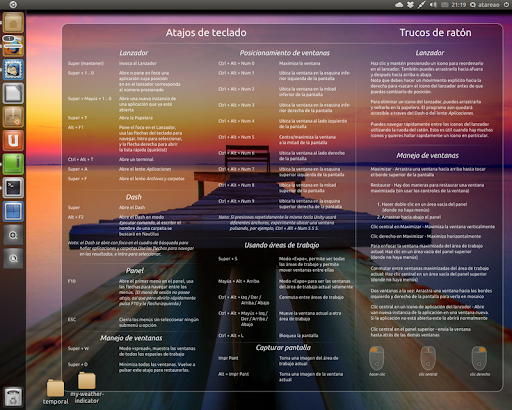
Unity is Canonical's modern user interface for their Ubuntu operating system. Unity was created after a fight with the Gnome 3 developers, and it prompted Gnome to create their own operating system to compete with Ubuntu. [opinion]Unity blows Gnome out of the water.[/opinion] In Ubuntu 11.04 Unity was a mess, but ever since 12.04 and Unity 5 it is a usable interface. It runs GTK, so Gnome programs don't pull a mess of dependencies. It also comes in 2d in the event of a weak graphics card, so Unity will run faster.
Unity is the least customizable of the bunch. There is a launcher on the left side of your screen. There are no options regarding this. The extent of theming that can be done ends with GTK and Icon themes and setting the Opacity of the integrated File menu.
Unity offers a unique feature called the HUD that can search through their integrated file menu (GTK and Qt applications move their options bar to the top of the desktop. This can be disabled.) The HUD is a tool of great productivity, and it learns like Gnome do does. The alt key brings it up and within a few keystrokes you can find an item from the context menu that would have taken a whole minute to navigate to by mouse.
Ease-Of-Use: 8
Speed: 4
Aesthetics: 8
Productivity: 8
Gnome 3

It only makes sense to write about Gnome after the entry about Unity. Gnome is, as Linus Torvalds himself described it: "A train-wreck". A few of the sparse good things to say about gnome are that it is themable and it can be extended with addons or with alterations to the internal settings. Gnome 3 comes with insane defaults (like only having the close button on the control bar and the notifications popping up from the bottom and waiting to be dismissed). If Gnome 3 were lightweight and ran a bit faster it would be a viable candidate. It doesn't, though. It consumes more memory than the plasma-desktop from KDE and does not have an option to lessen the effects like other Desktop Environments.
Ease-Of-Use: 6
Speed: 5
Aesthetics: 8 (the one good thing to say)
Productivity: 4
XFCE

Xfce is most well-known for being a lightweight, low-impact desktop environment. Xfce lives up to that reputation, having a RAM consumption only above that of LXDE and Awesome. In addition to being light it is still aesthetically pleasing and has enough tools to customize it to any user's heart's content (even moreso since 4.10 released the mine type editor).
The workspace system is a bit fluky at times, but that is the only real gripe that XFCE can get. I call this one error "leashed windows". Windows that have focus follow you to other workspaces. This usually only applies to switching using keyboard shortcuts.
Just like Gnome 2.0 it comes with a panel to search through applications, and option to make launchers and links from the desktop, and applets for its panels. It improves on this with a dock (which many users, myself included, purge and replace with tint2 or another dock application) and a good settings tool. XFCE can do some very advanced things. It can even change its Window Manager. Awesome window manager inside XFCE? You bet.
Most of XFCE's applications can be run outside of XFCE, even the window manager. So you can use any combination of XFCE and another environment of your choice while still keeping a low memory profile since XFCE has very few runtime dependencies.
Ease-Of-Use: 8
Speed: 9
Aesthetics: 6 (But customizable to the point of 10)
Productivity: 8
LXDE

LXDE is a set of tools that combines with the Openbox window manager to create a graphical environment unmatched when it comes to ease-of-use combined with shear speed. Some have argued that because of the seperation of desktop environemnt and window manager that LXDE has a "hacky" feel to it. This is not the case. LXDE is a ligthweight XFCE with Openbox's graphical configuration tools. Lxterminal rivals Gnome terminal, and Lxappearance rivals myunity for theme configuration. In fact, lxappearance is the go-to application for changing gtk themes on other desktop environments, not just LXDE. Some of the default software is chosen well too. Pcmanfm as the file manager, for instance, goes along with the lightweight feel of LXDE. Like KDE and XFCE you can change LXDE's window manager from its configuration dialog.
Ease-of-use: 6
Speed: 7
Aesthetics: 5
Productivity: 7
Enlightenment 17

Enlightenment 17, e17 for short, is an odd desktop environment and graphical library suite written by the enlightenment foundation. It improved heavily on e16 and handles a lot of configuration on its first-time-run dialog. It can be heavily extended through configuration files, but otherwise it remains at the beautiful default.There are issues with the file manager handling the desktop, however, and it may throw the entire look-and-feel of the environment off.
E17 really needs some work. I have had graphical problems and just found it counter-intuitive after it has been set up.
Ease-of-use: 5
Speed: 5
Aesthetics: 9
Productivity: 5
Dynamic Window Manager

Dynamic window manager is a popular dynamic window manager. Dynamic means that the window manager can float or tile, and in DWM's case monocle and spiral. DWM has no configuration tools and the only way to modify it is via the C source code directly. DWM developers have a philosophy that restricts the window manager to only 2000 lines of code, so large improvements cannot be made. Furthermore, users looking to use a mouse are going to feel left out. Although a mouse can minimally interact with the window manager a user with anything but a keyboard and combinations will be lost.
Ease-of-use: 1
Speed: 10
Aesthetics: 3
Productivity: 5
Cinnamon

When I first tried the most recent version of Linux Mint it came with Cinnamon - their home-grown desktop environment forked from Gnome 3. Cinnamon is the MATE of Gnome 3, you could say.
Cinnamon did not disappoint on the aesthetics. It was visually appealing to the last detail (as it was configured in mint, at least) and had the ability to be themed. The menu is one of the smartest (from a searching and design point-of-view) menus around. From one menu you can search for applications, search by category, and access bookmarked applications. The searching works as good as Gnome 3's does, so you can still use an application if you do not know its name.
Cinnamon comes with a feature called Expo that is one of its selling points. Expo can show a spread of all of your workspaces, and upon hovering over one a cascade of all the windows in that workspace. Clicking on a window will take you to that particular workspace and application window. If you have used Compiz expo, this is the same feature but integrated in the desktop environment.
There were two issues with cinnamon. The menu took 2 seconds and 17% CPU for a few seconds to open. I talked to a Cinnamon developer via IRC about this problem and he confirmed that it had been fixed and will be released in the next major cinnamon update. Along the lines of bugs there are memory leaks in Cinnamon, so it requires a restart after multiple hours of running to free some RAM.
Another problem is that some of the layouts do not work at times, but at other times they do. There was no word on whether or not this would be fixed or whether or not it is really an issue. Another issue (not a bug) is the lacking of some advanced features from the cinnamon settings dialog, but advanced settings can still be configured with dconf.
Ease-of-use 7
Speed: 4
Aesthetics: 7
Productivity: 4
Others
TWM - Tab window manager. I have not used this long enough to give a definitive answer, but when I used it the window manager worked as it was intended - which isn't enough.
MATE - Displaced by cinnamon
Verdict:
For pure productivity
Awesome Window Manager is the most productive of the window managers if the user has the patience to edit the lua configuration file and learn the keyboard shortcuts.
Speed
For speed dynamic window manager wins. 2000 lines of code execute blazingly fast.
Aesthetics
KDE wins the aesthetics prize, especially if the advanced desktop effects are enabled with the search and launch activity.
Ease-of-use
Once again KDE wins this prize. Everything is handled for the user.
Final Verdict
KDE is the overall best desktop environment, but each has its own niche. To truly determine the best environment, using all of them and deciding on your own is the best way to make a decision.
Awesome Window Manager

If KDE is a sword then Awesome Window Manager is a rock. It is a blunt environment that requires a knowledge of Lua to configure it. Windows tile and using the keyboard is pretty much necessary. This would be a very unfamiliar environment for someone coming from a floating Window Manager. However, the stock keyboard combinations and the efficiency of tiling combined with the number of tags by default make it a powerful tool in the hands of an advanced user. Awesome can be customized to do anything the user wants, and if that is an appealing trait and you have the time to configure it to no end then use awesome Window Manager.
Ease-of-Use: 2
Speed: 10
Aesthetics: 4
Productivity: 8
K desktop environment and Kwin
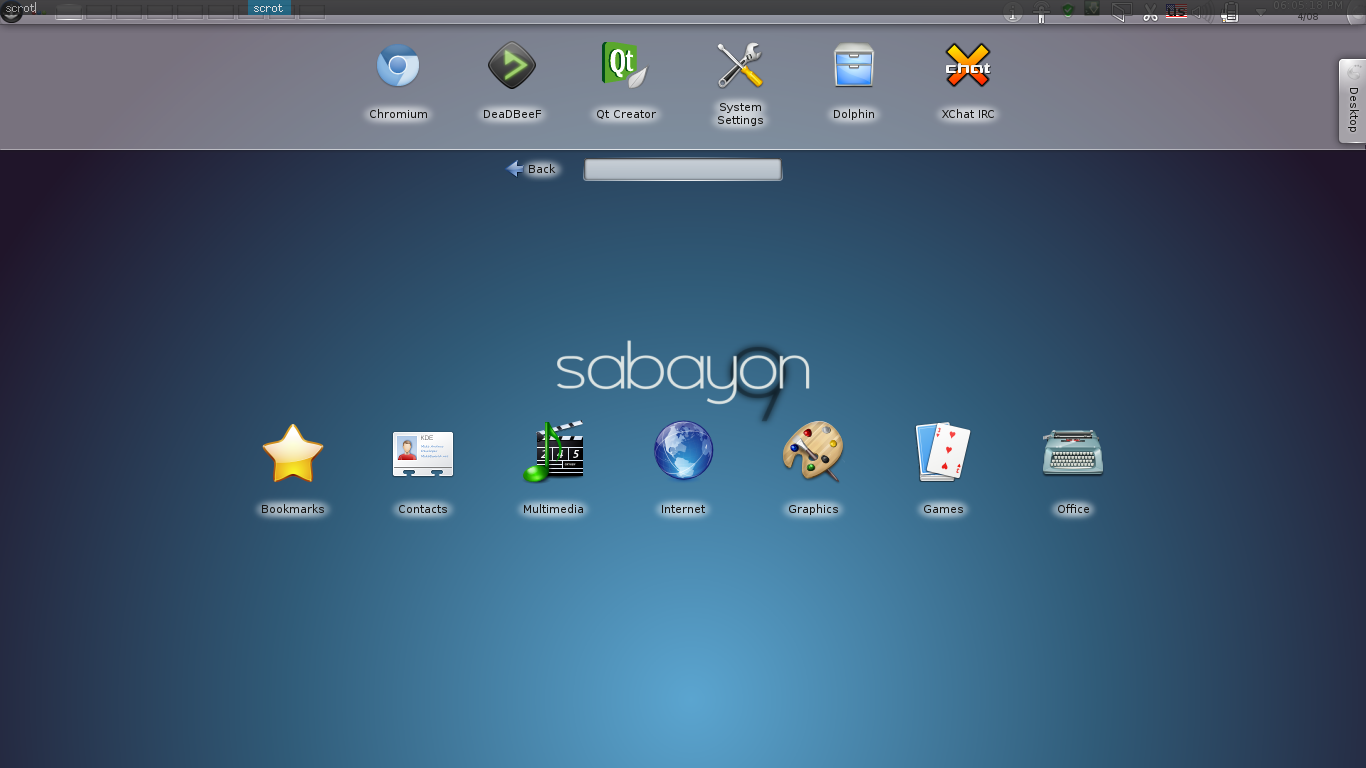
KDE is an impressive desktop environment to say the least. It has received flack online for its bloat, and that is a true problem. Services and superfluous programs clog the environment and bog it down, consuming RAM in the process. The desktop effects will require a graphics card and can slow any other task requiring one down, requiring them to be shut off. The true power of KDE comes from the very trait that gives it a bad reputation: the bloat. If there is something you want your window manager to do, KDE has a tool to do it.
With different activities you can transform your desktop into an Androidd-esque launcher, or set the wallpaper to monitor the local weather or simulate a virus. Tiling Windows, completely customizable keyboard shortcuts delimited by category, and the suite of applications that come as a part of KDE are just some of the great things that KDE has to offer.
Ease-of-Use: 9
Speed: 5
Aesthetics: 9
Productivity: 6
Unity
Unity is Canonical's modern user interface for their Ubuntu operating system. Unity was created after a fight with the Gnome 3 developers, and it prompted Gnome to create their own operating system to compete with Ubuntu. [opinion]Unity blows Gnome out of the water.[/opinion] In Ubuntu 11.04 Unity was a mess, but ever since 12.04 and Unity 5 it is a usable interface. It runs GTK, so Gnome programs don't pull a mess of dependencies. It also comes in 2d in the event of a weak graphics card, so Unity will run faster.
Unity is the least customizable of the bunch. There is a launcher on the left side of your screen. There are no options regarding this. The extent of theming that can be done ends with GTK and Icon themes and setting the Opacity of the integrated File menu.
Unity offers a unique feature called the HUD that can search through their integrated file menu (GTK and Qt applications move their options bar to the top of the desktop. This can be disabled.) The HUD is a tool of great productivity, and it learns like Gnome do does. The alt key brings it up and within a few keystrokes you can find an item from the context menu that would have taken a whole minute to navigate to by mouse.
Ease-Of-Use: 8
Speed: 4
Aesthetics: 8
Productivity: 8
Gnome 3
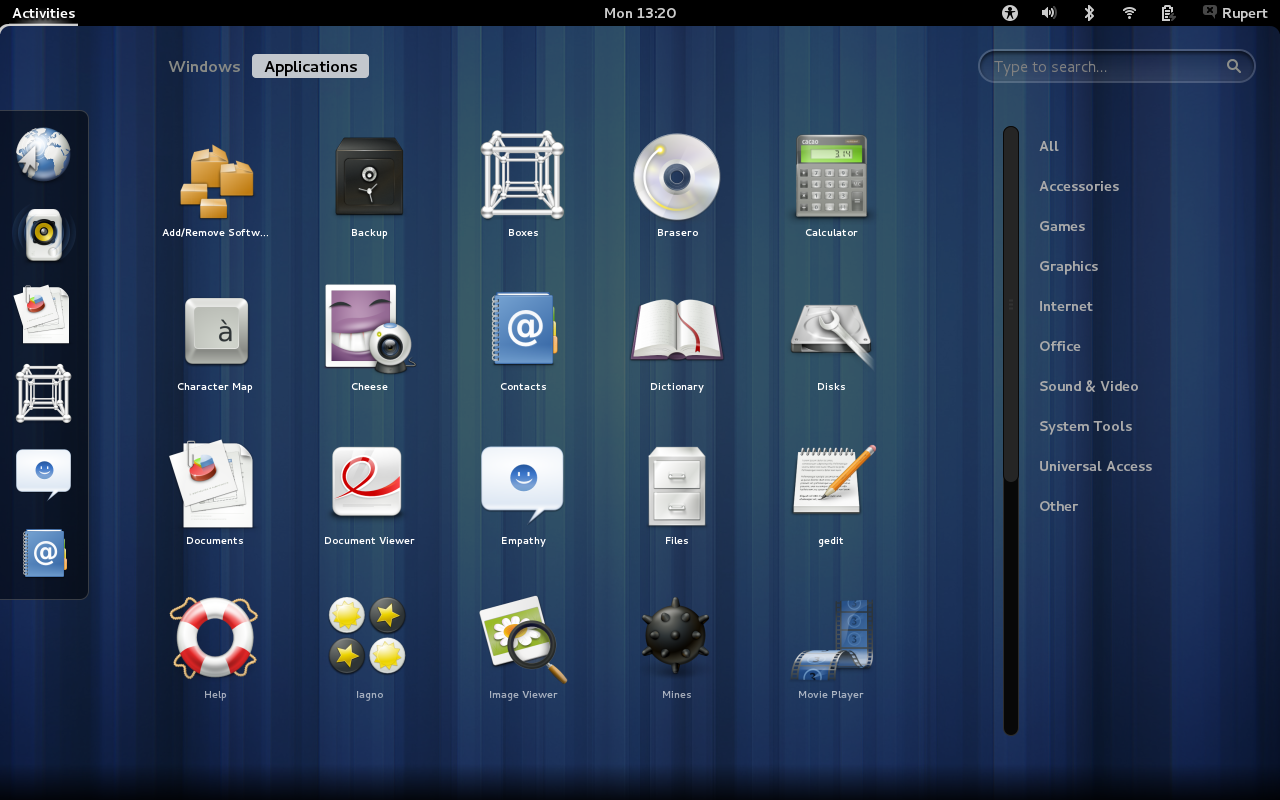
It only makes sense to write about Gnome after the entry about Unity. Gnome is, as Linus Torvalds himself described it: "A train-wreck". A few of the sparse good things to say about gnome are that it is themable and it can be extended with addons or with alterations to the internal settings. Gnome 3 comes with insane defaults (like only having the close button on the control bar and the notifications popping up from the bottom and waiting to be dismissed). If Gnome 3 were lightweight and ran a bit faster it would be a viable candidate. It doesn't, though. It consumes more memory than the plasma-desktop from KDE and does not have an option to lessen the effects like other Desktop Environments.
Ease-Of-Use: 6
Speed: 5
Aesthetics: 8 (the one good thing to say)
Productivity: 4
XFCE
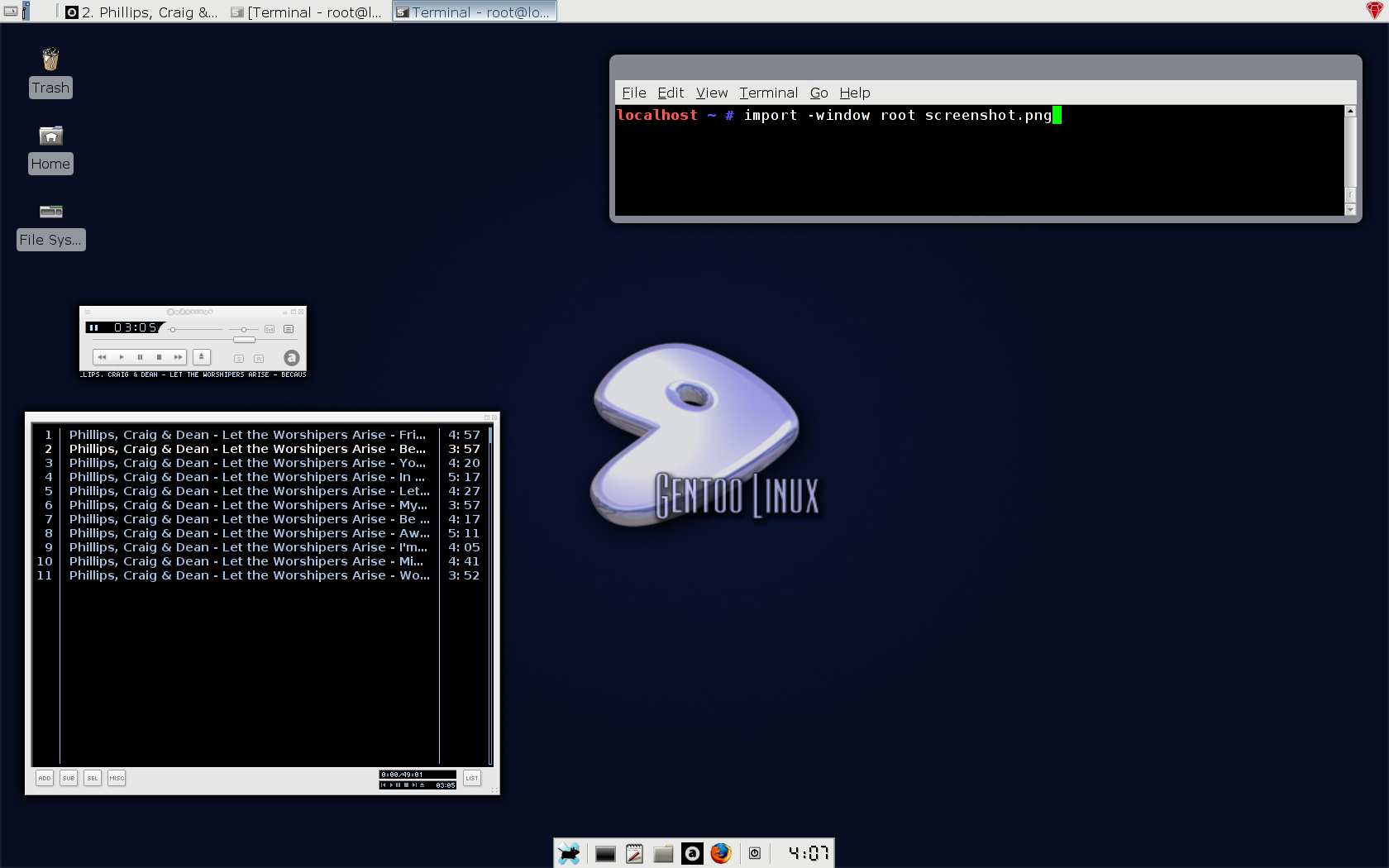
Xfce is most well-known for being a lightweight, low-impact desktop environment. Xfce lives up to that reputation, having a RAM consumption only above that of LXDE and Awesome. In addition to being light it is still aesthetically pleasing and has enough tools to customize it to any user's heart's content (even moreso since 4.10 released the mine type editor).
The workspace system is a bit fluky at times, but that is the only real gripe that XFCE can get. I call this one error "leashed windows". Windows that have focus follow you to other workspaces. This usually only applies to switching using keyboard shortcuts.
Just like Gnome 2.0 it comes with a panel to search through applications, and option to make launchers and links from the desktop, and applets for its panels. It improves on this with a dock (which many users, myself included, purge and replace with tint2 or another dock application) and a good settings tool. XFCE can do some very advanced things. It can even change its Window Manager. Awesome window manager inside XFCE? You bet.
Most of XFCE's applications can be run outside of XFCE, even the window manager. So you can use any combination of XFCE and another environment of your choice while still keeping a low memory profile since XFCE has very few runtime dependencies.
Ease-Of-Use: 8
Speed: 9
Aesthetics: 6 (But customizable to the point of 10)
Productivity: 8
LXDE

LXDE is a set of tools that combines with the Openbox window manager to create a graphical environment unmatched when it comes to ease-of-use combined with shear speed. Some have argued that because of the seperation of desktop environemnt and window manager that LXDE has a "hacky" feel to it. This is not the case. LXDE is a ligthweight XFCE with Openbox's graphical configuration tools. Lxterminal rivals Gnome terminal, and Lxappearance rivals myunity for theme configuration. In fact, lxappearance is the go-to application for changing gtk themes on other desktop environments, not just LXDE. Some of the default software is chosen well too. Pcmanfm as the file manager, for instance, goes along with the lightweight feel of LXDE. Like KDE and XFCE you can change LXDE's window manager from its configuration dialog.
Ease-of-use: 6
Speed: 7
Aesthetics: 5
Productivity: 7
Enlightenment 17

Enlightenment 17, e17 for short, is an odd desktop environment and graphical library suite written by the enlightenment foundation. It improved heavily on e16 and handles a lot of configuration on its first-time-run dialog. It can be heavily extended through configuration files, but otherwise it remains at the beautiful default.There are issues with the file manager handling the desktop, however, and it may throw the entire look-and-feel of the environment off.
E17 really needs some work. I have had graphical problems and just found it counter-intuitive after it has been set up.
Ease-of-use: 5
Speed: 5
Aesthetics: 9
Productivity: 5
Dynamic Window Manager

Dynamic window manager is a popular dynamic window manager. Dynamic means that the window manager can float or tile, and in DWM's case monocle and spiral. DWM has no configuration tools and the only way to modify it is via the C source code directly. DWM developers have a philosophy that restricts the window manager to only 2000 lines of code, so large improvements cannot be made. Furthermore, users looking to use a mouse are going to feel left out. Although a mouse can minimally interact with the window manager a user with anything but a keyboard and combinations will be lost.
Ease-of-use: 1
Speed: 10
Aesthetics: 3
Productivity: 5
Cinnamon

When I first tried the most recent version of Linux Mint it came with Cinnamon - their home-grown desktop environment forked from Gnome 3. Cinnamon is the MATE of Gnome 3, you could say.
Cinnamon did not disappoint on the aesthetics. It was visually appealing to the last detail (as it was configured in mint, at least) and had the ability to be themed. The menu is one of the smartest (from a searching and design point-of-view) menus around. From one menu you can search for applications, search by category, and access bookmarked applications. The searching works as good as Gnome 3's does, so you can still use an application if you do not know its name.
Cinnamon comes with a feature called Expo that is one of its selling points. Expo can show a spread of all of your workspaces, and upon hovering over one a cascade of all the windows in that workspace. Clicking on a window will take you to that particular workspace and application window. If you have used Compiz expo, this is the same feature but integrated in the desktop environment.
There were two issues with cinnamon. The menu took 2 seconds and 17% CPU for a few seconds to open. I talked to a Cinnamon developer via IRC about this problem and he confirmed that it had been fixed and will be released in the next major cinnamon update. Along the lines of bugs there are memory leaks in Cinnamon, so it requires a restart after multiple hours of running to free some RAM.
Another problem is that some of the layouts do not work at times, but at other times they do. There was no word on whether or not this would be fixed or whether or not it is really an issue. Another issue (not a bug) is the lacking of some advanced features from the cinnamon settings dialog, but advanced settings can still be configured with dconf.
Ease-of-use 7
Speed: 4
Aesthetics: 7
Productivity: 4
Others
TWM - Tab window manager. I have not used this long enough to give a definitive answer, but when I used it the window manager worked as it was intended - which isn't enough.
MATE - Displaced by cinnamon
Verdict:
For pure productivity
Awesome Window Manager is the most productive of the window managers if the user has the patience to edit the lua configuration file and learn the keyboard shortcuts.
Speed
For speed dynamic window manager wins. 2000 lines of code execute blazingly fast.
Aesthetics
KDE wins the aesthetics prize, especially if the advanced desktop effects are enabled with the search and launch activity.
Ease-of-use
Once again KDE wins this prize. Everything is handled for the user.
Final Verdict
KDE is the overall best desktop environment, but each has its own niche. To truly determine the best environment, using all of them and deciding on your own is the best way to make a decision.
Wednesday, July 25, 2012
Piping input and Redirection - Linux
A program interacts with two essential principles: input and output. The Linux command line allows us to skew these principles in something called IO redirection and piping, which is a very helpful thing to be able to do. If you already know C++ then your knowledge of the << and >> operators will come in handy.
About
Redirection
Redirection allows you to move output somewhere else. For instance, dmesg > file.txt would move the
would move the output of "dmesg" into file.txt instead of to standard output. Input redirection is like output
redirection, but it gets its input from somewhere else.
Piping
Piping is using one program's output as another's input.
How to use IO redirection and piping
We will be using dmesg and espeak for our example. If you cannot get a hold of espeak, it is a program that outputs text given to it as an argument as audio.
Output Redirection
The greater than symbol, ">", is used to shoot output into somewhere else, usually a file. An example would be ls > file.txt which puts the output of "ls" into file.txt.
Input Redirection
Much like >, < is used to redirect input. Input Redirection can be confusing. It uses a file or some other source to get the input for a program. An example would be espeak < file.txt. This will use file.txt as input for espeak.
Combining IO redirection
The following example is going to gather input from a file, get the output, and put it in another file.
wc < my_files > wc_output. This calls wc on my_files and puts it to wc_output. It would look like this with parenthesis: (wc < my_file)>wc_output. To use this as input, you would need to do program < wc < my_files > wc_output. That is overly complicated, so we will use piping.
Piping
Piping is a very important concept. It uses the pipe bar ( | ) to use the output of one program as input for another. So far we have used ls to put its output in a file and then used espeak to read that file. Now we are going to combine the steps. ls | espeak. What that line means is that the output of ls is going to be piped to espeak as input. Of course, you can still use IO redirection to get espeak's output into some file by using >.
What is Portage and how to use it
Gentoo Gnu/Linux is a notoriously hard-to-install minimal Linux distribution. Like many Gnu/Linux distributions it has a package manager and repositories that hold software that can be installed onto a system. Gentoo, unlike other distributions, uses a repository of source code as its primary method of installing software (similar to the FreeBSD source trees). Compiling the source code of your programs provides a few benefits, including a performance gain and source-level customization. Here is how Portage works:
Setting up portage
emerge is the Portage's interface. You may see on online guides emerge X (emerge [anything]) and get the "package not found" message. This is because portage does not have the repositories synced by default. To sync the repository, run emerge --sync. This will take some time (it took about 20 minutes at 138 KiB/second). This gets a file with the names of the packages, their categories, and a bit more information. You will see a list of all of the applications available to you fly down your screen. It was moving at such a steady speed that I was unsure of whether or not it was downloading a file, but when I disabled my wireless connection it was indeed relying on the internet for this step.
General Portage Usage
You can now install software with emerge name, where name is the name of the package that you want to install. If you are searching for a package in the repositories, you can use emerge --search query or emerge --searchdesc query to search through the documentation as well.
What to expect when emerging
When you emerge a file, Portage will hide nothing from you. It outputs all the steps, including logging into an FTP server. If it seems to stop working, use the command tail -f /var/log/emerge-fetch.log in another terminal window. This will repeatedly output the next line in emerge-fetch.log, which is where fetching progress is stored.
After the program has been fetched, it will run through a list of conditions required to install the program. You will see "Checking blah for blah blah" repeated a lot of times, and then it will install the program. Yes, source compilers, it goes through the makefile.
Keeping Portage up-to-date
Always remember to do an emerge --sync every two days or so to keep your repositories up-to-date. When a new version of Portage comes out, emerge portage will install it. To update your system, the command emerge --update --deep --with-bdeps=y --newuse world will update everything on your system, including USE flags and build dependencies.
Removing Software with Portage
We all have those bad days where we install a rotten package, or it just conflicts with something else on the system. To uninstall it, use emerge --unmerge X where X is the software to remove.
USE flags
General Portage usage
Two other useful tricks are emerge --fetchonly X and emerge --pretend X. The first one will only download the software and cache it; it will not install. The second command will not download anything, but it will calculate the dependencies and tell you how much space you need to install it with. Along the same lines of --pretend, --ask will make sure that the user wants to download the software after they see the size.
Test it out
Here are the commands necessary to emerge firefox (yes, it is really this easy):

Setting up portage
emerge is the Portage's interface. You may see on online guides emerge X (emerge [anything]) and get the "package not found" message. This is because portage does not have the repositories synced by default. To sync the repository, run emerge --sync. This will take some time (it took about 20 minutes at 138 KiB/second). This gets a file with the names of the packages, their categories, and a bit more information. You will see a list of all of the applications available to you fly down your screen. It was moving at such a steady speed that I was unsure of whether or not it was downloading a file, but when I disabled my wireless connection it was indeed relying on the internet for this step.
General Portage Usage
You can now install software with emerge name, where name is the name of the package that you want to install. If you are searching for a package in the repositories, you can use emerge --search query or emerge --searchdesc query to search through the documentation as well.
What to expect when emerging
When you emerge a file, Portage will hide nothing from you. It outputs all the steps, including logging into an FTP server. If it seems to stop working, use the command tail -f /var/log/emerge-fetch.log in another terminal window. This will repeatedly output the next line in emerge-fetch.log, which is where fetching progress is stored.
After the program has been fetched, it will run through a list of conditions required to install the program. You will see "Checking blah for blah blah" repeated a lot of times, and then it will install the program. Yes, source compilers, it goes through the makefile.
Keeping Portage up-to-date
Always remember to do an emerge --sync every two days or so to keep your repositories up-to-date. When a new version of Portage comes out, emerge portage will install it. To update your system, the command emerge --update --deep --with-bdeps=y --newuse world will update everything on your system, including USE flags and build dependencies.
Removing Software with Portage
We all have those bad days where we install a rotten package, or it just conflicts with something else on the system. To uninstall it, use emerge --unmerge X where X is the software to remove.
USE flags
Use flags are an important part of the Portage environment. USE flags tell Portage what your tastes are in certain kinds of packages. For instance, if you were to download a flight simulator WITHOUT a "3d" use-flag, it wouldn't download 3d support. If you had "3d" as a use-flag, it would download it if the package recommended it. /etc/portage/make.conf is where your USE flags are stored. You define it like this:
USE="-X -aqua -dvd gnome"
A list of USE flags is stored here: http://www.gentoo.org/dyn/use-index.xml
Extra documentation on USE flags can be found here: http://www.gentoo.org/doc/en/handbook/handbook-x86.xml?part=2&chap=2
Two other useful tricks are emerge --fetchonly X and emerge --pretend X. The first one will only download the software and cache it; it will not install. The second command will not download anything, but it will calculate the dependencies and tell you how much space you need to install it with. Along the same lines of --pretend, --ask will make sure that the user wants to download the software after they see the size.
Test it out
Here are the commands necessary to emerge firefox (yes, it is really this easy):
A Warning to the Impatient
Compilation takes a very long time for large programs like Firefox or qtcreator. It can take hours on a new machine, and the older a processor is the worse it will do. Gentoo is not for you if you cannot wait a few hours for a large piece of software to install. I figure that it is unlikely you sat around for Gentoo to compile if this was the case, but be warned.
Subscribe to:
Posts (Atom)